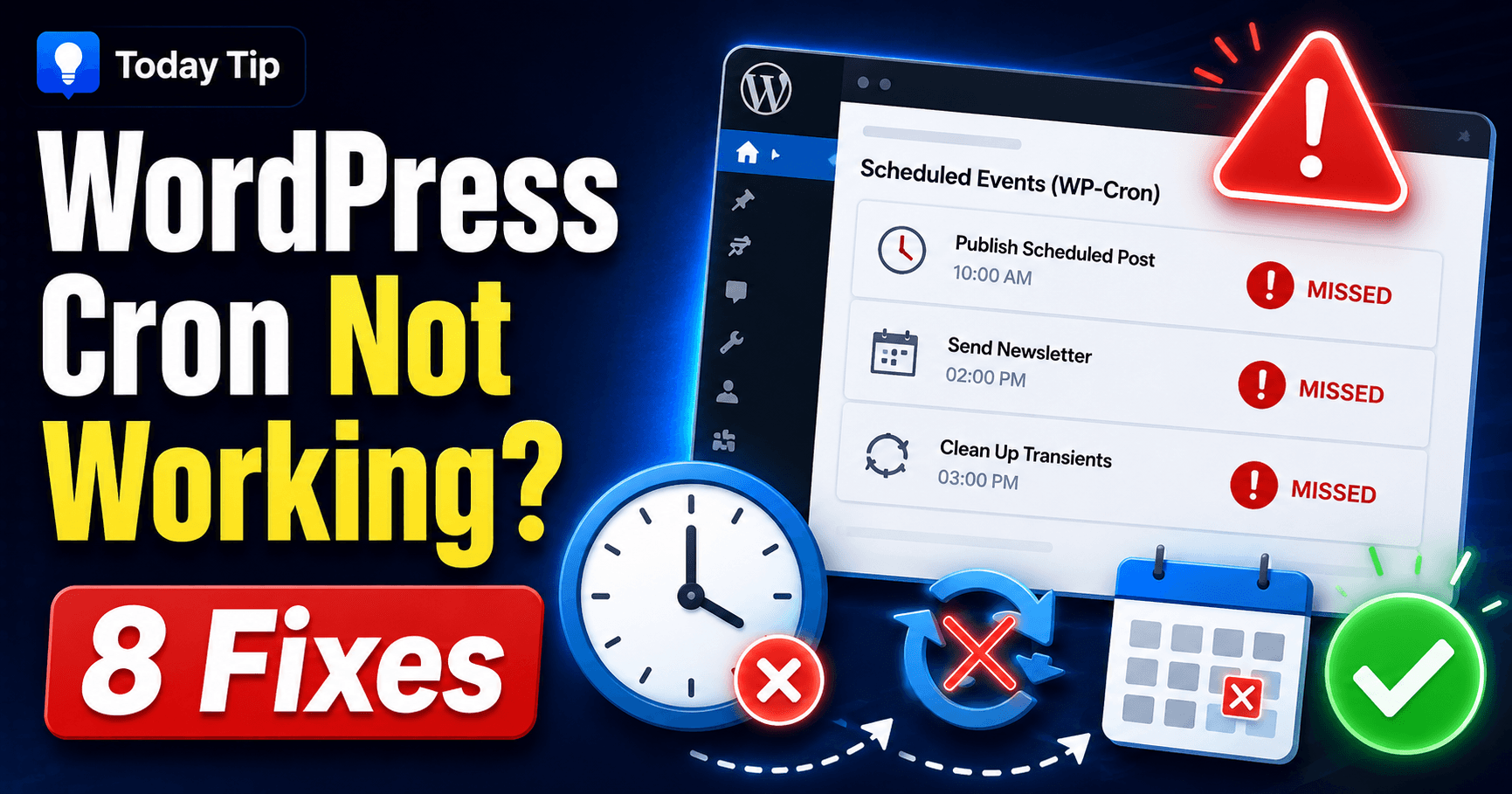
WordPress Cron Not Working: Diagnose WP-Cron and Missed Scheduled Tasks

A WordPress cron not working problem can cause scheduled posts, backups, plugin tasks, WooCommerce actions, email jobs, and automatic maintenance processes to run late or fail completely.

You may notice a “Missed Schedule” message on a post, delayed plugin jobs, backups that never start, or Site Health warnings related to scheduled events.

WordPress uses a system called WP-Cron to handle time-based tasks. Unlike a traditional server cron job, WP-Cron normally checks for due tasks when your website receives a request.

That means low traffic, blocked loopback requests, disabled WP-Cron, plugin conflicts, caching, security rules, PHP errors, or hosting problems can delay scheduled jobs.

QUICK ANSWER

If WordPress cron is not working, first confirm whether only one scheduled post failed or all scheduled tasks are affected. Check that WP-Cron is not disabled in wp-config.php, test WordPress loopback and REST requests, clear caches, temporarily disable security and optimization plugins, inspect cron events, check PHP errors, and verify whether your host uses a real server cron job. For low-traffic or business-critical sites, a server-level cron job can provide more predictable execution than relying only on page visits.


What Is WP-Cron in WordPress?

WP-Cron is WordPress’s built-in scheduling system.

It is used for tasks such as:

  • publishing scheduled posts,
  • checking WordPress core updates,
  • checking plugin and theme updates,
  • running scheduled plugin jobs,
  • processing WooCommerce actions,
  • sending delayed emails,
  • running backups,
  • cleaning temporary data,
  • and performing recurring maintenance tasks.

WP-Cron is not exactly the same as the cron service available on Linux servers.

WordPress checks its scheduled task queue when the site receives a request.

If a job is due, WordPress attempts to start the scheduled process.

This design works well for many websites, but it also explains why cron jobs can run late on low-traffic sites.


1. Check Whether the Problem Affects One Task or All Cron Jobs

Before changing server settings, identify the scope of the problem.

Ask:

  • Did only one scheduled post fail?
  • Are all scheduled posts showing “Missed Schedule”?
  • Are backups also failing?
  • Are WooCommerce scheduled actions delayed?
  • Are plugin cleanup or optimization jobs not running?

If only one task failed, the problem may be related to that specific plugin, post, or event.

If many unrelated scheduled tasks fail at the same time, investigate WP-Cron itself, server communication, PHP errors, or hosting restrictions.

Also note when the issue began.

If it started immediately after:

  • installing a plugin,
  • changing a caching configuration,
  • enabling Cloudflare,
  • editing wp-config.php,
  • moving hosts,
  • or changing PHP versions,

that recent change should be one of the first things you test.


2. Check Whether WP-Cron Is Disabled in wp-config.php

WordPress allows WP-Cron’s normal page-load triggering behavior to be disabled.

Open your site’s root directory using your hosting file manager or FTP/SFTP.

Find:

wp-config.php

Search for:

DISABLE_WP_CRON

You may see:

define( 'DISABLE_WP_CRON', true );

This tells WordPress not to trigger WP-Cron through its normal mechanism.

That setting is not automatically a problem.

Many optimized WordPress sites intentionally disable the normal WP-Cron trigger and replace it with a real server cron job.

The problem occurs when WP-Cron is disabled but no replacement server cron job is configured.

If you find this setting, confirm why it was added before deleting it.

If your host or developer configured a server cron job, keep the configuration consistent rather than enabling two competing systems without understanding the setup.


3. Test WordPress Loopback Requests

WordPress can use a loopback request to call its own wp-cron.php process.

If your server cannot make requests back to the site, scheduled tasks may fail.

Go to:

Tools → Site Health

Look for warnings involving:

  • loopback requests,
  • REST API communication,
  • HTTP requests,
  • or scheduled events.

Loopback requests can be blocked by:

  • security plugins,
  • HTTP authentication,
  • firewall rules,
  • Cloudflare settings,
  • DNS problems,
  • SSL configuration,
  • or hosting restrictions.

If Site Health also reports a REST API problem, troubleshoot that issue as well.

See our WordPress REST API Error? 8 Fixes guide.


4. Temporarily Disable Security, Cache, and Optimization Plugins

Plugins can interfere with scheduled tasks by blocking requests, delaying PHP execution, or changing how WordPress cron is triggered.

Pay particular attention to:

  • security plugins,
  • firewall plugins,
  • caching plugins,
  • performance plugins,
  • maintenance plugins,
  • database optimization plugins,
  • backup plugins,
  • and plugins that modify WordPress cron behavior.

If the cron problem began after installing or updating a plugin, temporarily deactivate that plugin first.

Then create a short test.

For example, schedule a new post a few minutes into the future.

If the post publishes normally after the plugin is disabled, review that plugin’s settings before reactivating it.

If You Cannot Access wp-admin

Open:

/wp-content/plugins/

using your hosting file manager or FTP/SFTP.

Temporarily rename the suspected plugin folder.

Then test whether scheduled events begin running again.

Do not leave important security or caching plugins disabled permanently. Use this step only to isolate the conflict.


5. Clear WordPress, Server, and CDN Caches

Caching normally improves performance, but an aggressive configuration can sometimes interfere with cron triggering or make an old status appear to persist.

Clear all relevant cache layers:

  • WordPress cache,
  • LiteSpeed Cache,
  • server cache,
  • object cache,
  • Cloudflare cache,
  • other CDN cache,
  • and browser cache.

After clearing caches, visit several public pages on the website.

Then check whether a scheduled task runs.

If your site receives very little real traffic, manually loading pages may temporarily trigger due WP-Cron events.

However, that is not a reliable long-term solution for time-critical jobs.


6. Inspect Scheduled Cron Events

To diagnose cron problems properly, you need to know whether the event is actually scheduled.

Advanced users with WP-CLI access can list scheduled events with:

wp cron event list

This can show information such as:

  • the cron hook name,
  • the next scheduled run,
  • the recurrence interval,
  • and whether many duplicate events exist.

You can also test WP-Cron spawning with:

wp cron test

And due events can be run with:

wp cron event run --due-now

These commands are useful for troubleshooting, but do not randomly delete cron events unless you know which plugin or WordPress feature created them.

A missing cron event suggests that the plugin or theme failed to schedule it.

An event that exists but never runs suggests a problem with cron execution rather than scheduling.


7. Check PHP Errors, Memory, and Hosting Resources

A scheduled event may start correctly but fail during execution.

In that case, WP-Cron itself may be working while the task crashes.

Check your hosting logs for:

  • PHP fatal errors,
  • memory exhaustion,
  • execution timeouts,
  • database errors,
  • CPU limits,
  • process limits,
  • or plugin-specific exceptions.

Large scheduled jobs can be resource intensive.

Examples include:

  • full-site backups,
  • malware scans,
  • large product imports,
  • bulk image optimization,
  • database cleanup,
  • email campaigns,
  • and WooCommerce background processing.

If the logs show an allowed memory size error, see our WordPress Memory Exhausted Error? 7 Fixes guide.

If the server becomes unavailable while large cron jobs are running, see our WordPress 503 Service Unavailable? 8 Fixes guide.


8. Replace WP-Cron With a Real Server Cron Job

For websites that need more predictable scheduling, you can use the server’s cron service instead of relying only on visitor-triggered WP-Cron.

This can be useful for:

  • low-traffic websites,
  • WooCommerce stores,
  • membership sites,
  • scheduled publishing workflows,
  • backup systems,
  • and sites with important recurring jobs.

The general approach is:

  1. configure a server cron job to call WordPress regularly,
  2. confirm it runs successfully,
  3. then disable WordPress’s normal page-load cron trigger if appropriate.

A common configuration may call:

wp-cron.php

at regular intervals.

The exact command depends on your hosting environment.

Some hosting control panels provide a graphical cron job manager, while others require a shell command.

Do not copy a random cron command without checking the correct PHP path, site path, and hosting requirements.

If you are unsure, ask your hosting provider for the recommended WordPress cron command for your account.


Why Does WordPress Say “Missed Schedule”?

A “Missed Schedule” message usually means WordPress did not publish a scheduled post when the scheduled time arrived.

Possible causes include:

  • WP-Cron did not run,
  • the site had too little traffic,
  • a loopback request failed,
  • a plugin blocked cron execution,
  • the server was unavailable,
  • PHP crashed during the task,
  • or the server clock and WordPress timezone configuration created confusion.

First check whether other scheduled events are also delayed.

If every scheduled post is missing its time, troubleshoot WP-Cron itself rather than editing individual posts.


Why Does WP-Cron Run Late on Low-Traffic Sites?

WP-Cron is normally triggered by site requests.

Imagine a task is scheduled for 2:00 PM.

If nobody visits the website until 3:00 PM, WordPress may not get an opportunity to process the due event until that later request.

This is why WP-Cron does not guarantee second-by-second execution timing in the same way a system-level scheduler can.

For a personal blog, a small delay may not matter.

For scheduled sales, membership jobs, store tasks, or precise publishing times, a real server cron job may be more appropriate.


Can Too Many WP-Cron Events Slow Down WordPress?

Yes, especially if a plugin incorrectly schedules duplicate events or creates resource-heavy jobs.

A poorly designed plugin can repeatedly add scheduled events instead of checking whether an event already exists.

This can result in:

  • large cron queues,
  • repeated database work,
  • high CPU usage,
  • slow admin pages,
  • and increased server load.

If your site has become slow and the cron event list contains many unexpected duplicate hooks, identify which plugin owns those events before removing anything.

For general performance troubleshooting, see our WordPress Site Slow? 8 Proven Fixes guide.


Does Disabling WP-Cron Improve Performance?

It can in some configurations, but only when you replace it correctly.

Disabling WordPress’s normal cron trigger without creating another scheduler can break scheduled tasks.

A common optimized setup is:

  • disable visitor-triggered WP-Cron,
  • create a real server cron job,
  • run it at a reasonable interval,
  • and monitor whether scheduled tasks complete normally.

This can reduce unnecessary cron checks on high-traffic sites and improve scheduling consistency on low-traffic sites.

But there is no reason to change a working WP-Cron setup simply because another website uses server cron.


WordPress Cron Not Working After Migration

If scheduled tasks stopped after moving your site to another host or domain, check:

  • DNS resolution,
  • HTTPS configuration,
  • WordPress Address and Site Address,
  • firewall rules,
  • loopback requests,
  • PHP versions,
  • server cron settings,
  • and whether DISABLE_WP_CRON was copied from the old server.

A setting that worked on the old hosting environment may no longer be valid on the new server.

Also check whether the old host used a system cron job that was not recreated during migration.


Final Checklist

If WordPress cron is not working, check these items in order:

  1. Determine whether one task or all scheduled events are affected.
  2. Check DISABLE_WP_CRON in wp-config.php.
  3. Test WordPress loopback requests.
  4. Temporarily disable security, cache, and optimization plugins.
  5. Clear WordPress, server, and CDN caches.
  6. Inspect scheduled cron events.
  7. Check PHP errors and hosting resource limits.
  8. Consider a real server cron job for reliable scheduling.

The key is to separate a scheduling problem from an execution problem. If the event is never created, investigate the plugin or code that schedules it. If the event exists but never runs, investigate WP-Cron, loopback requests, server resources, and hosting configuration.

Leave a Comment