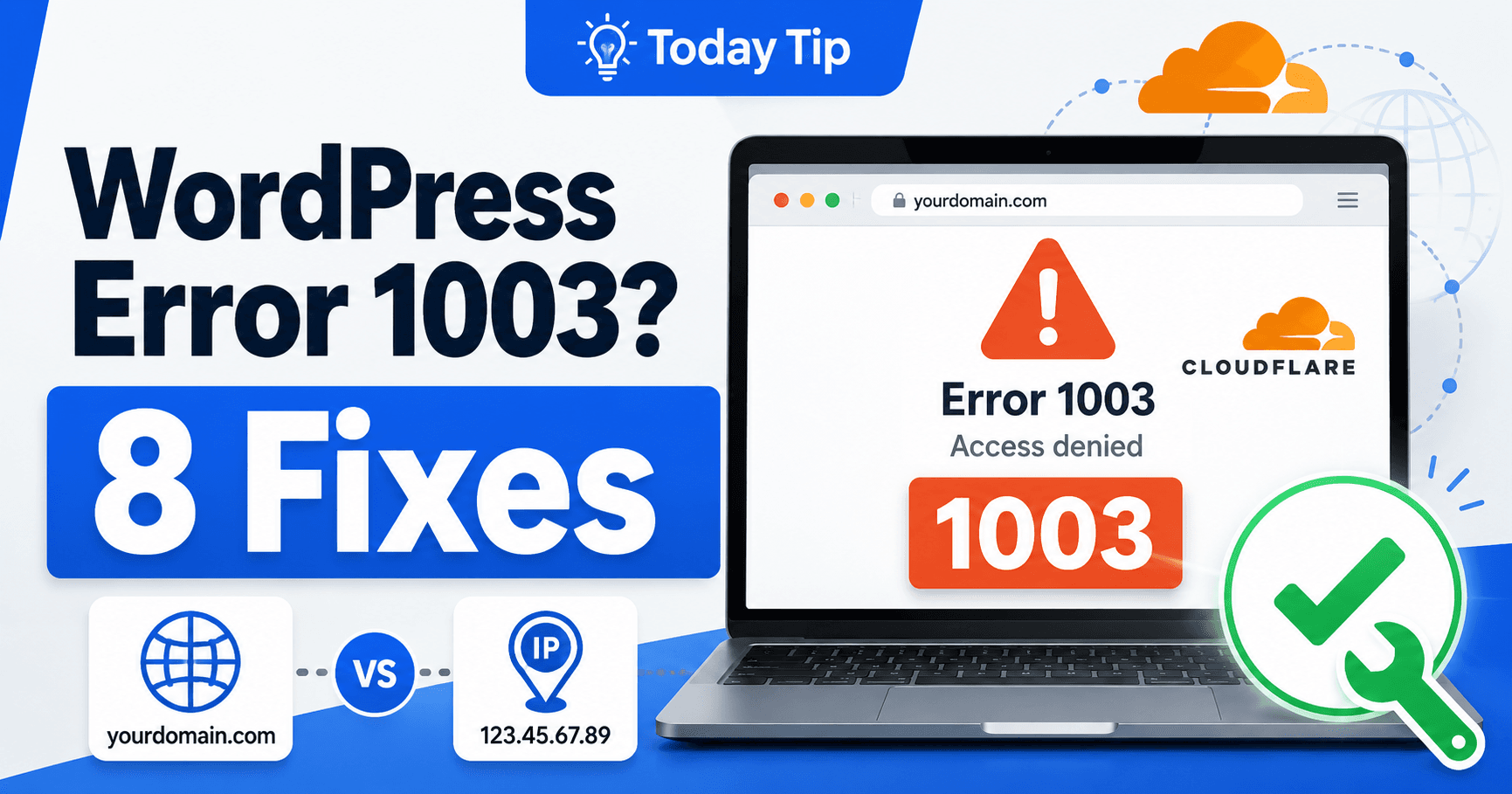
Cloudflare error 1003 appears when a request accesses a Cloudflare IP directly. Open the website’s normal domain instead. A numeric address copied from a proxied DNS lookup is not a public shortcut to that individual WordPress site. Compare the failed target with the verified domain before diagnosing an installation failure.
Guide reviewed: October 8, 2026. Interface labels may vary by version, account and device.
Confirm whether the request used an edge IP directly
| Test target | Meaning | Useful correction |
|---|---|---|
| Numeric Cloudflare IP | Direct edge request | Use the verified public domain |
| Normal public domain works | The IP test differs from a visitor request | Correct the bookmark or tool target |
| Origin preview needed | A hosting-specific test | Ask the host for its supported preview method |
| Normal domain also fails | A separate failure needs diagnosis | Record its exact message |
Check the address that produced the error
Record both tests: the address producing 1003 and the normal site domain with its result. If only the numeric address fails, keep that finding explicit. It prevents a direct-IP check from being reported as a public website outage.
Look at the browser address or the client configuration used for the failed request. If it contains a numeric IP where the domain normally belongs, compare it with the site’s usual public address. Cloudflare’s documented guidance is to browse using the domain instead of the Cloudflare IP.
For example, someone checking a new connection might look up the domain and open the resulting IP address. The error can appear even though opening the original domain works. Those tests are not equivalent: the domain identifies the site you intend to visit.
Keep that difference in your notes. A report that the domain fails is misleading when only the direct-IP test failed.
Use the intended public hostname for normal checks
Open the website’s normal HTTPS domain and the page you wanted to inspect. Confirm the content belongs to your WordPress installation. If the domain works, there is no reason to change the theme or database solely to make a Cloudflare IP open in the browser.
Check the hostname your site actually uses, including any expected www behavior. An old temporary hosting address or another subdomain may lead to a different installation and should not be treated as proof about the public site.
For a monitoring tool or integration, review its configured target. It should use the supported site address for its intended workflow. Hardcoding a Cloudflare edge IP as the website URL can turn a normal check into a direct-IP request that does not identify the domain as expected.
A hosting-origin test is a separate task
During a migration, you may want to check the hosting server before the public connection is changed. Ask the provider for its supported preview or origin-testing method. A Cloudflare edge IP obtained from the public domain is not the same as that hosting destination.
Do not bypass a certificate warning or expose a private origin just to force a direct test. The hosting provider can explain how its preview arrangement identifies your domain and installation while keeping the intended connection intact.
If an administrator uses a specialized request tool for an origin check, it should be configured for that specific purpose. The difference between a public-domain request and an origin test belongs in the test plan, rather than being hidden behind a copied IP address.
Correct references that use the wrong address
Review the specific bookmark, monitor or integration that used the IP. Replace its target with the supported hostname for that workflow and retest the same client. A separate browser visit cannot confirm a monitor’s saved configuration was corrected.
If a bookmark, script, or documentation note contains the edge IP as the site address, replace that reference with the verified public domain where appropriate. Keep the correction limited to the item that produced the error.
For instance, a monitoring check saved during setup may still use an IP even after the domain was connected. Updating that check is clearer than changing the website to accommodate an obsolete test target.
Review the resulting check or link from the same client that originally failed. A browser success does not prove that a separate script’s configuration has been corrected.
If the domain also fails, record its own message
Open the normal domain and keep the exact result. If it displays a different Cloudflare or WordPress error, investigate that message with its own evidence. The direct-IP 1003 screen does not explain every problem that may exist in the domain setup.
For support, provide the normal domain, the address that generated 1003, the client used, and whether the domain request succeeds. This small comparison helps the administrator distinguish an incorrect test target from an actual public-site outage.
Keep the verified public address and the provider’s separate preview method in your hosting notes. That makes future checks easier and prevents a Cloudflare edge address from being mistaken for a direct link to the WordPress server.
Reference: Cloudflare error 1003 documentation.
Keep public and origin checks distinct
Save the verified public domain and the hosting provider’s separate preview method. If the public domain now returns another error, investigate that message with its own request evidence. Do not infer an origin failure solely from an edge-IP test returning 1003.