Cloudflare error 1103 means the request reached a Workers condition that Cloudflare tells the Worker owner to raise with Support. It is not a WordPress plugin error, and a visitor cannot fix it by clearing browser data or retrying repeatedly.
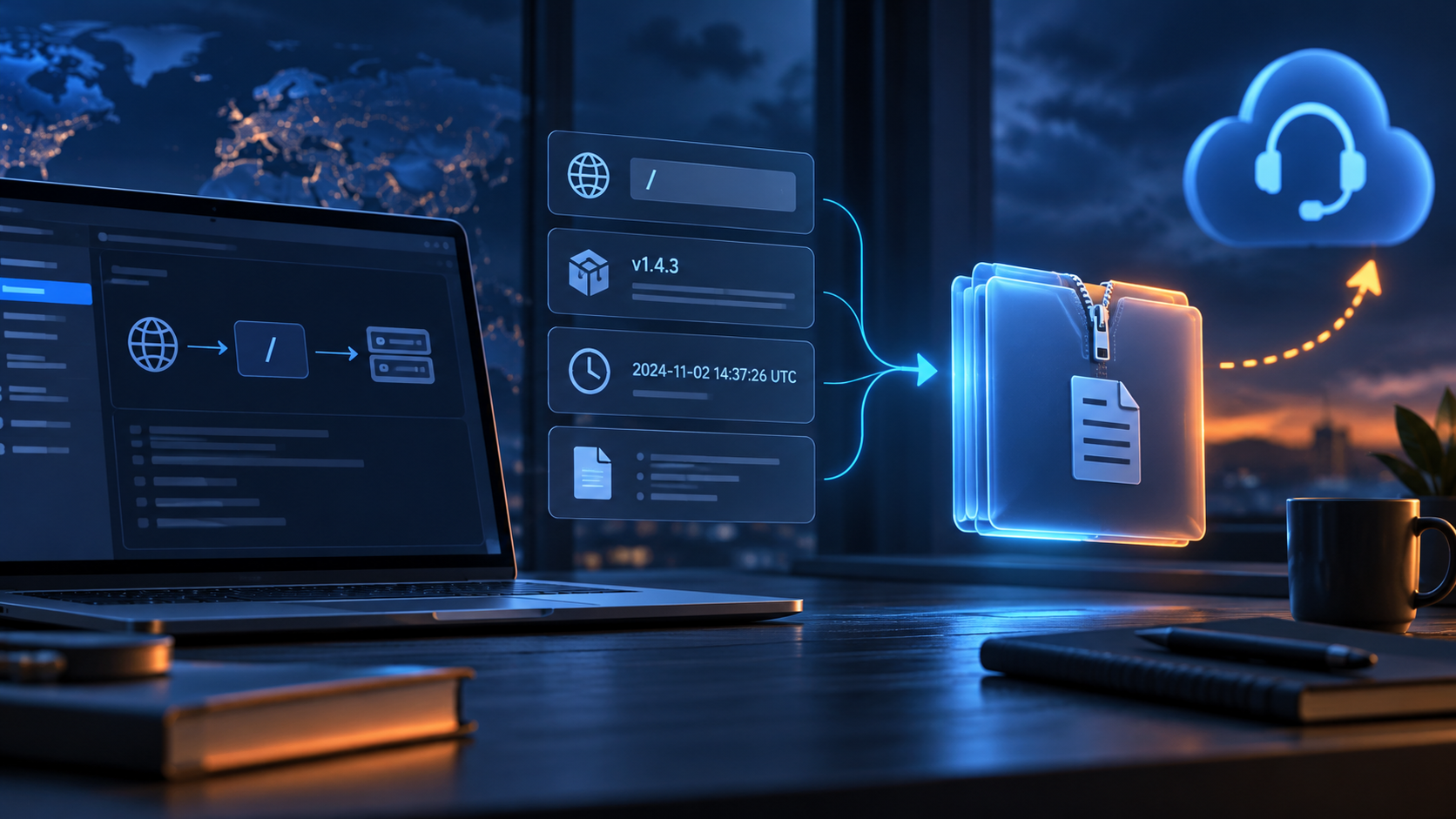
First identify who controls the Worker. Then record the failing URL, exact time and time zone, Ray ID or other request identifier, deployment version, route, full error message, and what still works. That evidence lets the owner open a focused support case without exposing credentials or private request data.
Guide reviewed: October 13, 2026. Interface labels may vary by version, account and device.
Prepare evidence the Worker owner can use
| Evidence | Record | Purpose |
|---|---|---|
| Owner | Site owner, developer or host | Find the account with the Worker |
| Request | URL, action and full message | Reproduce the affected route |
| Time | Time zone and request identifier | Correlate the event |
| Deployment | Version, route and recent change | Provide context without assuming cause |
| Impact | Specific unavailable workflow | Explain scope accurately |
Identify who manages the Worker
A Worker can be managed directly by the site owner, a developer or a hosting provider. The WordPress administrator may not be the owner of the Cloudflare account involved. Finding the responsible person is the first practical step.
Provide that person with the exact hostname and path. A Worker may handle only part of a site, so the failing URL helps them identify the relevant configuration. A broad statement that the blog is down is less useful when ordinary pages still work.
If you are a visitor, send the full message to the site owner. Changing a browser password or clearing WordPress cookies cannot resolve a condition that requires the Worker owner’s support contact.
Collect a concise reproduction
- Identify one request that produces 1103.
- Record URL, action, full text and time zone.
- Keep any request identifier.
- Compare a normal route without rapidly repeating the failing action.
- Give the Worker owner the evidence for the account’s support route.
Record the time with its time zone, the complete error text and any request identifier displayed. Note whether the problem happens consistently or only during a particular action.
For example, a request under a custom route may fail while the homepage remains available. Opening the same route again is a more relevant comparison than testing an unrelated page. If the failure follows a form submission, explain the action without copying private form contents into a public report.
A small number of focused observations can establish the scope. Rapid repeated requests do not provide better evidence and may create additional work or duplicate an action that changes data.
Keep the deployment context with the event
The Worker owner can compare the failure time with recent deployments and configuration changes. The relevant version, route and environment should be included where available.
Timing is useful context rather than proof. A failure after a deployment does not automatically establish that the code contains a JavaScript bug. Cloudflare documents other Worker codes for specific exceptions and limits, so the actual 1103 message should not be replaced with a guessed diagnosis.
If logs or metrics are available for the failed request, keep the relevant entries with the reproduction. Do not assume that every runtime problem will also appear in the origin’s WordPress logs; the request may not have reached the application.
Contact support through the account’s normal route
The Worker owner should use the support options available for the account and identify the condition as Worker error 1103. A clear request connects the code, URL, time and Worker involved.
Explain the visible impact and what still works. If the problem affects a business-critical workflow, say which workflow is unavailable rather than using an unsupported estimate of how many users are affected.
Keep credentials, tokens and private request bodies out of public community posts. If support requires sensitive diagnostics, use its authorized process and provide only the information relevant to the investigation.
Preserve the site’s required behavior while investigating
Removing the Worker may also remove the feature it supplies. A redirect helper, an origin router and an access check have different consequences if bypassed. The responsible administrator should understand that role before selecting any temporary arrangement.
A previously tested version may be useful for a developer’s comparison, but a rollback is not a guaranteed correction for 1103. The support investigation and the actual request evidence should guide the decision.
Likewise, reinstalling WordPress or changing its theme would not directly address a support condition in the Worker layer. Keeping the application stable reduces the number of unrelated changes that need to be explained.
Verify recovery on the affected route
After the condition is resolved, repeat the request that originally failed and confirm the Worker’s intended behavior. Then check a normal page and a related workflow covered by the same configuration.
Keep the resolved event’s time with the original record. If the issue returns, the earlier support context and focused reproduction will be more useful than starting again with a generic plugin checklist.
Cloudflare defines 1103 in its Workers errors and exceptions guide. Its Workers Logs documentation explains the invocation and error information that may help the account owner prepare the request.
Record the recovered route and intended behavior
After resolution, repeat the affected route and verify the feature it provides. Check a related workflow and record the resolution time with the support context. Removing the Worker can remove required behavior and is not automatically a complete recovery.