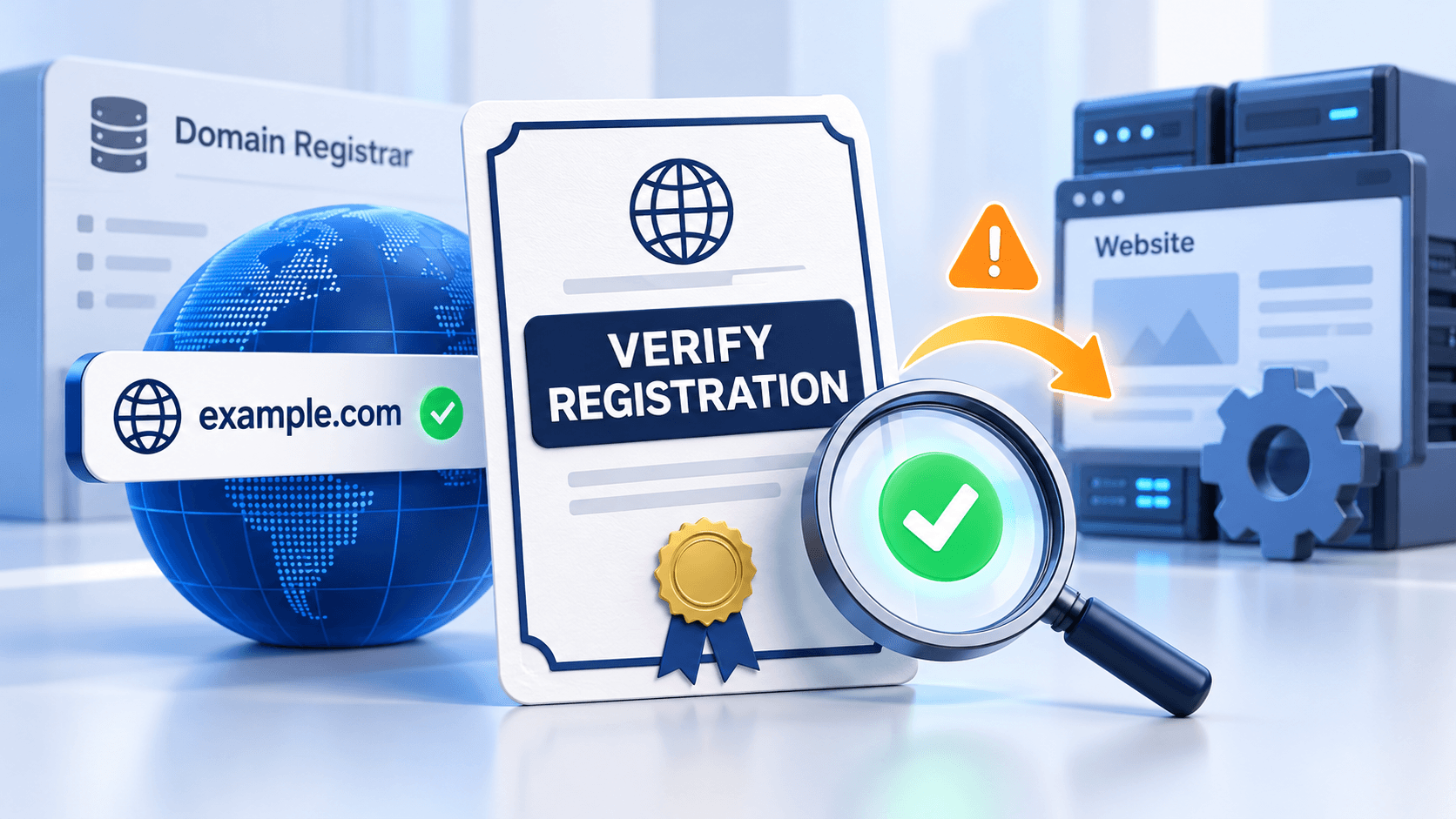
Cloudflare error 1099 means the submitted name was not recognized as a registered domain during setup. It does not by itself show that the live WordPress site, hosting account or individual DNS record is broken.
Compare the value entered in Cloudflare with the exact domain and status shown by the registrar. Use the registered apex domain—not a protocol, page path or subdomain—when starting the zone setup.
A normal full-zone entry is the registered domain, with its full ending intact. A browser URL can include a protocol, subdomain and path that do not belong in that entry.
Guide reviewed: October 8, 2026. Interface labels may vary by version, account and device.
Verify the registered domain before changing website settings
| Comparison | Example or evidence | Next step |
|---|---|---|
| Browser address versus domain | https://www.example.com/contact/ versus example.com | Use the correct zone entry |
| Multi-part ending | Exact registrar name | Keep the full registered domain |
| Purchase versus active registration | Registrar status | Resolve incomplete registration with the registrar |
| DNS delegation | Current nameserver information | Keep the intended working connection |
| Correct entry still rejected | Full error and confirmed status | Present those facts to support |
Use the registered domain, not a page address
- Copy the exact registered name from the registrar.
- Compare it with the submitted Cloudflare value.
- Remove URL-only parts from a normal zone entry.
- Keep country-specific multi-part endings intact.
- Follow separate instructions if using a specialized subdomain setup.
The address copied from a browser may contain https://, a www prefix and a page path. A normal full-zone setup expects the registered domain itself. For example, a website address of https://www.example.com/contact/ would usually lead you to enter example.com in the domain field.
A shop or blog subdomain belongs under its parent domain in an ordinary full-zone configuration. Entering shop.example.com as though it were a separately registered domain can confuse the setup request. Specialized subdomain arrangements exist, but they should follow the instructions for that arrangement rather than a general domain-addition workflow.
Multi-part domain endings are another reason to compare the name with your registrar account. A domain under a country-specific registration system may contain more than two labels. Removing part of the registered name because it looks like a subdomain can produce a different invalid entry.
Confirm the purchase became a registration
A payment confirmation and an active domain registration are related, but they are not always the same moment in a setup process. The registrar account should show the exact domain and its current status. If the purchase is still being processed, the DNS provider may not yet recognize it as ready for onboarding.
Similarly, a domain transfer can involve several stages. If the site is being moved at the same time, keep the registration status separate from the hosting migration. Copying the WordPress files does not complete the transfer of a domain or supply its registration information.
If the registrar shows a problem or an incomplete registration, that account is the right place to clarify it. Repeatedly entering the name in Cloudflare will not resolve an issue that still needs attention at the registrar.
Compare nameserver information without guessing
The domain’s registration information should include its nameservers. Those settings identify the DNS service responsible for the name. When a domain is new or has just changed providers, checking the registrar’s own view helps establish whether the delegation is present and intentional.
Do not copy nameservers from someone else’s Cloudflare setup. Once your domain can be added, use the values assigned for your own setup. Until then, keep a working existing DNS connection intact rather than pointing the domain to an unprepared zone.
A host may manage the connection through a partner workflow. In that case, its instructions can clarify whether the domain should be added through the hosting portal or directly through Cloudflare. Following one intended workflow is easier to troubleshoot than combining steps from two different arrangements.
Understand what the error does not establish
Error 1099 does not show that your WordPress installation is damaged. A WordPress homepage cannot correct the name submitted to the DNS provider. Editing plugins, clearing the site’s page cache or reinstalling the application would leave the registration check unchanged.
The message also does not justify removing email records or deleting an existing DNS zone. Those changes affect services already connected to the domain and do not clarify why the submitted name was not recognized.
If the name is correct and the registrar confirms the registration is complete, keep that evidence with the exact error message. The remaining question is why the onboarding service cannot recognize a domain that appears ready, which is a more focused issue to raise with support.
Make the next support conversation specific
Arrange the evidence as submitted name, registrar status, registration or transfer date, complete error and setup route. Mark what the registrar confirmed separately from what you inferred. That gives support a concrete recognition problem to investigate.
Explain the main domain you entered, when it was registered or transferred and what status the registrar currently shows. Mention whether the domain ending is unusual or subject to a special registration process. A screenshot of the failed setup can help connect those details to error 1099.
Once onboarding succeeds, review the imported DNS records before changing the active connection. Successful domain recognition is the beginning of setup, not proof that the website, email and HTTPS configuration are all complete.
Cloudflare documents error 1099 in its domain onboarding guide. If the domain is already active but the browser cannot find a hostname, our NXDOMAIN article explains that separate problem.
Check the services after domain recognition succeeds
Review the imported zone before directing traffic to it. Then test the intended hostname, HTTPS page and any other connected services. Successful recognition begins the connection process; it does not verify all website and email records.