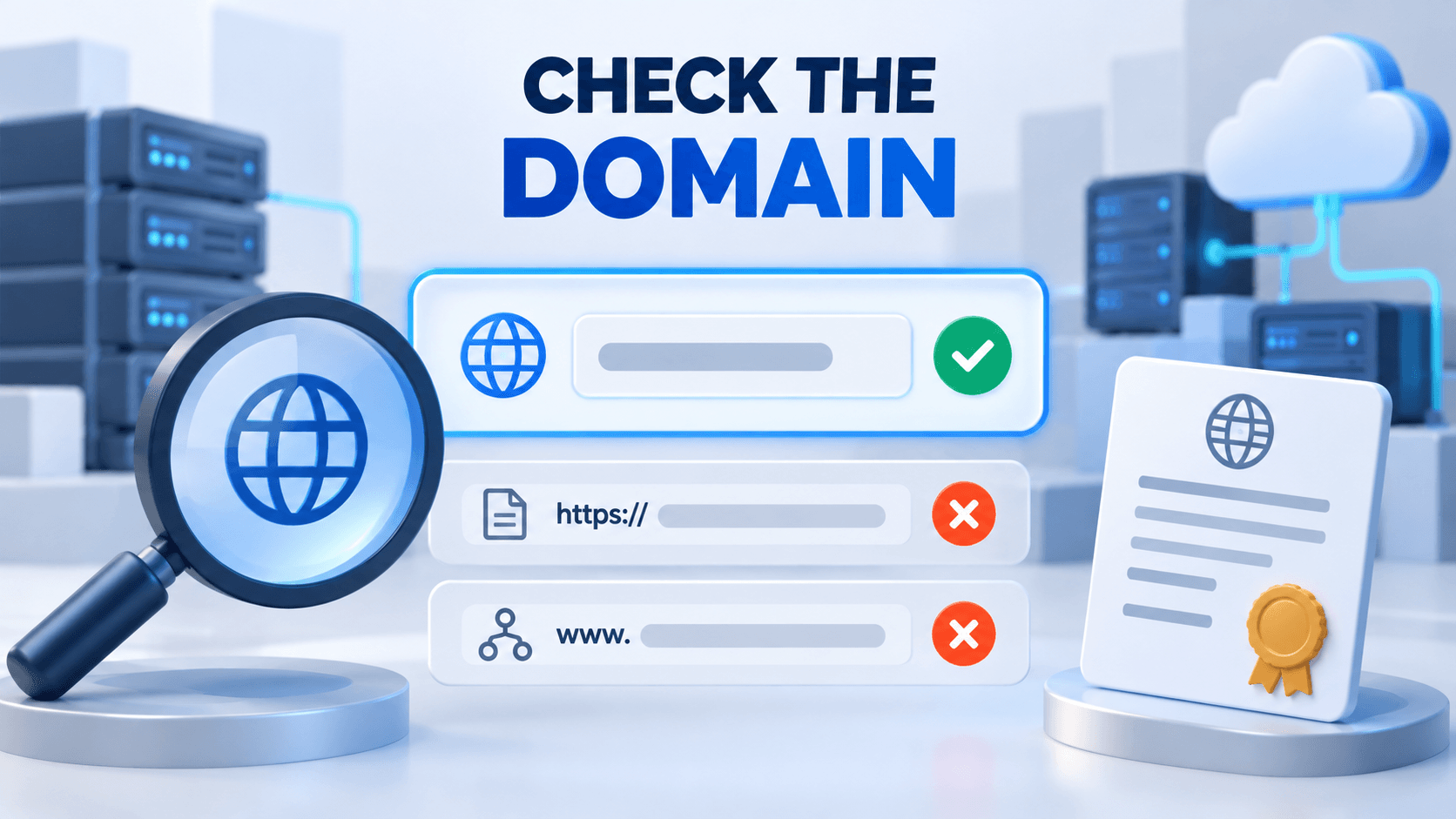
Cloudflare error 1116 appears while a domain is being added, before ordinary website traffic uses the proposed Cloudflare configuration. That makes the submitted domain name the first thing to inspect.
Enter the registered main domain rather than a full website URL, page path or subdomain. Keep the existing DNS connection working until Cloudflare accepts the zone and you have reviewed the imported records.
If that input is correct and the rejection persists, preserve the complete message for Cloudflare’s support review. Keep the existing working DNS connection while the replacement is being prepared.
Guide reviewed: October 8, 2026. Interface labels may vary by version, account and device.
Check the exact domain submitted during onboarding
| Check | Example or evidence | Action |
|---|---|---|
| Input is a domain | example.com, not a full page URL | Use the registered main domain |
| Multi-part domain ending | Registrar’s registered name | Do not guess by keeping only two labels |
| Code and stage | Full onboarding message and time | Distinguish setup rejection from visitor errors |
| Entry already correct | Account and direct/partner setup | Follow official support guidance |
| Existing site works | Current DNS and service records | Prepare migration before changing delegation |
Check the name entered in the setup screen
- Compare the entered value with the registered domain.
- Remove the protocol, path and unintended subdomain from the zone entry.
- Keep multi-part domain endings intact.
- Record the complete result of a corrected attempt.
- If the correct entry still fails, use the official support route.
For a normal full-zone setup, the domain entry should be the main domain, such as example.com. A name such as www.example.com or shop.example.com is a subdomain. A complete website address also contains more than the domain name: https://example.com/blog/ includes a protocol and a page path.
It is easy to paste a familiar website address without noticing those extra parts. Reading the submitted value carefully can save time because the browser address you normally use is not necessarily the value expected by the domain setup screen.
If your domain has a multi-part ending, use the registered domain shown in the registrar account rather than shortening it by guesswork. The purpose is to add the domain you actually own, not simply the last two pieces of every possible address.
Keep the existing website connection working
An unsuccessful attempt to add a zone does not mean you should immediately replace the nameservers at the registrar. The DNS setup needs to be ready before visitors are directed to it. During troubleshooting, a working existing connection gives you a stable starting point.
For example, suppose your site currently opens through the host’s DNS service and the Cloudflare setup stops with 1116. The useful next action is to resolve the rejected setup request. Moving the domain away from the working service before the replacement is available could create a separate access problem.
A record of the existing DNS entries is also helpful. Website, email and verification records may all need to be present in the eventual new zone. Preparing that information is productive even while the onboarding issue is being investigated.
Record the actual error before retrying
Cloudflare uses different codes for different setup problems. A domain restriction, a registration lookup failure and a temporary restriction after repeated additions are not interchangeable. Keeping the complete message prevents advice for one code from being applied to another.
The time of the failed attempt, the exact main domain and the account used for the setup are useful details to keep with the screenshot. If someone else manages the account, ask them to compare those details with their own view of the setup rather than creating additional accounts as a workaround.
Changing unrelated DNS records repeatedly makes the situation harder to explain. A single corrected domain entry is reasonable when you have found a clear input mistake. When the entry is already correct, further attempts without new information are less useful than a support review.
Prepare a focused support request
Organize the request as domain, error code and full message, incident time, direct or partner onboarding, and whether the existing site remains available. Keep a screenshot with the relevant message; credentials and authentication codes do not belong in that initial description.
A helpful request explains that adding the main domain produces error 1116, includes the full message and states whether the domain is already serving a working website elsewhere. It should also mention whether the setup is being performed directly in Cloudflare or through a hosting partner.
A screenshot of the error can help, but account passwords, authentication codes and registrar credentials are not needed in a general problem description. The support team can guide any necessary account verification through its normal process.
Avoid assuming the domain has been permanently banned simply because onboarding failed. The browser message alone does not establish that explanation. Cloudflare can review the request once the basic domain-entry issue has been ruled out.
Finish the migration only after setup succeeds
When the domain can be added, compare the new DNS zone with the host’s required connection details before completing the migration. The main hostname, www version and any separate services should each be accounted for. Mail records deserve attention too, even though they were not responsible for the onboarding error.
After the change, test the normal website address and another page, then compare the result on a second connection. If visitors see a new DNS or HTTPS symptom, diagnose that result separately. Successful onboarding and a fully working website are related milestones, but they are not the same check.
Cloudflare’s domain onboarding troubleshooting guide documents error 1116 and neighboring setup codes. Our WordPress DNS guide can help with connection problems after the domain has been added.
Separate onboarding success from migration completion
After the zone is accepted, compare the required web, mail and verification records before moving traffic. Then check the actual site address and important services. Zone creation alone does not confirm correct DNS, HTTPS or WordPress operation.