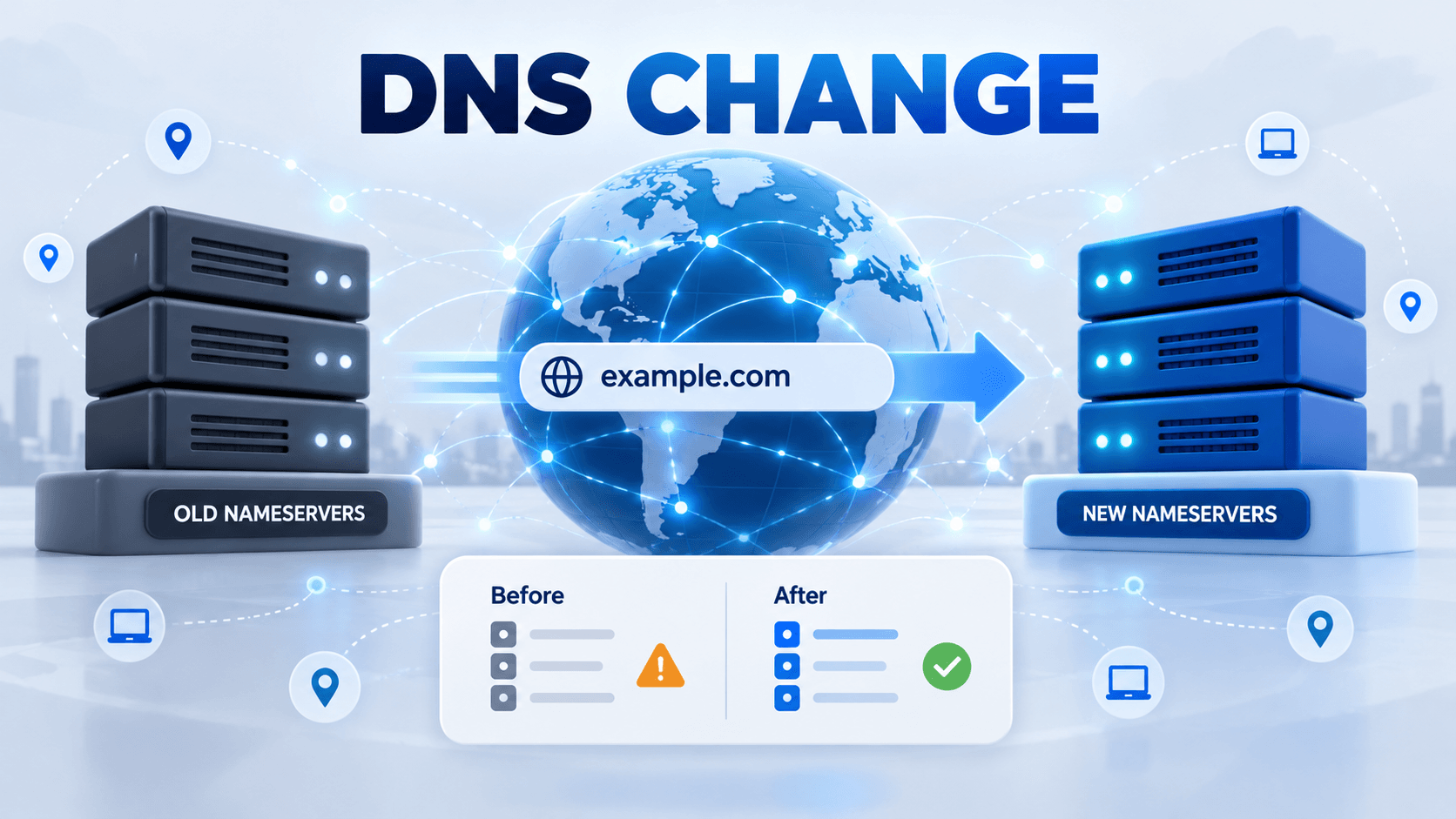
Seeing DNS_PROBE_POSSIBLE soon after a DNS move suggests the new delegation or records may not yet produce a consistent answer. Use the recent change as evidence rather than changing WordPress settings at random.
Begin with the exact hostname that fails, then compare the active nameservers and essential records with the previous working setup and the destination shown by the hosting provider.
Nameserver delegation decides which service visitors query; the records in that service decide where each hostname leads. Check those two parts separately before making more changes.
Guide reviewed: October 8, 2026. Interface labels may vary by version, account and device.
Compare the new delegation with the working DNS records
| Question | Check | Useful result |
|---|---|---|
| Which DNS service is active? | Registrar nameservers | Identify the authoritative zone |
| Was the hostname transferred? | Old and new web records | Find missing main, www or service name |
| Is the destination current? | Host-provided value and CNAME target | Avoid retired origin addresses |
| Do networks disagree? | Same URL on another connection | Compare resolver or cached state |
| Does HTTPS work after DNS? | Full address and page link | Find a separate certificate or redirect issue |
Use the recent change as your starting point
- Write down the normal public hostname and change time.
- Compare the old working records with the new zone.
- Check www and other actual entry points separately.
- Confirm the registrar delegates to the intended provider.
- Preserve mail and verification records while correcting web entries.
If the message appeared just after activating Cloudflare, compare the records in the new zone with the working records from the previous provider. An imported zone can look reassuring while still missing the hostname that visitors actually use.
For example, a site might normally redirect from example.com to www.example.com. Moving only the main-domain record leaves the www address without the connection it needs. The browser may fail when it follows that address, even though the first hostname has been configured.
The same applies to separate services such as shop.example.com or a staging subdomain. A record for the homepage is not a substitute for every other hostname. Writing down the exact address that fails makes the comparison much easier.
Separate nameserver setup from individual records
Nameservers determine where the domain’s authoritative DNS information is managed. The records within that service then describe how individual names connect to your website and other services. Both parts matter, but they solve different problems.
If the registrar still delegates the domain to the old provider, adding records in a new dashboard may have no effect on visitors. If delegation is correct but an important hostname is absent, changing nameservers again will not supply the missing record. Looking at those two settings separately avoids repeated changes that obscure the original problem.
A hosting partner may provide its own DNS management screen. In that arrangement, the relevant settings may belong in the partner’s portal rather than the dashboard you expected to use. The host’s connection instructions can clarify which service manages the domain.
Compare the destination with the hosting account
The hosting account should provide the required destination for the domain. Depending on the setup, that may be an IP address or a hostname used as a CNAME target. A migration is a good reason to compare those details again, because an old server address may still be present in the DNS zone.
If a record points to another hostname, that target also needs to resolve. A CNAME pointing to a retired hosting address can look complete in the dashboard while leaving the connection unusable. Following the destination one step further is often more useful than creating additional records for the same name.
There is no need to remove unrelated mail or verification records to test the website. Keeping them intact allows you to repair the web connection without creating a separate email problem.
Compare another connection before changing more settings
Record both comparison results and their times. A successful mobile-data test is a useful clue, not proof that all visitors now receive the same DNS answer. Diagnose the current active record before repeating local cache clears.
Try the same hostname on mobile data or another available network. If it opens there, the result suggests a difference in resolver answers or local connection settings. If it fails everywhere you test, the active domain configuration deserves closer attention.
This comparison is evidence rather than a final diagnosis. Networks can retain different cached answers, particularly after a DNS change. A working result on one connection does not mean every visitor has already received the updated information.
Refreshing a device’s local DNS cache may help when that device continues using an outdated answer. It cannot create a record that is missing at the authoritative provider. Repeatedly clearing browser history is therefore unlikely to help when the hostname itself has not been configured.
Confirm recovery through the full website address
Once DNS is working, open the normal HTTPS address and follow a link to another page. A certificate warning or redirect loop is a different stage of the connection, so it needs its own diagnosis. The changing symptom helps show which part has been repaired.
If the problem persists, the most useful support request includes the hostname, the DNS provider in use, when the settings changed and whether another network can open the site. The host can then compare the intended destination with the active records instead of guessing from the browser message alone.
Cloudflare’s DNS_PROBE_POSSIBLE troubleshooting page covers record checks after activation. If your browser instead reports that the name does not exist, our NXDOMAIN guide explains that more specific result.
Keep the final connection record
Record the active provider, intended destination and hostnames checked. Once the name resolves, verify the HTTPS address and a linked page. Send support the remaining exact message and comparison results rather than a general report that WordPress is offline.