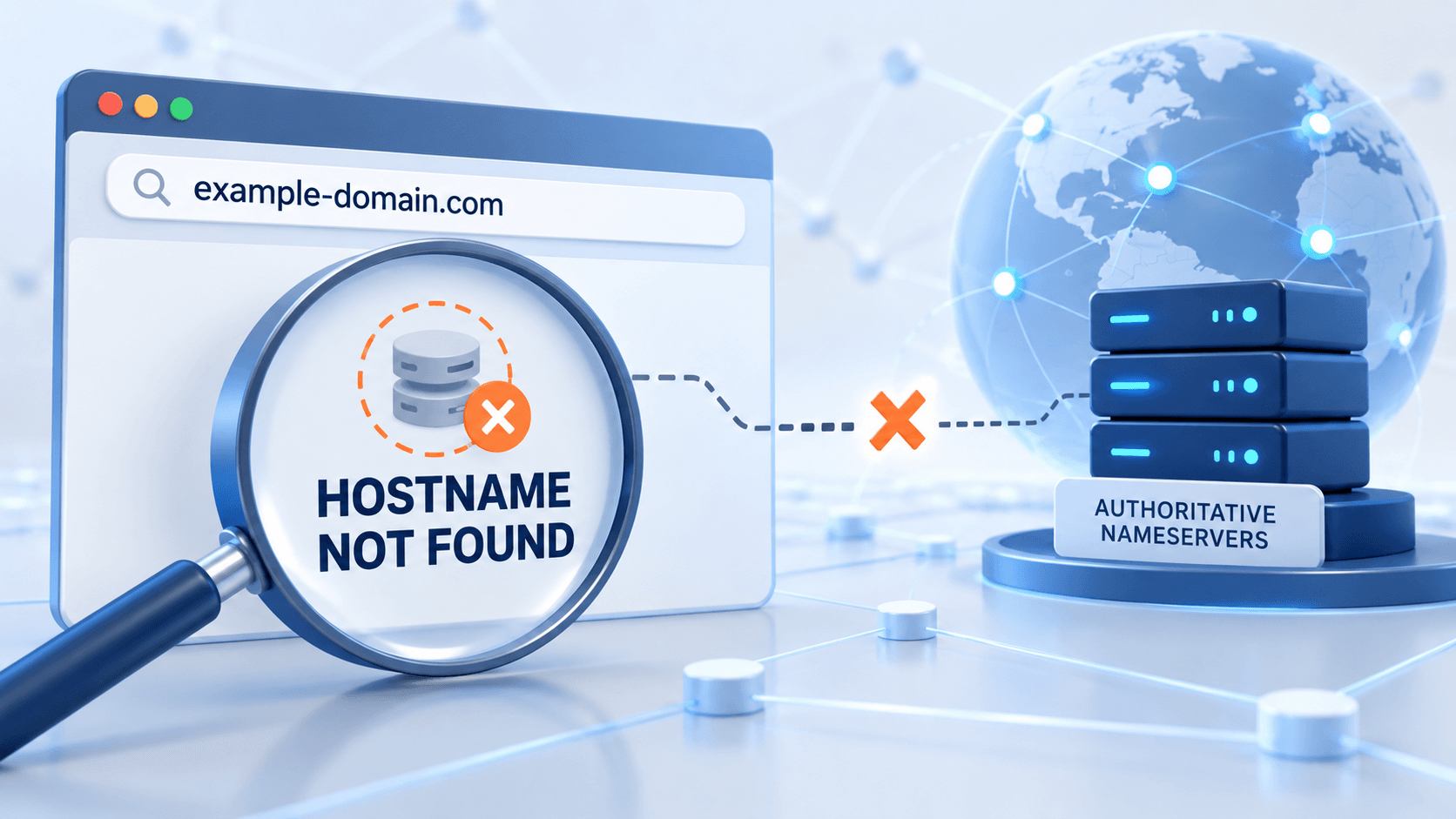
DNS_PROBE_FINISHED_NXDOMAIN means the DNS lookup says the requested hostname does not exist. The browser has not reached WordPress yet, so plugins and themes are not the place to begin.
Copy the exact hostname from the failed address, check its spelling and find the DNS zone currently authoritative for it. The root domain and www name can have different records, which is why one may work while the other fails.
The main domain, www and other subdomains need their own intended configuration. After a correction, compare another resolver or network because cached answers can differ.
Guide reviewed: October 8, 2026. Interface labels may vary by version, account and device.
Confirm the hostname and authoritative DNS zone
| Observed pattern | First check | Why it matters |
|---|---|---|
| Bare domain works, www fails | Record for www | Separate hostname |
| Edited records have no effect | Registrar nameserver delegation | Visitors may use another zone |
| CNAME exists but lookup fails | Its target name | An entry alone does not prove the chain resolves |
| One network still fails after correction | Cached resolver answer | Local comparison after authoritative check |
| Name resolves but page fails | New HTTPS or redirect message | DNS and page delivery are separate stages |
Start with the address that fails
The main domain and its www version are separate names in DNS. For example, example.com might open normally while www.example.com fails. A shop or blog subdomain needs its own working configuration as well. Comparing those addresses helps narrow the problem to a particular name.
Imagine that the homepage opens without www, but an old bookmark sends visitors to www.example.com. If that second name is missing from the active DNS zone, the bookmark can fail before any WordPress redirect gets a chance to run. Adding the correct record for the missing hostname addresses the cause; changing the homepage design would not.
A spelling mistake is worth ruling out early, especially for a new domain. Compare the address with the domain shown in the registrar account and the hostname attached to the hosting account. Similar-looking domain names can lead to a surprisingly long troubleshooting detour.
Find the DNS zone that visitors actually use
- Record the failing hostname exactly.
- Check the nameservers delegated through the registrar.
- Identify the DNS dashboard serving that delegation.
- Compare the relevant record with the host’s destination.
- Follow any CNAME target and preserve unrelated mail records.
A domain can appear in several dashboards at once. You may still have a DNS zone at the registrar, another at an old host and a newer one at Cloudflare. Editing a record in an inactive zone will not change the answer visitors receive.
The nameservers configured through the registrar determine which DNS service is authoritative for the domain. Comparing that setting with the intended DNS provider is more helpful than adding records to every dashboard. If Cloudflare manages the domain, its assigned nameservers and active zone are the relevant starting point. Some hosting-partner setups manage DNS through the partner instead.
Before changing nameservers, make a record of the existing configuration. Website records are only part of a DNS zone: email delivery, domain verification and other services may depend on records that have nothing to do with this browser error.
Match the record to the hosting destination
Once you have found the active zone, compare the failing hostname with the connection details supplied by your host. The host may ask for an address record or a particular CNAME target. Use those account-specific details rather than an IP copied from a tutorial.
A CNAME deserves an extra look because it points to another name. If that target no longer exists after a hosting change, the visible hostname can fail even though a record is present. Checking the target explains why simply seeing an entry in the dashboard is not enough.
An incorrect IP address can produce other connection failures, but it does not automatically explain NXDOMAIN. Similarly, the absence of one record type is not by itself proof that the name does not exist. Keeping those distinctions in mind prevents unrelated server problems from being treated as missing-name errors.
Allow for cached answers after a correction
Keep the correction time, previous value and new value. Compare the same hostname on a second connection before changing it again. Clearing a device cache cannot supply a record missing from the authoritative zone.
A corrected record may work on mobile data before it works on your home connection. Different networks can use different resolvers and cached results. Trying the same address on another network gives you a useful comparison without changing the site again.
If the active DNS configuration is correct and the problem affects only one device, refreshing its local DNS cache may help. That cannot repair a missing record at the DNS provider, so it makes sense after the authoritative configuration has been checked. There is no single waiting period that guarantees every cached answer has refreshed.
Check what happens after the name resolves
When the address starts resolving, open both the main domain and the hostname that originally failed. The page may now reveal a separate HTTPS or redirect problem that was previously hidden by the failed lookup. That is progress: the browser has moved beyond DNS and reached the next part of the connection.
If you need help from the host, send the failing hostname, the time the problem began and a description of any recent domain or nameserver change. Mention whether the same address works on another network. Those details are more useful than a general report that WordPress is down.
Cloudflare explains the error and its DNS checks in its NXDOMAIN troubleshooting guide. For a broader view of related symptoms, our WordPress DNS guide covers the connection between domain settings and website access.
Verify resolution and then the website
Retest the failing hostname and its normal HTTPS address. Follow a link to another page. If the symptom changes to a certificate or redirect error, keep that new evidence and investigate the next stage rather than undoing the DNS correction.