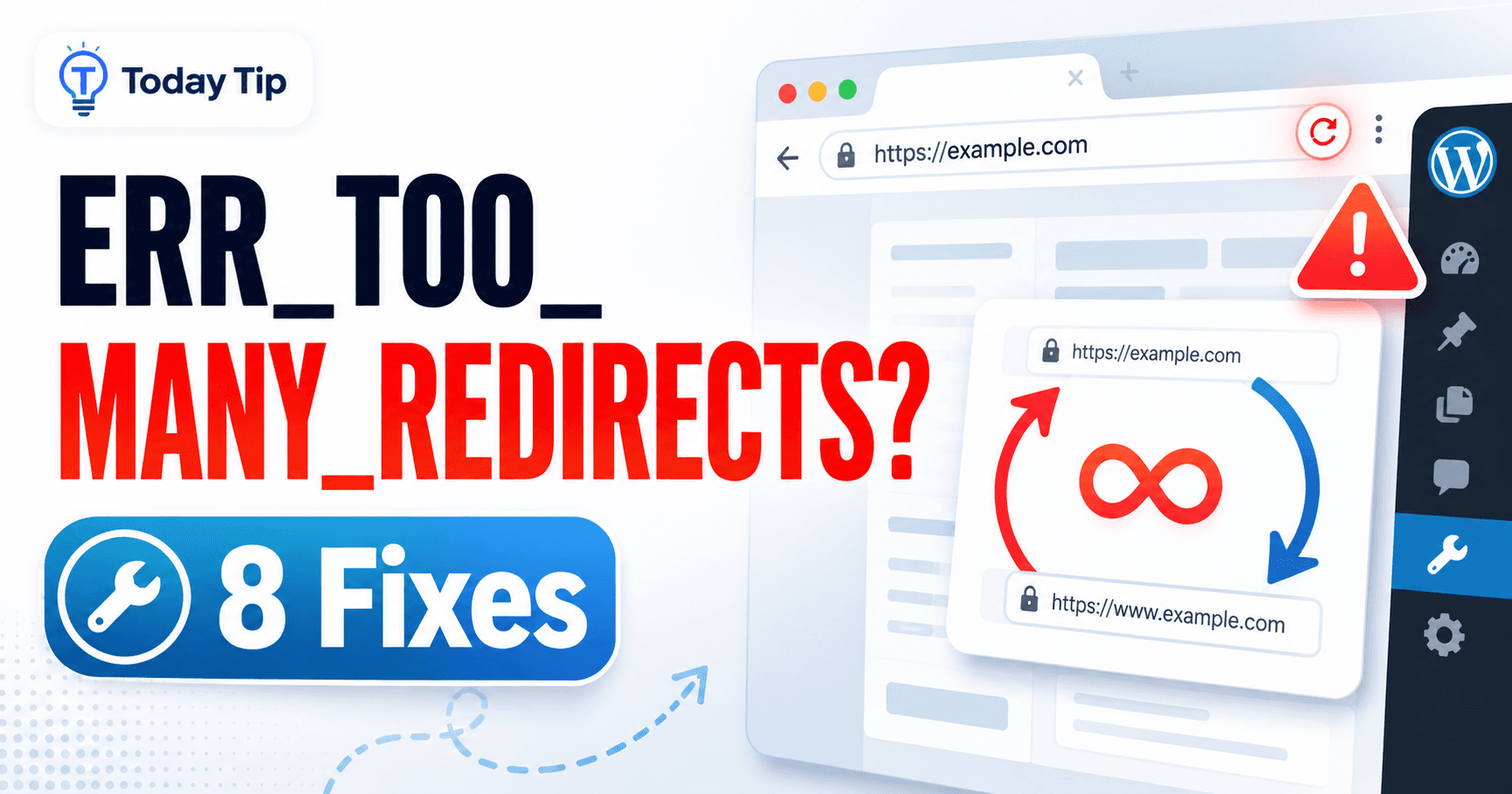
A redirect loop means the browser is being sent from one address to another without ever reaching a final page. The fastest clue is the pair that repeats: HTTP and HTTPS, www and the root domain, or the login screen and dashboard.
Write down that sequence before changing WordPress settings, Cloudflare rules or server redirects. Once you know which two destinations disagree, you can fix the owner of the redirect instead of clearing caches at random.
The repeating addresses tell you which rules to compare. Keep the existing settings before changing anything, especially after a domain move or HTTPS change.
Guide reviewed: October 8, 2026. Menu labels use English WordPress; provider-specific controls may differ.
Trace the two addresses that keep repeating
| Repeated journey | Investigate | Useful comparison |
|---|---|---|
| HTTP → HTTPS → HTTP | Proxy/origin scheme and competing HTTPS rules | Compare redirect locations |
| www → root → www | Contradictory hostname preferences | Find which service sends each hop |
| Login → dashboard → login | Cookies, URL settings and authentication cache | Try a signed-in private session |
| Only one member or language page loops | Plugin redirect conditions | Compare role and session on staging |
What addresses keep repeating?
- Open Developer Tools → Network and enable Preserve log where available.
- Visit the original failing address.
- Inspect each redirect’s destination, often shown by the
Locationresponse header. - Write down the first repeating pair and identify the service issuing each rule.
Do not share request cookies or authorization headers when sending the chain to support.
The browser’s Network panel can show the redirect responses while you reproduce the problem. Look at the destination of each redirect and whether the same addresses appear again. A transition from HTTP to HTTPS is normal; a return from HTTPS to HTTP explains why the browser cannot finish.
The hostname matters too. One service may prefer www.example.com while another forces example.com. Neither preference is inherently a problem, but they need to agree. Keep a copy of the observed chain before changing a rule.
If only the login page fails, try a private browser window and sign in there. A successful login in that window makes cookies or stored browser data relevant. A loop that appears there as well points toward configuration or behavior shared by the requests.
WordPress’s two address settings need careful attention
Under Settings → General, WordPress Address identifies where the WordPress installation lives, while Site Address identifies the public site address. On many sites they match, but an installation kept in a separate directory may intentionally use different paths.
The important point is that both values fit the intended installation, hostname and HTTPS setup. Making them identical without understanding a separate-directory installation can create another problem. After a migration, compare the values with the arrangement the host expects.
Constants such as WP_HOME and WP_SITEURL in wp-config.php can override the corresponding database values. If a dashboard change seems to have no effect, that override is worth investigating. Save the original configuration before editing it.
Login cookies can be lost between destinations
WordPress uses cookies to remember an authenticated session. If the browser signs in on one hostname and immediately moves to another, the session may not remain available where the dashboard expects it.
When a private-window test works, clearing cookies for the affected site can help the original browser establish a fresh session. Clearing all browser data is usually unnecessary for that targeted comparison.
Login pages and authenticated administration requests should also avoid ordinary public page caching. A cached response based on someone else’s login state can create confusing behavior even when the address settings are correct. The relevant cache exclusions depend on the host and cache service.
HTTPS may be handled by more than one service
A CDN, hosting panel, web server and WordPress plugin can each generate redirects. Several redirects can work correctly together, but contradictory rules cannot. If the loop began with a certificate or proxy change, inspect that change before rewriting unrelated rules.
For a reverse proxy, the visitor’s connection and the connection to the origin are separate. The origin needs to recognize the intended scheme correctly. Otherwise, it may keep requesting HTTPS even though the visitor is already using an HTTPS connection to the proxy.
A provider’s supported HTTPS configuration is a better reference than a collection of redirect snippets copied from different guides. Once you know which layer should handle a redirect, redundant rules can be reviewed without losing the intended destination.
One common ERR_TOO_MANY_REDIRECTS case is Cloudflare Flexible mode combined with an origin that redirects HTTP to HTTPS. The visitor uses HTTPS, but Flexible reaches the origin over HTTP; the origin redirects it back to HTTPS and the cycle repeats. Check the origin certificate and the host’s supported setup before choosing an end-to-end HTTPS mode such as Full (strict). The official Cloudflare redirect-loop guide shows this conflict and other scheme mismatches. The correction should make both sides agree, rather than add another redirect.
A recently changed plugin may explain a limited loop
Membership, language, security and login plugins can redirect particular visitors while other pages remain normal. Compare a logged-out request with the role or session that experiences the problem. A loop affecting only a member page is less likely to require a site-wide domain change.
On a test copy, a comparison with the suspected plugin disabled can show whether its rule is involved. If the dashboard is inaccessible, a host can help with a reversible plugin-directory change. Keep the original directory and configuration available rather than deleting them.
Checking the complete journey after a fix
Retest the original starting address, not only the final destination. A direct visit to HTTPS can work while an old HTTP link still loops. For login, check a new session reaches the dashboard and remains signed in after opening another admin screen.
Try the original failing URL, a normal post and the home page. For a login problem, confirm that the form accepts the login and reaches the dashboard without returning to the form. Compare logged-in and logged-out behavior where caching was involved.
Refresh a cache that still holds the old redirect after the conflicting rule is corrected. The final chain should reach the intended address and stop there. A note of the rule’s owner and the setting changed makes the next domain or HTTPS migration easier to manage.
Redirect references and focused follow-up guides
- WordPress Advanced Administration Handbook: Logging In
- WordPress HTTPS and SSL error diagnosis
- WordPress DNS error troubleshooting
Record who owns the redirect
Keep the repeating URL pair, the hosting/CDN/plugin rule that caused it, and the setting changed. Review duplicate rules once the intended route is clear. The official General settings reference explains the two WordPress address fields and configuration overrides.