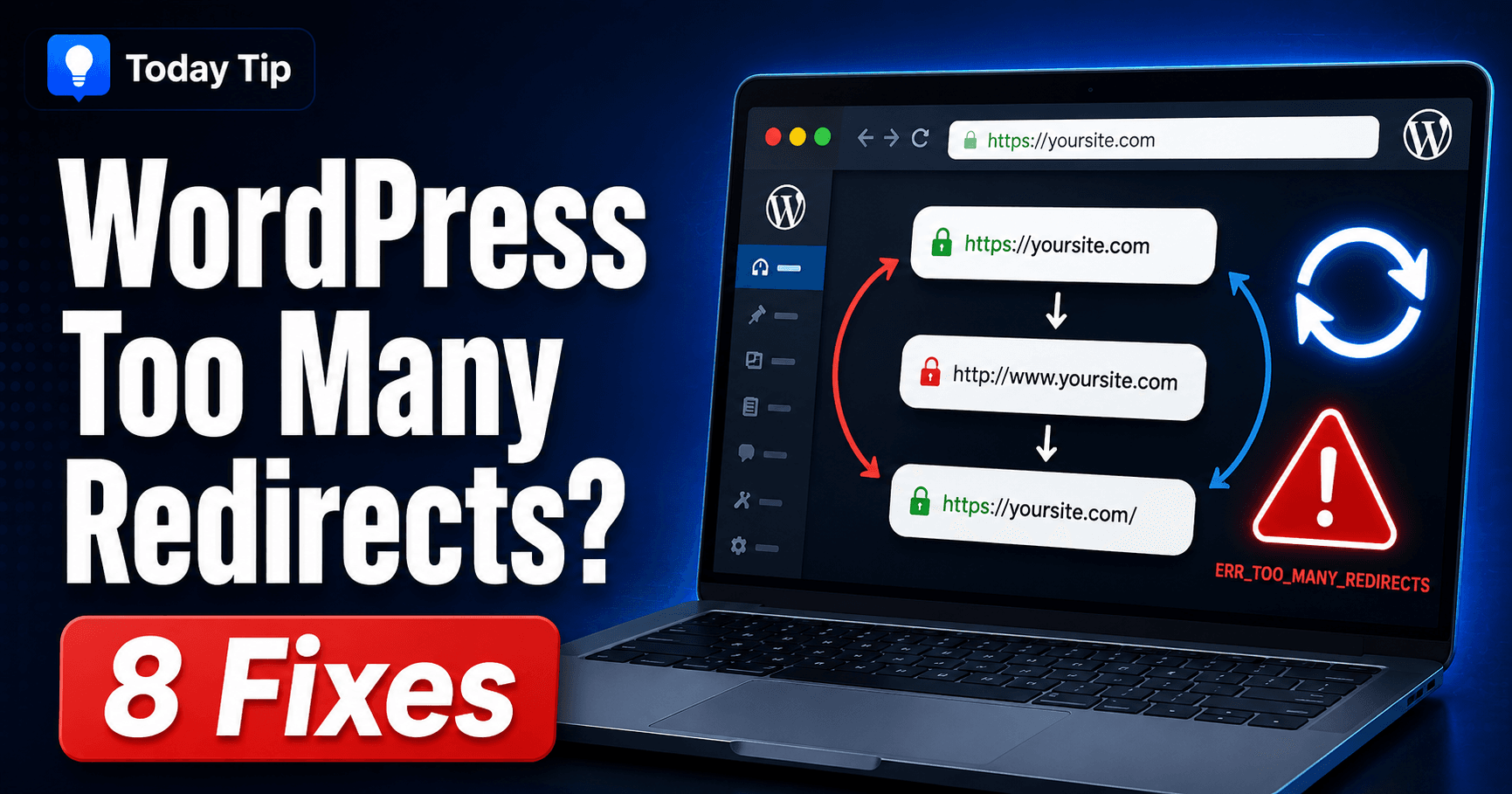
If WordPress accepts your login attempt but returns you to sign-in, follow the session and destination before changing credentials. A wrong-password message, repeated login page and “too many redirects” screen are different symptoms.
Compare a clean authorized browser session and record the URL changes to locate the layer causing the loop.
Guide reviewed: October 8, 2026. Interface labels may vary by version, account and device.
Quick diagnosis
| Pattern | First check | Next evidence |
|---|---|---|
| Private session works | Site-specific stored cookies | Compare the original browser after a targeted cleanup. |
| HTTP and HTTPS alternate | Proxy and redirect agreement | Host-traced redirect chain. |
| Old and new domains alternate | Migration URL configuration | Actual installation addresses. |
| One account loops at a member page | Role-specific destination | Login and access-denied routing. |
Compare one clean browser session
Open a private window and use the login address linked from your own site or hosting dashboard. Type your credentials carefully. If WordPress says the password is incorrect, use its password recovery process rather than treating that message as a redirect issue. The official login troubleshooting guide also covers browser cookies and cache.
If the private window works, the difference is useful evidence. Remove the affected site’s stored cookies in your regular browser, then sign in again. This will end that browser’s existing session on the site. There is usually no reason to erase every saved login or all browsing data just to test one WordPress installation.
For example, a working private session alongside a failing regular session points toward something local to that browser. If both fail at the same address, spend your next effort on the website configuration instead of repeatedly clearing cookies.
Watch the address as the loop happens
Trace note: record the login address, destination after submission and repeated next address. A single canonical redirect is different from opposite rules sending a request back and forth. Redact session values from support examples.
Notice whether the address switches between HTTP and HTTPS, between the www and non-www versions, or between an old and a new domain. A single move to the preferred address can be expected. Repeated movement in opposite directions suggests that two layers disagree about where the visitor belongs.
Write down the starting URL and the URL you reach after signing in. A host can trace the full redirect chain when the browser moves too quickly to read. Avoid putting passwords, cookies, or session tokens into screenshots you share for support.
If this began after a domain change, compare the site’s intended address with the relevant WordPress and hosting settings. Some installations deliberately keep WordPress in a subdirectory, so matching every field by guesswork can create another problem. Use the installation’s actual arrangement and keep a copy of the previous settings.
Check the route assigned to your account
Membership and custom-login tools may send different accounts to different destinations. Consider an account that signs in successfully but is redirected to a members-only page it cannot access. If that page sends it back to sign-in, the same journey may repeat even though the password is correct.
Test the intended destination and account role on a staging copy. Review the tool’s login, logout, and access-denied destinations together. A rule should give the user somewhere reachable, rather than sending the user back through a gate they cannot pass. Keep security protections active while checking these routing settings.
Look at HTTPS handling and cached login pages
When HTTPS ends at a reverse proxy, WordPress needs the server configuration to recognize the original secure request correctly. The WordPress HTTPS documentation describes how a mismatch can produce repeated redirects. Ask the host to check this against the trusted proxy setup; copying a forwarded-header snippet without understanding the server arrangement is a poor shortcut.
A cache configuration is another place to investigate when the problem follows a recent optimization change. Ask whether login responses and authenticated account pages are excluded appropriately for the tools you use. Test a targeted correction, rather than switching off every cache and security feature on a live site.
Confirm that the entire session works
- Sign in through the legitimate route.
- Open another dashboard or authorized account page.
- Return to a public page and back to the account.
- Sign out, then repeat in the browser that originally failed.
After the correction, sign in, open another dashboard screen, return to the site, and sign out. Repeat the test in the browser that originally failed. Reaching the dashboard once is encouraging, but a stable session should survive ordinary navigation and end cleanly when you log out.
If the loop remains, give support the affected login URL, the time of a recent test, whether private browsing behaved differently, and the last relevant configuration change. That evidence makes it easier to investigate a particular redirect or cookie response without exposing your account details or changing unrelated settings.
Record the stable route
Keep the intended hostname, HTTPS handling and account destination with the confirmed repair. Reaching the dashboard once does not establish a stable session; ordinary navigation and logout should also work.