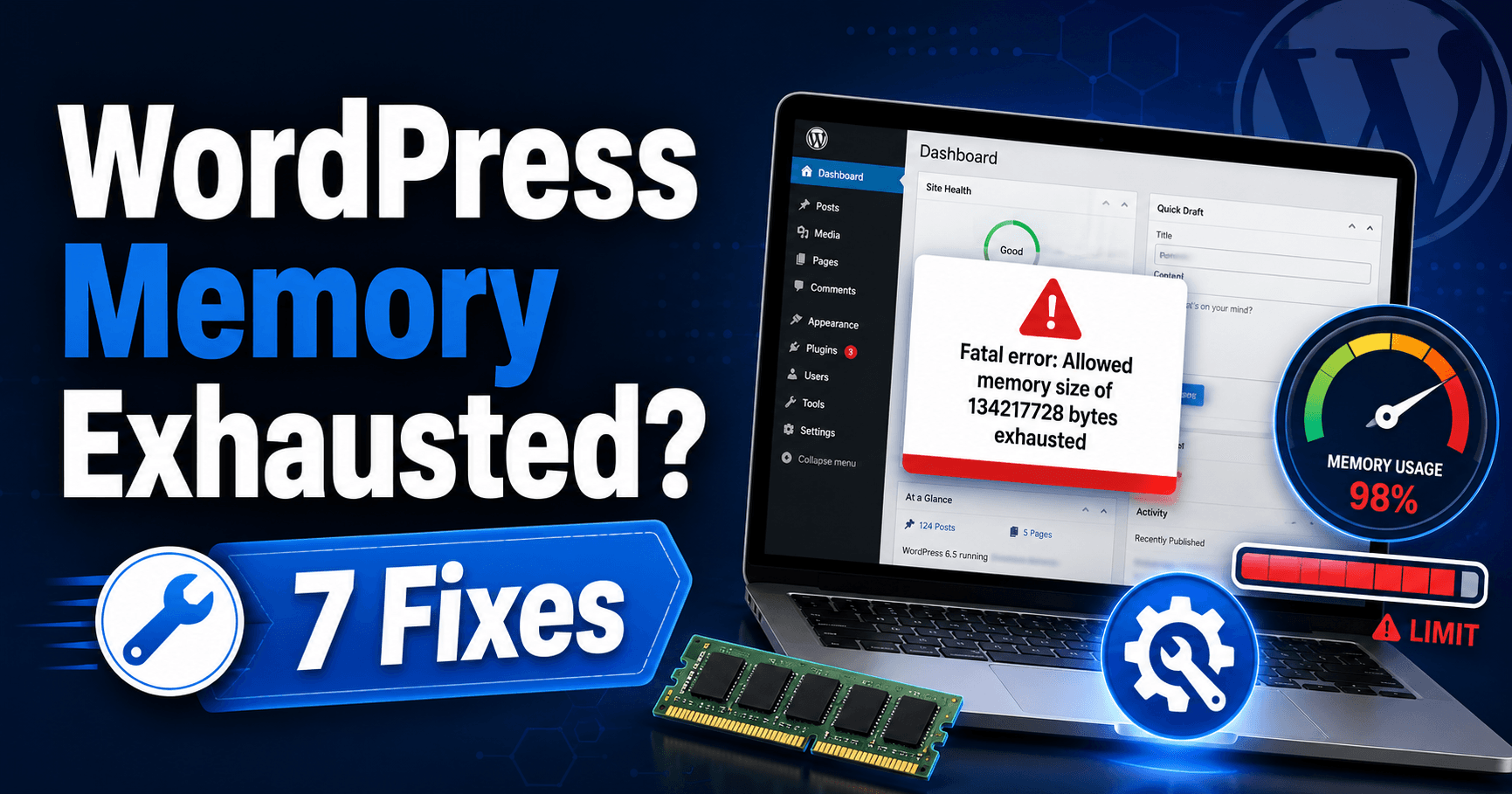
“Allowed memory size exhausted” means one PHP request reached its memory allowance. Start by identifying the action that failed: opening a page, importing rows, building a backup or processing an image.
A higher limit may help a legitimate job, but it cannot explain a sudden increase in memory use. Check the active allowance and compare a smaller version of the same task before changing limits.
Guide reviewed: October 8, 2026. Menu labels use English WordPress; provider-specific controls may differ.
Quick diagnosis
| Failed action | Useful comparison | Next check |
|---|---|---|
| Large import | Try a small test batch on staging | Importer batch size and duplicate handling |
| High-resolution image | Compare a smaller-dimension copy | Image processing and PHP allowance |
| Ordinary page after an update | Compare the same page with the last working component | Plugin or theme change and fatal log |
| Backup or export | Check selected folders and old archives | Job scope and supported processing method |
Read both numbers in the message
| Bytes in the error | Equivalent |
|---|---|
| 134217728 | 128 MiB |
| 268435456 | 256 MiB |
| 536870912 | 512 MiB |
Example: “Allowed memory size of 134217728 bytes exhausted (tried to allocate 4096 bytes)” means a 128 MiB allowance was reached while requesting another 4096 bytes. It does not mean the entire task needed only 4096 bytes. This is an illustrative message.
The allowed-size number is the request’s limit in bytes. For example, 134,217,728 bytes corresponds to 128 MiB. The second number, often introduced by “tried to allocate,” is the additional allocation that failed. It is not the total amount of memory the job needed.
Keep the file path and time of the failure. The named file shows where PHP reached the limit, although another part of the request may have consumed most of the memory earlier. A plugin file is a useful lead, not automatic proof that the whole plugin is defective.
Compare a small version of the same action. If importing a few rows succeeds but a large file fails, batching may be the right repair. If opening an ordinary page exhausts memory immediately after a plugin update, investigate that change first.
Check the active limit
- Open Tools → Site Health → Info.
- Expand the server and WordPress constants sections, where available, and record the PHP and WordPress memory values.
- Compare those with the hosting panel’s PHP configuration.
- If the host approves a change, check the active result again instead of assuming the saved value took effect.
If the value does not change: ask whether the hosting plan enforces a ceiling or disallows runtime changes. Do not keep adding duplicate constants.
Look under Tools → Site Health → Info → Server and in the hosting PHP configuration panel. WordPress also has WP_MEMORY_LIMIT and WP_MAX_MEMORY_LIMIT settings, which can request memory allowances for applicable operations. They do not provide extra physical RAM or override every hosting restriction.
If a developer changes one of those values, it should be defined only once and the active result should be checked afterward. A host may enforce a ceiling or prevent runtime changes. Adding a constant repeatedly in configuration files makes the setup harder to understand without necessarily changing the limit.
The appropriate value depends on the task and server capacity. Multiple PHP workers may run at once, so a generous allowance for every request can still overwhelm an account when several heavy jobs overlap.
Reduce avoidable memory use
- Preserve the input file and record the failed operation.
- On staging, try a smaller batch or lower-dimension image.
- Keep other settings unchanged so the comparison is meaningful.
- Check output counts, image variants or archive contents before scaling up.
An importer that loads an entire file into memory may need smaller batches. An image tool can use considerably more memory while decoding a high-resolution image than the compressed upload size suggests. In that case, reducing the source dimensions or using the tool’s supported processing method can help.
A backup or export may be collecting more data than intended. Review its scope, including old archives and unnecessary temporary files, before increasing limits. Keep an actual usable backup while making those changes.
If the failure began with custom code, ask a developer to look for large arrays, repeated data loading, or a loop that never releases work. More memory can delay such a failure without fixing the operation.
Recover access before investigating further
If the dashboard is unavailable, the host’s file manager and PHP logs can help identify the affected component. Restoring the last working version or temporarily preventing one suspected plugin from loading may recover access. That also stops its features, so a targeted change with a backup is preferable to disabling every dependency on a live store.
For wider comparisons, use a staging copy and the same test action each time. A theme change can affect layouts and plugin integrations; it is useful evidence only when you know what was changed and what was tested.
A separate timeout or server error may appear once the memory problem is resolved. Our execution-time guide and 503 troubleshooting guide explain those different limits.
Check the output after the repair
Repeat the original task once and verify its result, not just the absence of a fatal message. Check imported counts, generated images, or the completed archive as appropriate. Record the active limit and batch size that worked.
If a routine request continues growing in memory use, give the developer or host a reproducible example and the matching log. WordPress’s PHP performance guidance and memory-limit function reference explain how its memory settings relate to PHP.
Which result actually proves recovery?
A task is complete only when its output is correct. For an import, compare expected and created records and watch for duplicates. For a backup, confirm it is usable. For a page, check both visitor and administrator access. If a small ordinary request still exhausts memory, send the developer the reproducible action and private error trace. See the official WordPress common-error guide for memory-related failures.