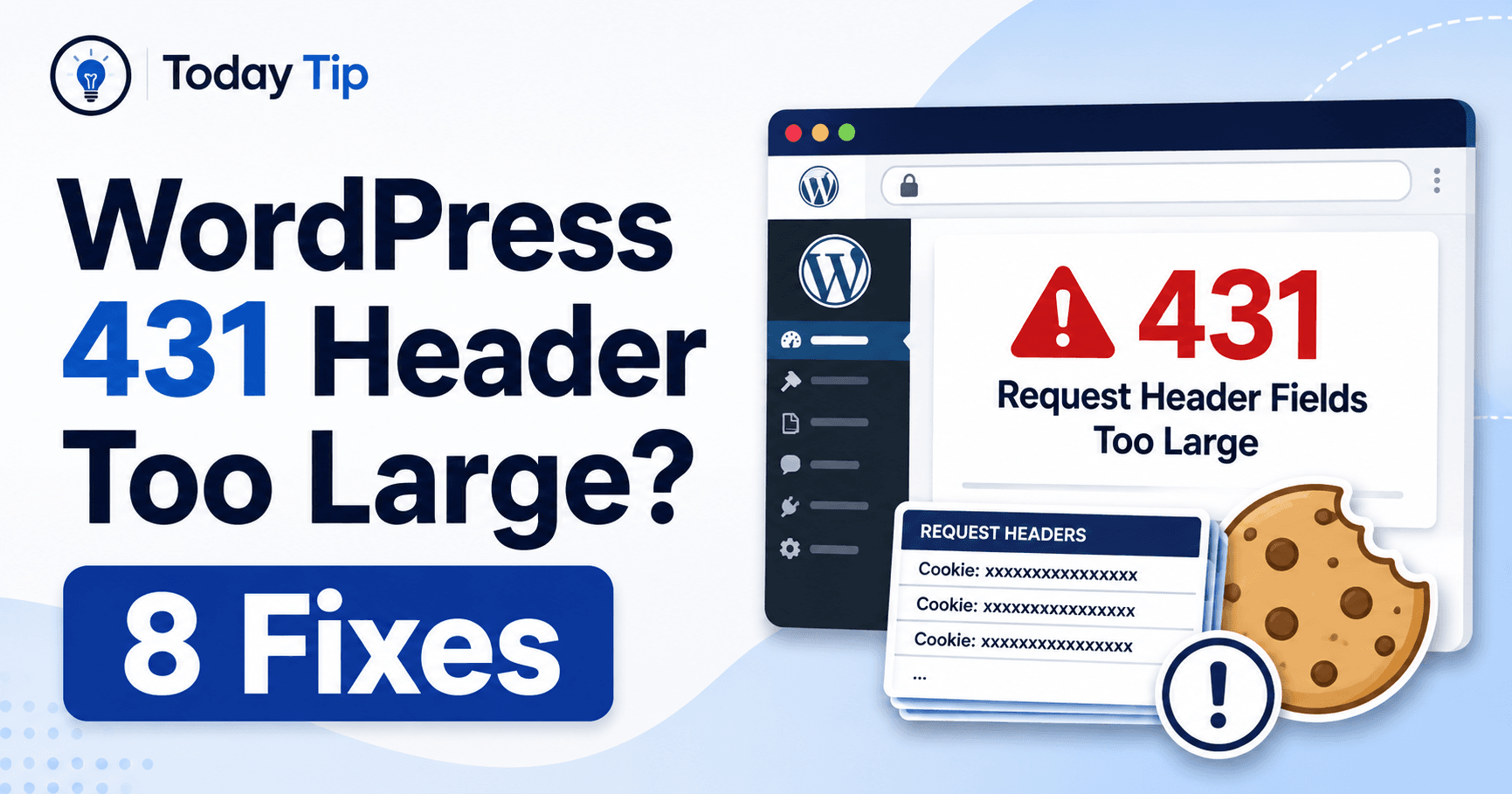
If one browser receives HTTP 431 while another opens the page, compare the requests. The response means an individual header or the combined headers are too large. Site cookies and a long referring address can contribute. A fresh session is a useful comparison, but an account page must also be compared with its sign-in state in mind.
Guide reviewed: October 8, 2026. Interface labels may vary by version, account and device.
Compare the request headers in a fresh browser session
| Comparison | What it suggests | Next check |
|---|---|---|
| Fresh public-page session works | Stored request data may differ | Review site-specific cookies and repeated actions |
| Direct address works; followed link fails | Request context may differ | Inspect the relevant header with the developer |
| Error returns after a feature is used | A header may keep growing | Reproduce the preceding sequence |
| All clients fail | Limit or common request generation | Ask which proxy or server returned 431 |
Compare a fresh browser session
Keep the page constant: original browser session, fresh public-page session and direct navigation to the same address. Note sign-in differences. A private window displaying a login screen is a different result from the signed-in request and does not alone prove stored cookies caused the error.
Try the affected public page in a private window. This is a comparison, not a promise of a fix. A private session usually starts without the site cookies stored in your ordinary session, so a different result can help narrow the investigation.
If the page works there, note that before changing anything else. For a public page, the comparison is straightforward. For an account page, a private window may not be signed in, so it may show a different screen for that reason. Compare like with like as far as the site allows.
You can also enter the page address directly rather than following a long link from another application. If only one route to the same page fails, mention that pattern to the site owner. It is more informative than reporting that every part of the website is unavailable.
Clear only the relevant site data when appropriate
If the evidence points to stored site data, removing that site’s cookies is a reasonable test. Your browser’s privacy settings normally offer a way to find data for a specific domain. Use the domain involved rather than wiping all browsing data without a reason.
Removing cookies can sign you out and may reset a cart or saved preferences. Finish or preserve anything important first. Afterward, reopen the site and sign in normally if necessary. Check whether the same action works again.
For example, a customer may reach product pages in a fresh session but receive 431 in an older one. Clearing that domain’s data could restore access. If the problem returns after using a certain feature, the site owner should investigate why that feature keeps adding request data instead of asking customers to repeat the cleanup indefinitely.
For site owners, look for the growing header
Ask the developer to reproduce from a fresh session and measure the relevant header after each step. Share names and size observations in the support record, keeping live cookie and authorization values private. The sequence that causes repeated growth is more useful than the final error alone.
A developer or hosting provider can inspect the failing request and identify which header exceeds an accepted limit. Share the affected URL, the browser used, the approximate time, and the steps that led to the error. Do not paste live cookies or authorization values into a public support forum.
If a new feature was introduced just before the problem began, give that context to the developer. A consent tool, personalization feature, or custom integration is worth reviewing when the evidence connects it to the growing header. The error itself does not establish that any particular plugin is at fault.
A useful test is a fresh session followed by the same sequence of actions. If the header grows repeatedly during that sequence, the developer has a reproducible case. That is easier to investigate than several screenshots of the final error without the preceding steps.
Avoid changing server limits blindly
Increasing an accepted header size may be appropriate in a particular configuration, but it should follow an explanation of what the request contains and why that size is needed. Otherwise, it can simply postpone a request that continues to grow.
Ask the host where the response originated. A proxy or another service in front of WordPress may enforce its own limit, so editing a PHP setting might have no effect. The provider can identify the component and advise on a suitable configuration.
Likewise, reinstalling WordPress is not a useful first response to a problem that affects one browser session. Preserve the evidence and make the smallest relevant change that the diagnosis supports.
Check both recovery and recurrence
After the fix, test the affected page in the original browser and repeat the activity that previously led to the failure. If the site uses accounts or carts, confirm that those ordinary features still behave properly.
Record whether the cause was a stale session, a header that kept growing, or a server configuration limit. Those are different outcomes. Knowing which one applied helps you recognize a recurrence and gives visitors a more useful explanation than a generic instruction to clear every cache.
Reference: MDN’s explanation of HTTP 431.
Record the header source if the error returns
Test the original browser and repeat the feature sequence after correction. Confirm any ordinary cart or account behavior. Record whether the cause was stale session data, repeated header growth or a particular component’s limit; those findings require different long-term maintenance.