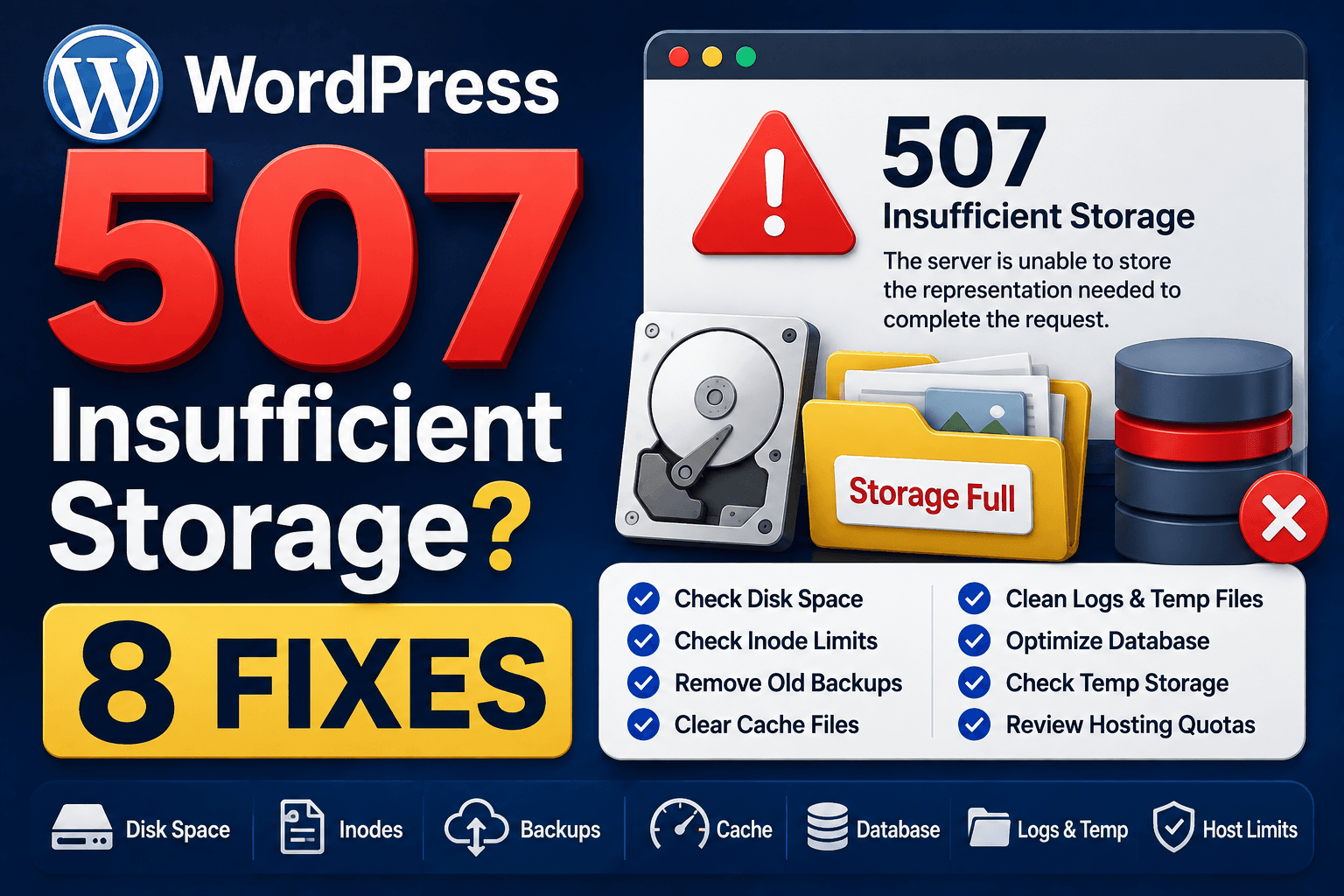
A 507 response means the server lacks the resources needed to complete the action. Keep the failed upload, export or save operation and ask which location or allowance could not be allocated. Spare space in an account summary does not establish that every working directory or application resource was available.
Guide reviewed: October 8, 2026. Interface labels may vary by version, account and device.
Identify the storage or allocation the server could not provide
| Failed action | Investigate | Confirm after repair |
|---|---|---|
| Media upload | Resource and location used to save it | Expected file exists and opens |
| Generated export | Working location and application requirements | Complete output is available |
| Account storage looks below limit | Component producing the response | The relevant resource was identified |
| Record-creating action | Existing result before retry | Expected record appears once |
Understand what 507 means
MDN describes 507 as a server error indicating that an action cannot be completed with the available storage. Its explanation includes exhausted server-directory space, insufficient RAM for an operation, and application-specific limits. The status originated in WebDAV and also appears in other contexts.
The distinction from 413 is useful. A 413 response concerns request content that exceeds the server’s accepted size; a 507 response describes resources unavailable for the action. Sending a smaller file may help in some circumstances, but it does not establish which limit caused the 507.
For example, a modest document might fail because the location used by an export has no room left. Meanwhile, an existing public page can still load. Those two observations are compatible; browsing a page does not prove that the server can save new data.
Check the relevant allowance with your host
Support question: “Which resource or directory could not be allocated for this operation at this time?” Include the feature or plugin and action. A general disk graph is useful context, but request logs and the component returning 507 are needed to identify the actual constraint.
Look at the storage information supplied in the hosting dashboard and note the time of the failure. If it appears comfortably below its limit, ask the provider which directory, service, or application returned the response. The account total may not describe every resource involved in that operation.
A useful question is: “Which resource could not be allocated when this request failed?” That invites a specific answer instead of another recommendation to clear the browser cache. Ask support to compare the failing request with the server’s logs at that time.
If a plugin generated the error page, include the plugin name and the action being attempted. An export tool may report a constraint differently from WordPress’s ordinary media uploader. The response text and request location can help separate the two.
Review growth before removing files
For any proposed cleanup, identify the file’s purpose, retention needs and usable recovery copy before removing it. Compare recent backup or export growth with the confirmed storage constraint. Preserve active uploads and the only recovery copy while planning a targeted cleanup.
If the provider confirms that disk space is the issue, review what has grown. Recent backup archives, repeated exports, or a log that has expanded unexpectedly are reasonable places to investigate. Their presence is not proof that they are disposable.
Before removing an archive, confirm what it contains and whether a usable copy exists somewhere else. Do not delete the only recovery copy simply because its filename includes “backup.” Similarly, a folder of unfamiliar files may belong to an active feature rather than to abandoned data.
A practical example is an export that was run several times while troubleshooting. You may have several copies of the same output. Once their contents and retention needs are checked, a planned cleanup is easier to justify than deleting arbitrary files from the uploads folder.
Make a change that matches the confirmed cause
If the problem is a temporary working location, the host can explain its capacity and configuration. If an application reaches its own limit, the application’s documentation or support may be the better route. Increasing an unrelated WordPress setting will not necessarily affect either situation.
When normal use genuinely requires more space or another resource, compare the relevant allowance before changing plans. Ask how much additional capacity you would receive and whether it applies to the resource that failed. An upgrade is a decision based on the diagnosis, not a universal response to 507.
A clear support message might say: “A PDF export returned 507 at 15:05 Seoul time. The account’s disk graph shows spare space. Please identify the resource or location that could not be allocated for this request.” Include a non-sensitive screenshot of the message if it adds detail.
Retry the original action carefully
After the adjustment, try the same kind of operation with a small, non-sensitive test. Confirm both that it completes and that the expected file or record exists. A success message alone is not enough if the saved output is missing or incomplete.
For actions that create orders or other important records, check the existing result before retrying so you do not create duplicates. Keep the cause and the successful correction in a short note. It will help you monitor future growth and recognize whether a later storage problem is actually the same one.
Reference: MDN’s explanation of HTTP 507 Insufficient Storage.
Verify the saved output is complete
Use a small non-sensitive test of the original action and inspect its actual output. If the feature creates important records, check existing results first. Record the failed resource, correction and complete output verification so future growth can be compared with a useful baseline.