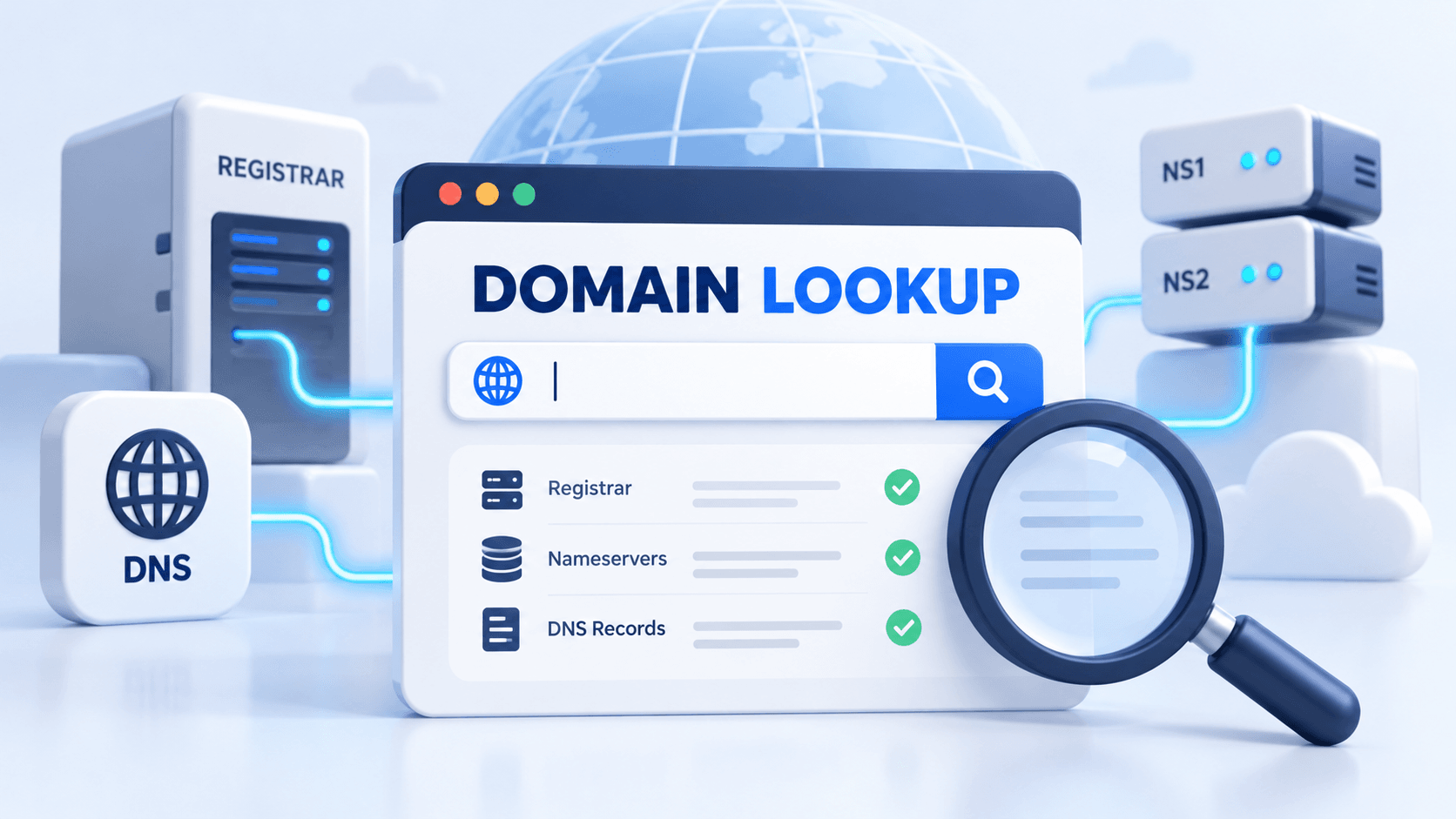
Cloudflare error 1110 occurs while the onboarding system is trying to look up registration or hosting information for a domain. The useful evidence is the submitted name, the registrar’s current status and the full message returned by Cloudflare.
Check those items before repeatedly retrying or changing DNS records. A lookup failure during onboarding is separate from whether the existing website is currently online.
If the existing website still works, keep that connection while the setup issue is reviewed. An onboarding lookup and an ordinary visitor request are separate operations.
Guide reviewed: October 8, 2026. Interface labels may vary by version, account and device.
Check the submitted name and registrar status first
| Evidence | Check | Next decision |
|---|---|---|
| Submitted domain | Exact registered name | Correct a clear input mistake |
| Registration status | Registrar’s current account view | Resolve an incomplete stage there |
| Recent transfer or registration | Time and completion state | Provide context for the lookup |
| Correct input, repeated 1110 | Full message and attempt times | Use the documented retry or support route |
| Public site still works | Current DNS provider | Prepare the move without interrupting it |
Start with the name Cloudflare was asked to look up
A copied website address may include a protocol, a www prefix or a page path. In a normal full-zone setup, the submitted value should be the main registered domain. Compare it with the name shown in your registrar account rather than relying on the address of an individual webpage.
For example, entering a shop subdomain is a different request from entering the domain under which the shop operates. If you intended to connect the whole domain, correcting that entry is more useful than changing the website’s theme or permalink settings.
A typo can also lead the setup to examine a name unrelated to your account. Reading the domain carefully is a small step, but it establishes that the failed lookup concerns the property you actually intend to connect.
Check the registrar’s current view
The registrar account is the place to confirm the domain’s registration status and nameserver settings. If a purchase or transfer is still being processed, keep that stage separate from the WordPress installation. A working temporary website does not show that the custom domain’s registration information is fully available.
If the account reports an unresolved registration issue, ask the registrar to clarify it. If the domain is active and the information appears correct, that is useful evidence for the Cloudflare support request. The two outcomes lead to different next steps.
A recently completed change may also explain why the timing matters. Note when the domain was registered, transferred or updated, rather than repeatedly changing settings in an attempt to make the lookup succeed immediately.
Keep lookup failure separate from website downtime
An existing site may continue to open normally through its present DNS service while the Cloudflare addition fails. That combination is possible because the onboarding check and the visitor’s connection are different operations.
If the current site works, preserve that connection while investigating 1110. Moving nameservers before the replacement setup is ready could turn a setup inconvenience into an access problem for visitors. Clearing WordPress caches or deleting DNS records does not resolve Cloudflare’s inability to retrieve the domain information.
For a new website, the host’s temporary address may still allow content preparation. Keep a clear distinction between preparing the application and finishing the custom-domain connection so that you do not mistake one for the other.
Retry with a reason, rather than changing several things
A later attempt is reasonable when the input is correct and the documentation suggests a temporary lookup problem. It helps to record what was changed, if anything, between attempts. That makes the result easier to interpret.
If the same error continues, collect the complete message and the approximate times of the attempts. The information can show support that the issue is repeatable without requiring you to make speculative changes to a working configuration.
There is no need to invent a fixed waiting period or promise that the next attempt will succeed. The useful decision is whether you have new information that justifies another try or whether the unresolved lookup should now be reviewed.
Give support enough context to investigate
Use a short chronology: domain registered or transferred, confirmed status, onboarding attempt and repeated result. Include whether setup is direct or through a host. A fixed waiting period guessed from another error code would obscure this evidence.
A focused request identifies the main domain, error 1110, the registration status shown by the registrar and any recent transfer or registration change. Mention whether you are adding it directly in Cloudflare or through a hosting partner.
If the public site currently works, include that fact as well. It helps explain that the problem occurs during domain addition rather than during ordinary page visits. A screenshot of the setup result can accompany the description without including account credentials or authentication codes.
Once the domain can be added, compare the new zone with the host’s required records before completing the migration. Then test the usual HTTPS address and another page. Resolving the lookup clears the onboarding obstacle, but the resulting DNS and website connection still need verification.
The official Cloudflare domain-addition guide lists error 1110. Our WordPress DNS guide covers connection symptoms after a domain is active.
Retest the connection after onboarding
When addition succeeds, check the new zone against the host’s required records before moving traffic. Verify the normal HTTPS address and another page. Keep the old working configuration available in your notes until the new connection is verified.