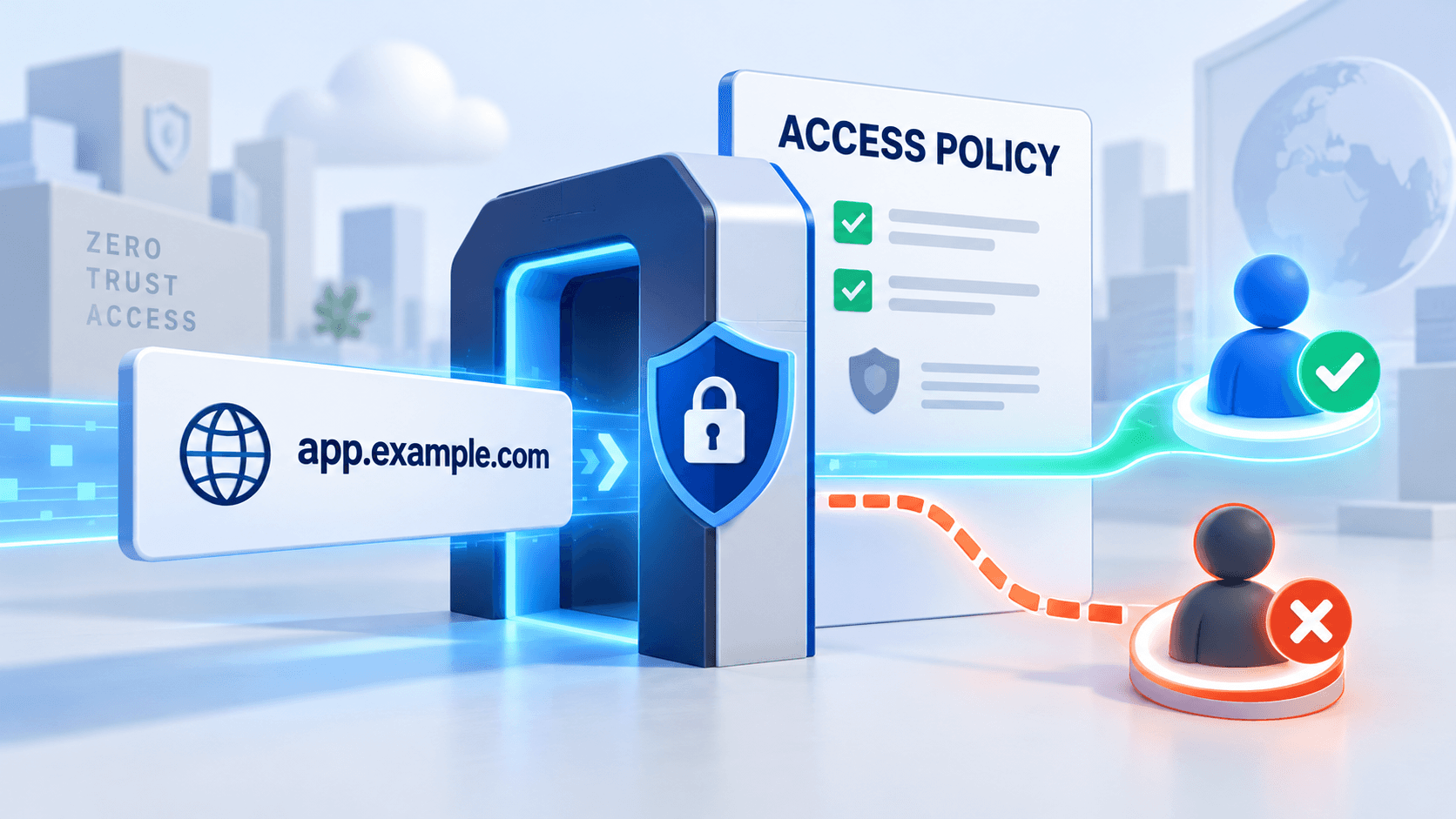
Cloudflare error 1050 can appear when an Access account uses a default-deny policy but the requested hostname does not match an Access application. The request is stopped at Cloudflare before it reaches the WordPress login screen.
Decide who should reach the hostname, then compare it with the application domain and policies configured in Cloudflare Access. The solution should restore the intended audience without removing protection from unrelated resources.
Identify whether the hostname is a public blog, private staff resource or staging site. The administrator should restore the intended audience’s access while keeping private resources protected.
Guide reviewed: October 8, 2026. Interface labels may vary by version, account and device.
Match the hostname to the intended Access application
| Resource | Question to answer | Verification |
|---|---|---|
| Public blog | How is anonymous reader access intended? | Signed-out visitor sees only intended public content |
| Private staff site | Which users should satisfy the policy? | Authorized user works; unauthorized user remains blocked |
| New staging hostname | Is an application configured for this name? | Coverage matches the new hostname |
| WordPress login blocked before the form | Does edge access succeed? | Test Access and WordPress authentication separately |
Begin with the intended audience
A public homepage, a staff portal and a private staging site have different access requirements. Before changing the configuration, identify which kind of resource the blocked hostname represents. Restoring anonymous access to a private system would solve the visible error while creating a more serious problem.
For example, a new preview.example.com address might have been added for a developer to review unfinished WordPress content. If the account requires protection for every hostname, the new address needs an appropriate Access application. The absence of that configuration is not a reason to make all account resources public.
By contrast, a public blog is intended to open for ordinary readers. Its administrator should review how that public hostname fits the account’s Access design. The remedy should follow that documented audience decision rather than assuming every blocked resource has the same purpose.
Compare the hostname with the Access application
- Record the full blocked hostname and message.
- Identify the administrator responsible for its audience.
- Compare the hostname with configured application coverage.
- Review the intended policy for that particular resource.
- Test authorized and unauthorized sessions after a targeted correction.
The exact address matters. An application configured for one hostname may not cover a newly created subdomain or an alternative address. Compare the name displayed in the browser with the hostnames configured in the relevant application.
This comparison is especially useful after a domain migration or the launch of a staging environment. The WordPress installation may have moved successfully while the protective configuration still describes the previous address. DNS and Access need to describe the intended connection consistently.
If you are a visitor rather than the account administrator, send the full address and the error message to the site owner. Refreshing the page or changing WordPress credentials cannot create an Access application on the owner’s account.
Use a policy that fits the resource
Document the audience decision before editing the policy. A private preview should not become public solely to remove the error. Give the administrator the affected hostname and intended users so the correction can stay scoped to that resource.
Cloudflare documents creating an Access application with an Allow policy for authorized users. For intentionally public resources, its documentation also describes Bypass policies and narrowly chosen hostname exemptions. These options have different effects and should be selected by the administrator responsible for the site’s access requirements.
An Allow policy is appropriate when the intended audience must satisfy the configured access conditions. Making a resource publicly reachable is a separate decision. It deserves particular care when the hostname contains unfinished content, internal documents or an administration interface.
The account-wide setting exists to prevent new resources from becoming exposed before protection is configured. Turning it off simply to remove one error can affect other hostnames, so a review of the specific application is a better starting point than a broad account change.
Keep WordPress login and edge protection separate
WordPress authentication controls access within the application. Cloudflare Access controls whether a request can reach that application through the protected hostname. A WordPress administrator account does not automatically satisfy an Access policy, and a working Access session does not replace the WordPress login.
This explains why a site owner may be blocked before seeing the WordPress login form at all. The request has encountered the outer protection first. Looking for a broken WordPress password reset or disabling a membership plugin would address a different layer.
If the error began after an Access configuration change, keep a note of that change and the affected hostname. It helps the administrator compare intended coverage with the behavior readers or staff now see.
Test both allowed access and continued protection
After the configuration is corrected, test with a user who belongs to the intended audience. For a public page, a signed-out browser should show the expected content. For a private resource, the approved user should reach the application while an unapproved visitor remains subject to protection.
Checking only your own signed-in session can hide an overly broad policy or an audience-specific failure. The goal is appropriate access for the resource, rather than merely making the error disappear on one screen.
Cloudflare explains the account setting and error 1050 in its Access protection guide. If WordPress itself rejects a login after the Access check succeeds, investigate that application-level symptom separately.
Verify access and continued protection together
Check a fresh allowed session and a session outside the intended audience. For public content, verify the signed-out view. Then confirm that WordPress’s own authentication still behaves correctly; an Access session does not replace the application’s login.