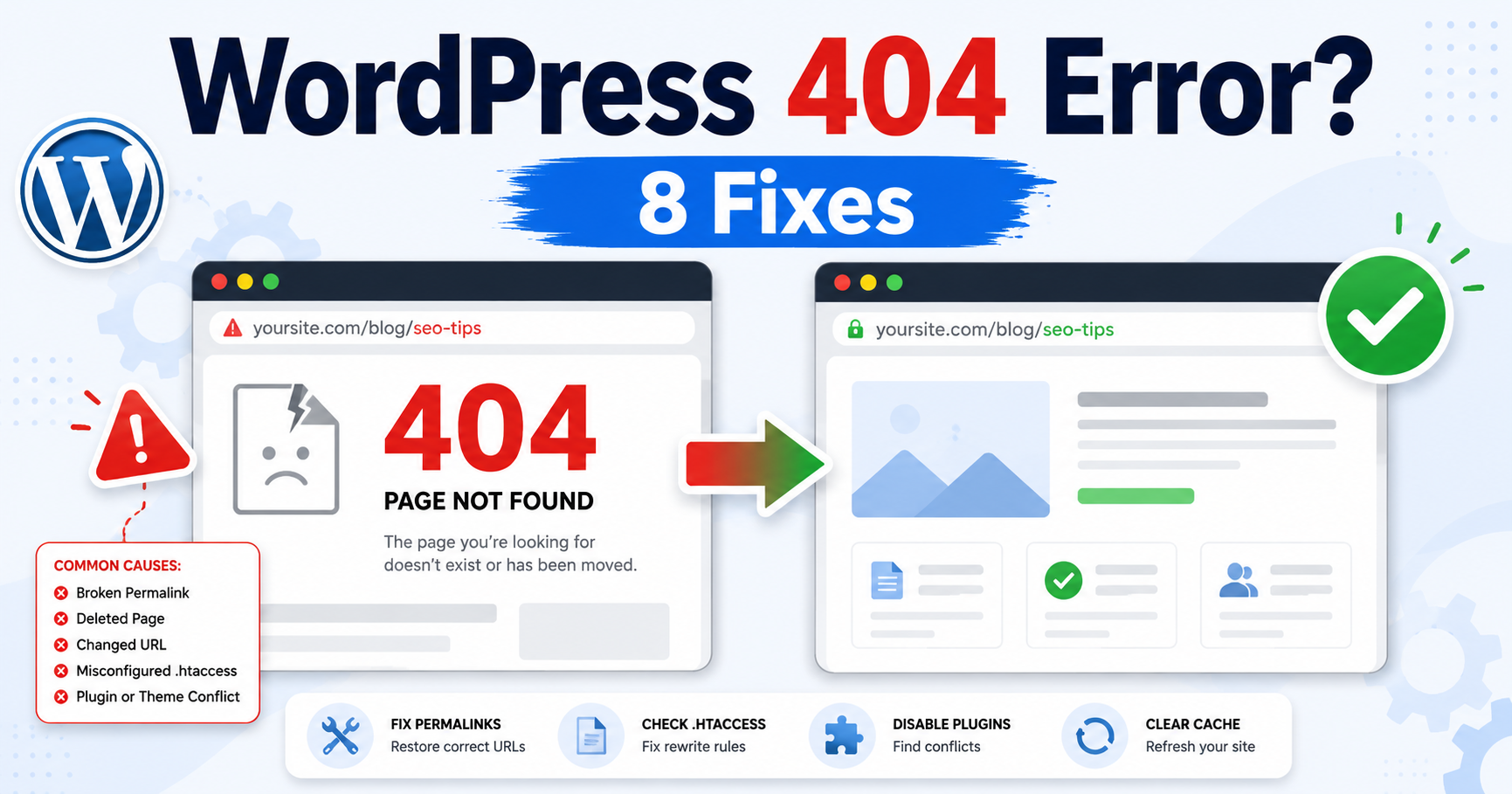
Your homepage opens, but clicking a post shows “Page not found.” Start by checking whether one address is wrong or every post address is failing. You can often narrow this down without editing server files.
This guide covers ordinary posts, custom content such as products, and missing media. Follow the row that matches your site, then test the same address after each change.
Guide reviewed: October 8, 2026. Menu names refer to self-hosted WordPress in English; hosting controls vary.
Choose your starting point
| What you see | First check | Next action |
|---|---|---|
| Only one post returns 404 | Published status and current public link | Compare the failing URL with the post’s link |
| Home works, most posts fail | Permalink routing | Save the existing permalink settings once |
| Posts work, products or events fail | The plugin and its route settings | Check registration and slug conflicts |
| A page works, an image is missing | The exact upload URL | Check the file rather than post routing |
| An old address fails after a move | The intended replacement | Use a relevant redirect if the content moved |
Check the address and the post’s status
- Go to Posts → All Posts and find the affected post.
- Open it and confirm its status is Published.
- Use its public view link, then compare the domain, parent path and slug with the broken link.
Example: if a post moved from /old-guide/ to /new-guide/, a rewrite refresh does not make the old slug current again. Update links and consider a redirect to the new guide. These are illustrative paths.
Open the post in the dashboard and compare its current public link with the failing address. A changed slug, draft status, private page, or moved parent page can explain one isolated 404. Check spelling and the domain as well, especially after a migration.
If the content has a new address, update your navigation and internal links. Use a permanent redirect from the old address when there is a suitable replacement. Keep the destination relevant rather than treating any working page as a replacement.
If the content was intentionally removed and there is no equivalent, a real not-found response can be appropriate. A helpful error page can offer navigation or search without pretending the missing content still exists.
When many normal posts fail together
- Write down or capture the existing permalink setting.
- Open Settings → Permalinks.
- Keep the same structure and click Save Changes once.
- Reopen two previously broken posts in a private browser window.
If both open: verify menus and related links before doing anything else. If both still fail: ask the host to check the server’s WordPress routing. Do not repeatedly switch permalink structures.
If the homepage and dashboard work but most pretty post URLs return 404, inspect the permalink routing. Saving the existing settings under Settings → Permalinks can refresh WordPress’s rewrite rules in supported environments.
That step does not change every server configuration. Apache may use .htaccess rules, while Nginx needs the appropriate server-level routing. A host migration between those systems is a reason to have the provider check the actual setup.
Keep a backup before editing a configuration file. A generic WordPress example can omit custom redirects, access rules, or subdirectory details. The correct rule needs to fit where this installation actually lives.
When only one content type fails
For example, if normal posts open but /events/example-event/ does not, check whether the events plugin is active and whether another page uses the same events base. The example demonstrates a route conflict; it is not a recorded incident from this site.
Products, events, or another custom content type may depend on a plugin that registers its routes. If that plugin was paused or its base slug changed, ordinary blog posts can work while those pages fail.
Confirm the responsible plugin is active and its content is still present. Compare the route settings with the expected public address, then refresh the relevant rewrite configuration through the supported workflow.
Reactivating a component is not automatically the right step if it was paused because it broke the site. Resolve that original problem first, preferably on staging, so repairing the route does not restore a fatal error.
Check media and cached errors separately
A missing image has its own file address. If the post opens but an image does not, compare the exact media URL and generated image size. Re-saving permalinks will not recreate a deleted upload.
After repairing a page or file, a cache may continue serving the earlier 404 response. Purge the affected URL using the supported cache controls and compare the same address as a visitor. Do this after the underlying resource works, rather than clearing caches endlessly while it remains absent.
If the issue began after a domain move, confirm that the public domain reaches the intended site. An old installation can return a convincing WordPress 404 even though the new installation contains the post.
Verify the destination and important links
Open the repaired address, follow any redirect, and check that it ends at the intended content without looping. Then update the links you control, including menus, related-post links, and sitemap entries where applicable.
A custom not-found screen should still return the intended HTTP status. Showing a friendly page with a successful status for every missing URL can confuse search engines and reporting tools. Your developer can confirm the response.
For related routing symptoms, see the sitemap guide and redirect-loop guide. WordPress’s Nginx documentation explains how its configuration differs from Apache.
What to send your host if it still fails
- One working URL and one failing URL.
- Whether normal posts, products or media are affected.
- The last migration or route change and its approximate time.
- The result of saving the existing permalink settings.
Keep login details and configuration secrets out of the request. See the official WordPress common-error guide for the underlying permalink and custom-post-type checks.