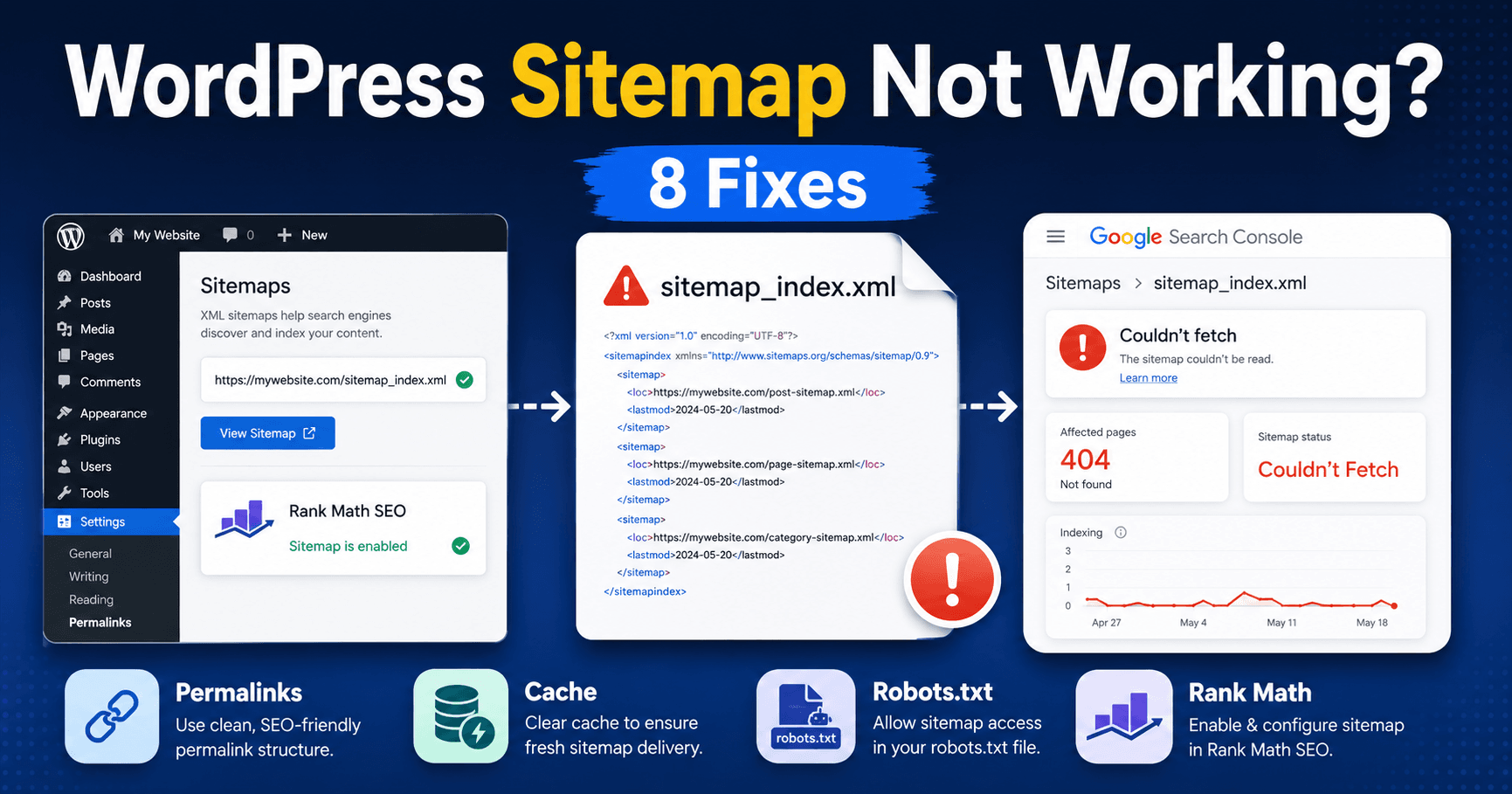
A sitemap returning 404, an apparently blank XML view and a Search Console fetch failure are different problems. Use the sitemap address supplied by your active generator, then check its index and a child file.
This guide separates generation and retrieval from the indexing decision for each page.
Guide reviewed: October 8, 2026. Interface labels may vary by version, account and device.
Quick diagnosis
| Symptom | Investigation | Next check |
|---|---|---|
| 404 at supplied sitemap URL | Generator routing | Current settings and applicable server rules. |
| Blank browser view | Actual response contents | XML versus empty body or HTML. |
| Published URL missing | Content inclusion settings | Indexability, exclusion and canonical. |
| Browser works; crawler fetch fails | Automated access path | Submitted URL and timed server or firewall event. |
Use the address supplied by your sitemap system
- Find the active generator’s displayed index address.
- Open it without relying on an admin-only session.
- Follow one child sitemap.
- Compare its listed URLs with the intended current domain.
WordPress’s built-in sitemap index is normally at /wp-sitemap.xml. SEO plugins may supply their own index instead. Rank Math commonly uses /sitemap_index.xml; its sitemap settings show the address for your installation.
Open that actual address rather than guessing several filenames. If it is an index, follow one of its child sitemap links too. An index can load while a child file fails, so checking only the first page can miss the problem.
Confirm the domain and HTTPS version after a migration. An old submitted address may redirect to a new one or point to a site you no longer use. Keep the current index address in Search Console once the new site is working correctly.
Check the response, not just its appearance
A browser can display XML as a styled list or a plain document. Either can be normal. A blank-looking view does not prove the response contains nothing; inspect the source or network response to see whether valid XML was returned.
An HTML error page is different. A 404 suggests the route is not reaching the sitemap generator. A 403 suggests access was refused. A server error or PHP warning points toward generation failing. Keep the status and exact error for the relevant support team.
If a routing problem began after a permalink change, saving the existing permalink settings may refresh WordPress’s rewrite rules on supported servers. It will not fix every Nginx or managed-host configuration. Rank Math’s own troubleshooting guidance covers the setup-specific checks.
When a page is missing from the sitemap
Check that the post is published and meant to be indexed. Draft, private, or intentionally excluded content should not be made public merely to increase the sitemap count. Review both the individual post’s SEO settings and the sitemap settings for its content type.
A noindex setting or a plugin exclusion can explain why a public page is absent. A canonical pointing to another URL also deserves review. Decide which page you actually want search engines to use before changing those settings.
If the settings are correct but the XML still lists an old version, inspect the cache for the sitemap route. A cached file can lag behind newly published content. Follow the generator’s cache recommendations rather than clearing unrelated caches indefinitely.
When Search Console cannot fetch it
Support record: give the submitted URL and reported fetch time. Ask what response the verified crawler received. A successful logged-in browser visit cannot establish that automated access receives the same XML.
A file opening in your own browser is useful evidence, but a crawler may encounter a different response. A firewall challenge, password protection, or intermittent server error can block automated access even while your logged-in visit succeeds.
Compare the submitted address and reported fetch time with the server or firewall logs. Ask the host whether that request received XML, a redirect, or an error. Do not allow an arbitrary client simply because its user-agent text says Googlebot; the provider can verify crawler identity where needed.
Check that the sitemap is accessible without an administrator session. A staging site deliberately hidden from search engines may have no public sitemap, which is appropriate for that environment. Production visibility needs its own review.
Verify both discovery and the individual page
After the repair, open the index and a child sitemap, check that the intended URLs are present, and submit the current address in Search Console. Keep the successful response and any later fetch result in your notes.
For an individual page that remains absent from Google, use URL Inspection to review its indexing state rather than treating the sitemap as a guarantee. Our Google visibility guide follows that separate question.
For reference, see Google’s sitemap overview, Rank Math’s sitemap troubleshooting guidance, and its explanation of missing sitemap URLs.
Confirm retrieval and page status separately
Check the index and child response, intended URLs and the next Search Console fetch result. For an individual page, use URL Inspection to examine indexing. A valid sitemap supports discovery but does not guarantee inclusion or ranking.