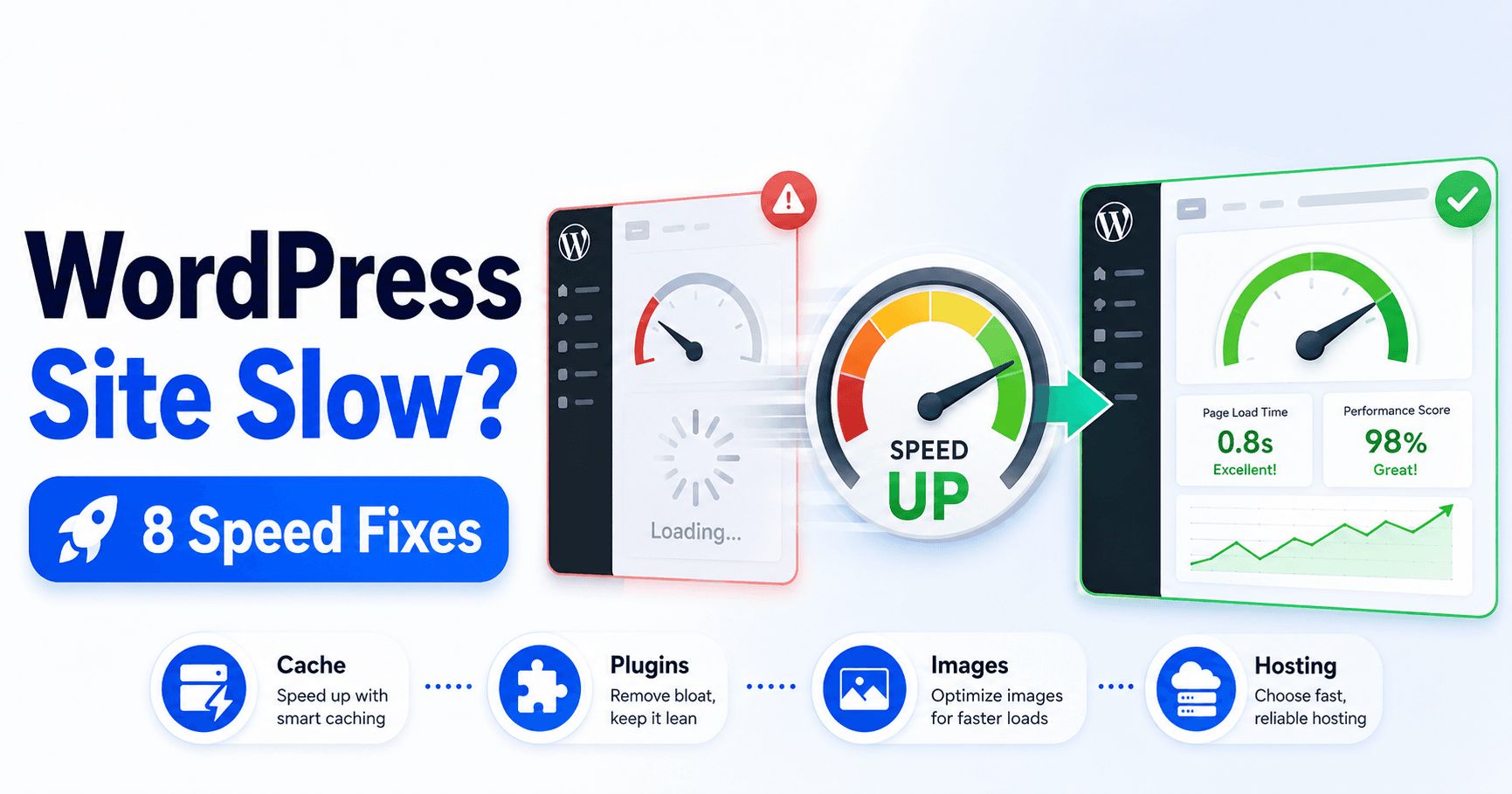
Why Is WordPress Slow? Measure Plugins, Images, Cache and Hosting

A slow WordPress website can frustrate visitors, reduce conversions, and make even simple updates feel difficult.

The cause is not always your hosting. A slow site can result from missing page caching, heavy plugins, oversized images, an inefficient theme, third-party scripts, database overhead, or limited server resources.

The best approach is to measure the site first and then fix the largest bottlenecks instead of installing multiple “speed optimization” plugins and hoping for the best.

QUICK ANSWER

If your WordPress site is slow, test it with PageSpeed Insights first. Then enable page caching, remove unnecessary or heavy plugins, optimize large images, review your theme and page builder, reduce unnecessary scripts, check the database, and confirm that your hosting and PHP environment can handle the site efficiently.


Why Is My WordPress Site So Slow?

A WordPress page is built from several layers.

Your server may need to run PHP, query the database, load your theme and plugins, generate HTML, deliver images and scripts, and then wait for the visitor’s browser to render everything.

A delay in any of those layers can make the website feel slow.

Common causes include:

  • No effective page caching
  • Heavy or poorly optimized plugins
  • Large images
  • A resource-heavy theme or page builder
  • Too much JavaScript or CSS
  • Third-party tracking, chat, ads, or fonts
  • Database overhead
  • Slow server response
  • Insufficient hosting resources

Do not try to fix everything at once. Measure first, make one meaningful change, and test again.


1. Test the Website Before Optimizing It

Before changing plugins or hosting, establish a baseline.

Run the page through Google PageSpeed Insights on both mobile and desktop.

Pay attention to:

  • Largest Contentful Paint (LCP)
  • Interaction to Next Paint (INP)
  • Cumulative Layout Shift (CLS)
  • Server response and loading diagnostics
  • Large images
  • Unused or blocking resources

Do not focus only on the overall performance score.

Use the diagnostic information to identify what is actually slowing the page.

Also Check WordPress Site Health

Inside WordPress, go to:

Tools → Site Health

Review both the Status and Info tabs.

Site Health can provide useful information about your WordPress environment, server, database, plugins, theme, filesystem, and caching configuration.

TIP:

Save your PageSpeed results before making changes. After each major optimization, test the same URL again so you can tell whether the change actually helped.


2. Enable Effective Page Caching

Without page caching, WordPress may need to process PHP and database requests every time someone visits a page.

Page caching stores a generated version of the page so it can be delivered more quickly on later requests.

Your website may already have caching through:

  • A WordPress caching plugin
  • Your hosting provider
  • LiteSpeed or another web-server cache
  • A reverse proxy

Before installing another caching plugin, check what your hosting environment already provides.

Running several overlapping caching systems without understanding their settings can create unnecessary complexity.

IMPORTANT:

Page caching is one of the most effective WordPress performance improvements, but dynamic pages such as carts, account pages, and personalized content may require exclusions or special configuration.

After enabling or adjusting caching, test the website while logged out of WordPress.

If cached pages later cause your edits to appear outdated, see our WordPress Changes Not Showing guide.


3. Remove or Replace Heavy WordPress Plugins

The total number of plugins is not the only thing that matters.

One poorly optimized plugin can create more load than several lightweight plugins combined.

Review your plugin list and ask:

  • Do I still use this plugin?
  • Does another plugin already provide the same feature?
  • Does the plugin load scripts on every page?
  • Does it perform frequent database queries?
  • Does it run scheduled background jobs?
  • Did the site become slower after installing it?

Deactivate unnecessary plugins and test the site again.

If you suspect one plugin, compare performance with it active and inactive.

CAUTION:

Do not randomly deactivate critical e-commerce, security, membership, or business plugins on a live production site. Use a staging site when a plugin test could affect customers or transactions.

Do Inactive Plugins Slow Down WordPress?

Inactive plugins normally do not execute their normal frontend code, but plugins you no longer need should still be removed for cleaner maintenance and security.

The bigger performance concern is active code that performs expensive work on page loads or background requests.


4. Optimize Large Images

Images are often among the largest files on a webpage.

Uploading a multi-megabyte photo and displaying it at a small size wastes bandwidth and makes visitors download far more data than necessary.

For each important image:

  • Resize it to an appropriate display size
  • Compress it before or during upload
  • Use an efficient modern image format when appropriate
  • Avoid unnecessary full-resolution originals
  • Use responsive images correctly
  • Lazy-load images that do not need to appear immediately

Pay special attention to the main image visible near the top of the page because it can strongly affect perceived loading speed.

Do Not Sacrifice Image Quality Completely

The goal is not to make every image tiny or blurry.

Use the smallest file that still looks good at its intended display size.


5. Review Your Theme and Page Builder

Your theme determines a large part of the HTML, CSS, JavaScript, fonts, and layout code loaded by WordPress.

A visually impressive theme can still be inefficient if it loads large amounts of code that your website does not need.

Page builders can also add:

  • Extra layout wrappers
  • Additional CSS
  • JavaScript libraries
  • Animations
  • Widgets
  • Font files

That does not mean you must stop using a page builder.

Instead, avoid unnecessary widgets, animations, sliders, and effects on pages where they provide little value.

GOOD PRACTICE:

A simpler page with fewer moving parts is often faster, easier to maintain, and easier for visitors to use than a page filled with animations and third-party widgets.


6. Reduce Unnecessary JavaScript and Third-Party Scripts

Your WordPress server is not responsible for every delay.

External scripts can also slow down the browser.

Common examples include:

  • Analytics platforms
  • Advertising scripts
  • Chat widgets
  • Social sharing tools
  • Embedded videos
  • Tracking pixels
  • External fonts
  • Marketing tools

Review what actually needs to load on every page.

A chat widget required only on your Contact page does not necessarily need to run across the entire website.

Use PageSpeed Insights and browser developer tools to identify scripts that consume significant loading or execution time.

Be Careful With Minification and Delay Features

Performance plugins often offer options to combine, defer, delay, or minify JavaScript and CSS.

These can help in some configurations, but aggressive optimization can also break menus, forms, sliders, checkout pages, and other interactive elements.

Enable advanced optimizations gradually and test the website after each change.


7. Check the WordPress Database and Background Tasks

WordPress stores posts, settings, users, plugin data, revisions, and other information in its database.

Over time, some sites accumulate unnecessary data or plugins that perform expensive database operations.

Look for symptoms such as:

  • wp-admin becoming unusually slow
  • Pages taking a long time before they begin loading
  • Database CPU usage increasing
  • Scheduled jobs repeatedly running
  • A plugin creating excessive database queries

Do not delete database tables manually just because they look large.

Create a database backup before performing cleanup or optimization.

Persistent Object Cache

On suitable hosting, a persistent object cache can reduce repeated trips to the database by keeping commonly requested data available in memory.

Whether it is useful depends on your hosting environment and website workload.

Check Tools → Site Health or ask your hosting provider whether persistent object caching is available for your plan.


8. Check Hosting, PHP, and Server Response Time

If WordPress, plugins, images, caching, and scripts are reasonably optimized but the site is still slow, investigate the server.

Hosting performance can be affected by:

  • CPU limits
  • Memory limits
  • Slow storage
  • Overloaded shared hosting
  • Database performance
  • PHP configuration
  • Traffic spikes
  • Bot traffic
  • Geographic distance from visitors

Ask your hosting provider to check server resource usage during the periods when the site is slow.

Also verify that your WordPress installation, theme, and plugins support the PHP version being used.

Keeping WordPress, PHP, plugins, and themes on supported versions can provide security, compatibility, and performance improvements.

WHEN TO CONSIDER BETTER HOSTING:

If a lightweight, cached, optimized website consistently has slow server response times and frequently hits CPU, memory, or connection limits, the hosting plan itself may be the bottleneck.


What Should You Optimize First?

Use this practical order instead of changing everything at once:

  1. Run PageSpeed Insights.
  2. Check WordPress Site Health.
  3. Confirm page caching is working.
  4. Audit active plugins.
  5. Optimize the largest images.
  6. Review theme and page-builder complexity.
  7. Check heavy third-party scripts.
  8. Investigate database and background activity.
  9. Check hosting resources and server response.
  10. Test again using the same page.

WordPress Speed Optimization Checklist

  • ☐ PageSpeed Insights tested
  • ☐ Mobile performance checked
  • ☐ Desktop performance checked
  • ☐ Site Health reviewed
  • ☐ Page caching enabled
  • ☐ Unnecessary plugins removed
  • ☐ Heavy plugins investigated
  • ☐ Large images optimized
  • ☐ Theme and page builder reviewed
  • ☐ Third-party scripts reviewed
  • ☐ Database backed up before cleanup
  • ☐ Persistent object caching checked if appropriate
  • ☐ Hosting resource limits reviewed
  • ☐ Site retested after optimization

Frequently Asked Questions

Why is my WordPress site suddenly slow?

A sudden slowdown can follow a plugin or theme update, increased traffic, a new third-party script, a hosting resource problem, database activity, or a cache failure. Check what changed immediately before the slowdown and review your hosting resource logs.

Do too many WordPress plugins make a site slow?

They can, but plugin quality and behavior matter more than a simple plugin count. One plugin that runs expensive database queries or loads large scripts can have a bigger performance impact than several lightweight plugins.

Does caching make WordPress faster?

Yes. Page caching can reduce the work required to generate repeated page requests by serving previously generated content instead of rebuilding every page from PHP and database queries.

Why is WordPress fast when logged in but slow for visitors?

Logged-in and logged-out visitors may pass through different cache rules, scripts, or personalized content. Test both states and review your caching configuration.

Why is wp-admin slow but the website is fast?

Page caching mainly helps public pages and generally does not cache the WordPress admin area in the same way. Slow wp-admin performance may point toward plugins, database queries, background tasks, external API requests, or server resources.

Should I install multiple WordPress speed plugins?

Usually not. Multiple optimization plugins can overlap in caching, minification, image optimization, and script handling. Understand what your current hosting and plugins already provide before adding another optimization layer.

Will a faster WordPress site rank higher on Google?

Performance and Core Web Vitals are part of the broader page-experience picture, but speed alone does not guarantee higher rankings. Improve performance primarily to provide a faster, more reliable user experience while maintaining useful content and sound SEO.


Final Thoughts

A slow WordPress site should be diagnosed before it is “optimized.”

Start with real measurements, then address page caching, plugins, images, themes, scripts, database activity, and hosting in a logical order.

Avoid installing several performance plugins or enabling every optimization switch at once.

The best WordPress speed improvements are the ones you can measure, verify, and maintain without breaking the site.

Leave a Comment