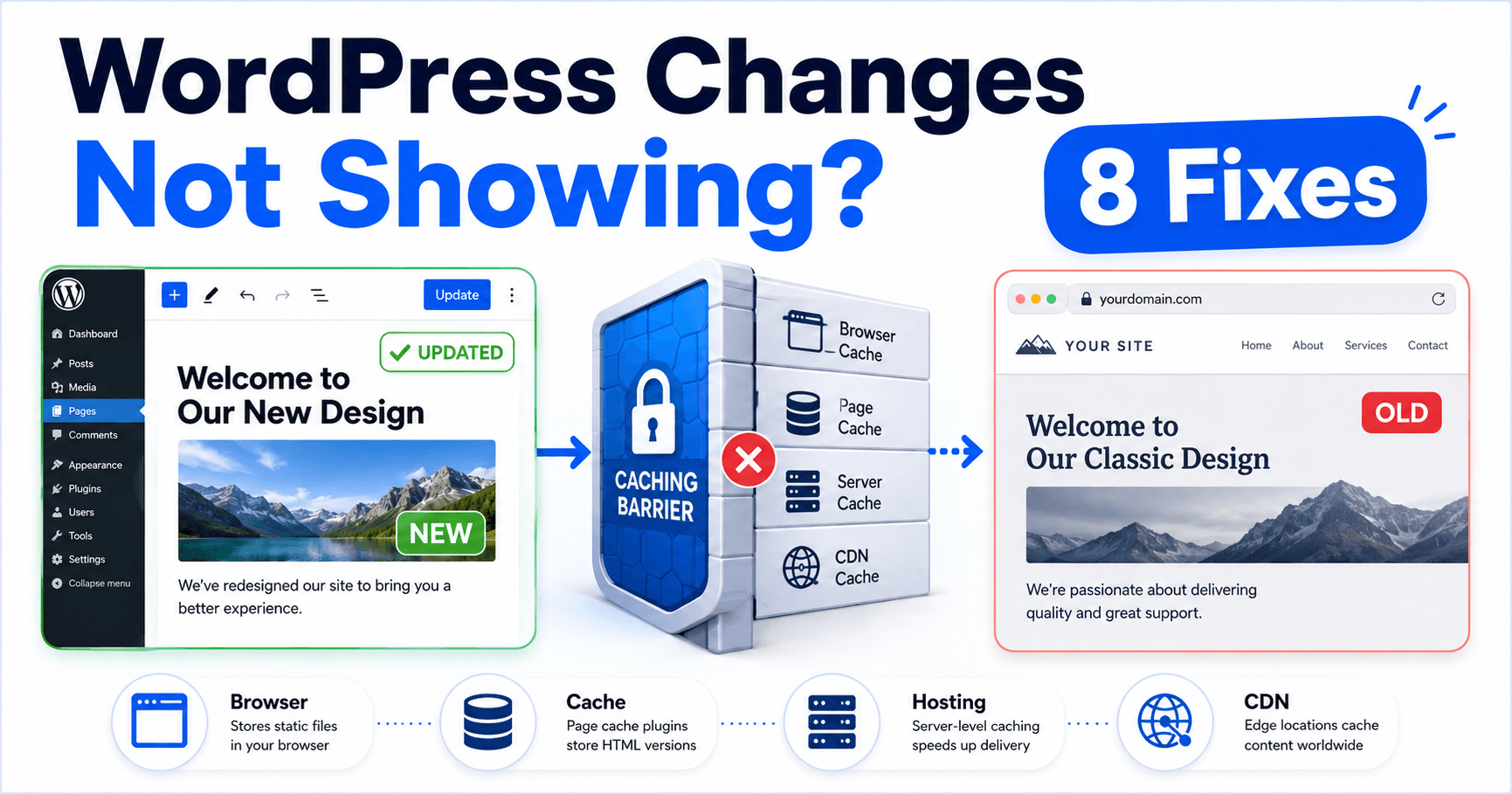
After saving an edit, first reopen the editor and confirm the new content persisted at the exact public URL you are checking. A different homepage assignment or template source can look like a cache problem.
Once the source is correct, compare visitor sessions and the page, image or stylesheet that still shows the earlier version.
Guide reviewed: October 8, 2026. Interface labels may vary by version, account and device.
Quick diagnosis
| Comparison | Investigation | Next step |
|---|---|---|
| Editor lacks the new content | Save or publication state | Confirm the saved revision. |
| Edited page differs from public assignment | Wrong source or template | Homepage and visible section’s source. |
| Admin sees new text; visitors see old text | Page delivery cache | Purge the affected URL at the confirmed layer. |
| Text updates; image or CSS stays old | Asset delivery or generated file | Actual asset URL and supported rebuild. |
Confirm the saved page and its address
- Reopen the edited page and confirm its status.
- Copy its public link.
- Check that exact URL as a visitor.
- Identify the template source if the visible section differs.
Reopen the editor and check that your new text is still present. Look for the save confirmation and the post’s status. A preview of an unsaved revision can show a change that ordinary visitors cannot yet see.
Compare the editor’s public link with the address you are opening. Similar titles and duplicated pages make this easy to miss. If you are editing the homepage, check Settings → Reading to see which page is actually assigned there.
For content supplied by a theme template or page builder, identify the source of the visible section. The text in the page editor may not control a heading or banner generated by a separate template. Clearing caches will not make the wrong source become the right one.
Compare the visitor version with the editor version
Open the public URL in a private browser window or another browser. This is a useful way to compare sessions, but it does not bypass every server or CDN cache. An administrator may receive fresh content while logged-out visitors receive a cached page.
If only one browser shows the old version, inspect its cached resources and reload that page. If multiple devices show the same old text, concentrate on WordPress, hosting, or CDN delivery. Record which test shows which version so you are not comparing different URLs accidentally.
A visible small text change is often easier to trace than a subtle design adjustment. You can use a harmless temporary wording change on staging to distinguish the versions without adding a random query string to the production URL.
Purge the relevant cached page
Layer comparison: record old and new wording, edit time and affected URL. Ask the provider to compare its origin response with public delivery. Use supported targeted purge controls before a broad purge that can increase server work.
Your site may have a caching plugin, a host-managed page cache, and a CDN. Use the supported purge control for the affected URL first. A plugin purge may not clear the host’s cache, and a browser reload does not invalidate a CDN copy.
After the purge, open the same public address again as a visitor. If one layer is still returning the old version, check its purge status or ask the provider to inspect the response. Knowing which cache remains stale is more useful than pressing every purge button repeatedly.
A cache should normally respond to publication changes through its intended integration. If every edit requires a manual full-site purge, review that integration or its exclusions. Broad purges can add load while leaving the underlying invalidation problem unresolved.
When only images or styling stay old
An image or stylesheet can be cached separately from the HTML page. If the text changes but the image does not, inspect the actual image URL the browser is using. WordPress may serve a generated size rather than the original file you replaced.
Replacing a file under the same name can leave earlier copies in browser and CDN caches. Your media or optimization tool may provide a supported way to regenerate sizes or refresh assets. Keep the original before running a bulk regeneration.
Page builders can generate CSS files from their settings. Saving a template and rebuilding its generated files are sometimes separate operations. Follow the builder’s instructions and check the result on mobile too; a desktop view alone may not show the responsive rule you changed.
Look for delivery differences after a migration
If the issue began after a domain or hosting move, confirm that the domain reaches the intended installation. Editing a temporary site while the public domain still serves another copy can resemble a cache problem.
Give the host the exact edited URL, the time of the update, and an example of the old and new wording. That lets it compare the origin response with the public response without guessing which version you expect.
Once the repair works, reopen the editor and public page to verify the same saved content. Check any affected navigation, layout, or form as well. Our missing-content guide covers content sources, while WordPress’s cache documentation explains the delivery layers involved.
Confirm the same version across the affected views
Reopen the editor and public address, then inspect any separate image or stylesheet. Check mobile layout where relevant. Record the source or cache layer repaired so future edits do not depend on repeated full-site purges.