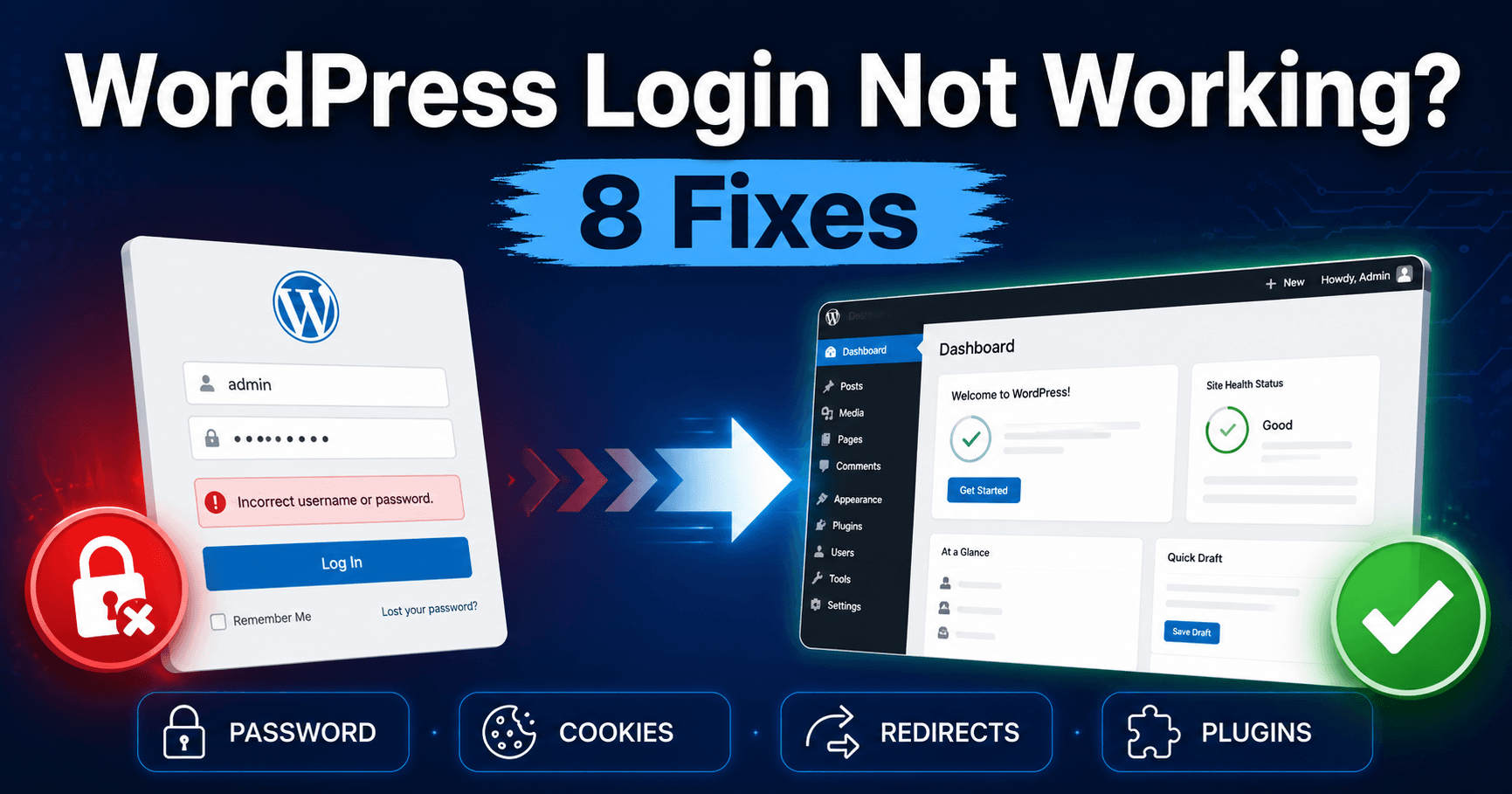
Does WordPress reject your password, return you to the same login form, or block the page before you can type? Those symptoms need different checks. Start with the exact behavior instead of repeatedly resetting your password.
Confirm the domain and account first. The host login, WordPress.com login and this self-hosted site’s administrator account can be separate even when they use the same email address.
Guide reviewed: October 8, 2026. Menu labels use English WordPress; provider-specific controls may differ.
Quick diagnosis
| Symptom | First check | Next step |
|---|---|---|
| Incorrect password message | Correct domain and saved account | Use the normal password-recovery link |
| Form returns after submitting | Cookies and changing hostname/scheme | Compare a clean session and the final URL |
| Too many redirects | HTTPS, proxy and redirect rules | Trace the conflicting redirects |
| 403 or security challenge | Firewall event or custom login path | Use the authorized access configuration |
| Blank page or critical error | Recovery message and PHP log | Follow the failed component rather than changing credentials |
If the password is rejected
- Read the domain in the address bar before using the saved password.
- Confirm the username or email belongs to this installation.
- Use Lost your password? if the credential is rejected.
- Check the account’s mailbox and spam folder, then follow one current reset message.
If reset mail never arrives: use another authorized administrator or hosting recovery. Do not post passwords or reset links in public comments.
Check the username or email, the password-manager entry, and whether the form belongs to the correct domain. A saved password from a temporary site or another installation can fill the wrong account details.
Use the site’s normal password-recovery link if you need to regain access. The reset message goes to the address associated with the account, which may differ from the general site contact address. Check the inbox and spam folder before sending repeated requests.
If the recovery email does not arrive, ask another authorized administrator or the host to help with an appropriate recovery method. Keep passwords and reset links private. A login loop that occurs after valid authentication is unlikely to be solved by repeatedly changing the password.
If the form keeps coming back
- Save any unsaved work, then try a private browser session.
- Submit the correct account once.
- Note whether the address changes between HTTP and HTTPS or between hostnames.
- If the same loop persists, give the host that sequence and any recent domain/proxy change.
Decision: if a private session works but the normal session fails, investigate that browser’s site cookies and extensions. If both fail in the same way, keep investigating the site configuration.
WordPress uses cookies to maintain the login session. Try a clean browser session, and check whether your browser permits the necessary site cookies. Clearing cookies for this site signs you out of its existing sessions, so keep any unsaved work safe first.
Notice the address after submitting the form. Switching between HTTP and HTTPS, or between different hostnames, can prevent the expected session from being used. A domain migration or proxy change makes those details especially relevant.
Compare the site’s configured URLs with the actual installation. WordPress Address and Site Address can legitimately differ when WordPress lives in a subdirectory. Do not force them to match just because a generic example uses the same address for both.
If redirects never finish
A “too many redirects” message suggests that two parts of the setup may be sending the browser back and forth. WordPress, the host, a redirect plugin, and a CDN can all influence the final address.
Keep the recent change in view: enabling HTTPS, moving the domain, or adding a login plugin is more informative than a random cache purge. Have the host inspect the redirect chain and how the proxy communicates the original request scheme.
Our redirect-loop guide follows that problem in more detail. Avoid removing all access or HTTPS rules simply to make the loop disappear; establish which rule conflicts with the intended setup.
If the login page is blocked or blank
A 403 response or security challenge may happen before WordPress checks the password. Look for the corresponding firewall event and any displayed request identifier. A security plugin may also intentionally use a different login path, so consult the known configuration before treating the standard address as missing.
A blank page or critical error calls for PHP logs and recovery information. If a plugin was just updated, that update may have broken the page rather than your account. See the blank-screen guide for that investigation.
If the dashboard is unavailable, use the host’s authorized recovery tools or ask support to help inspect the affected component. Renaming a login or security plugin can change access protections and other features, so it needs a targeted reason and a plan to restore the intended setup.
Check that the recovered session behaves normally
Use a harmless draft to check editor access. Then log out and sign in again, rather than relying on the session left over from recovery. For sites with a separate customer login, test that flow with an authorized test account too.
After access returns, open the dashboard and save a harmless draft change. Log out and sign in again once to confirm that recovery did not depend on an old session. Also check any membership or customer login that uses a separate front-end form.
Review the cause before restoring any temporarily paused integration. If unexpected users or account changes are present, follow the compromised-site guide. WordPress’s login documentation and cookie reference explain the underlying session behavior.
Information that helps support resolve a login failure
Describe whether the password is rejected or the page loops, the final domain and protocol, the result in a private session and the last relevant change. Include a request identifier if the firewall provides one. Keep session cookies and recovery links private. The official WordPress common-error guide covers login and related failures.