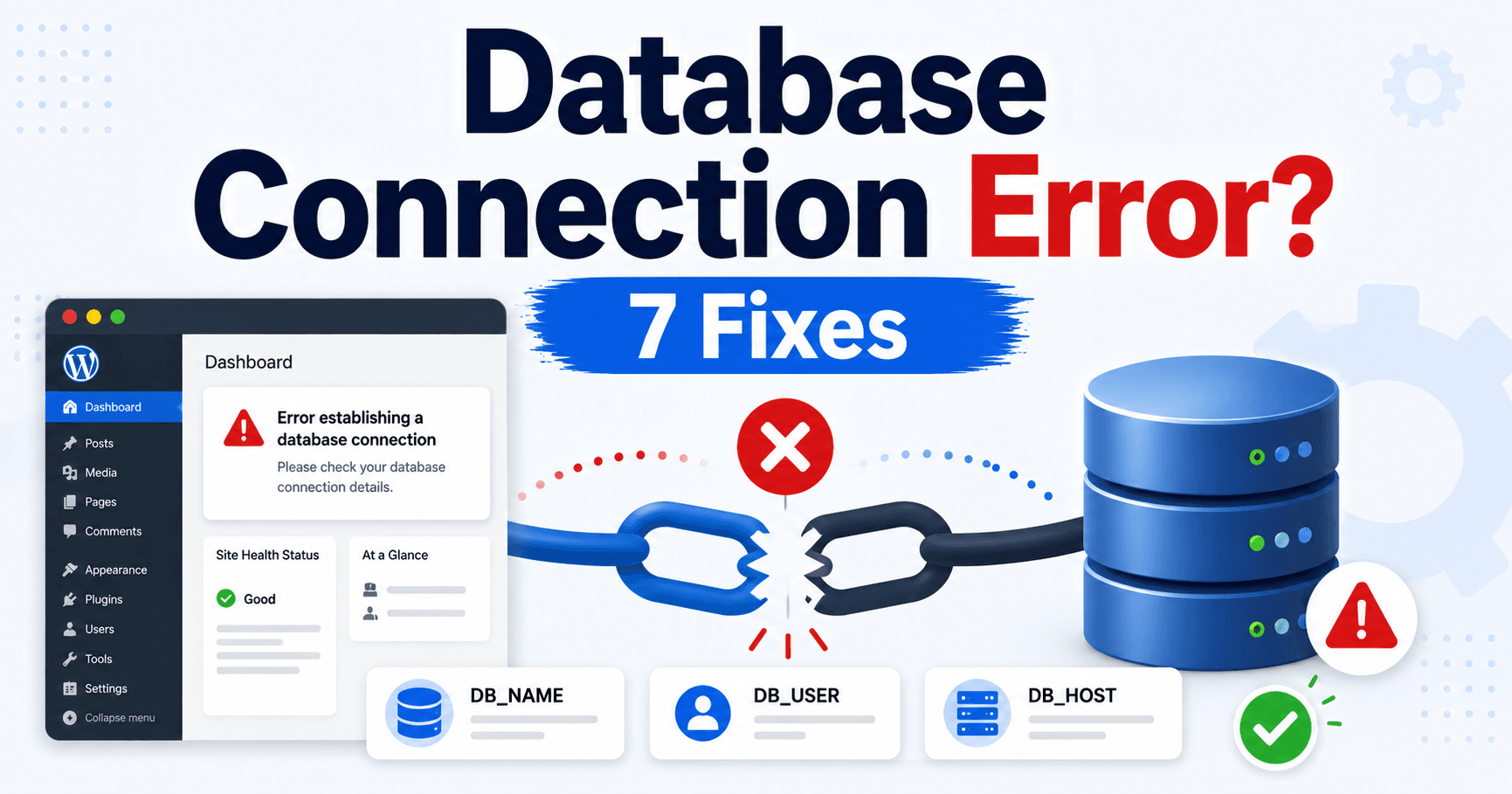
Your site says “Error establishing a database connection.” WordPress cannot reach the database it needs, but this message does not mean your posts have been deleted. Start with the timing: did it begin after moving the site, changing a database password, or without any change?
Check the host’s database service before replacing data. Keep a copy of the current configuration and a usable database backup before any repair or restore.
Guide reviewed: October 8, 2026. Menu labels use English WordPress; provider-specific controls may differ.
Quick diagnosis
| Clue | Check | Why it matters |
|---|---|---|
| Site moved or database password changed | The four DB settings in wp-config.php | The new server may use different credentials |
| Several sites failed together | Hosting database service and limits | A shared outage is unlikely to be fixed by editing every site |
| Access denied in the private server log | Database user, password and assignment | An existing user may lack access to this database |
| Connection returns, wrong content appears | Database name and table prefix | WordPress may be reading the wrong installation |
Check the service before replacing the data
Review your host’s status page and database-management panel. If the database service is unavailable, changing WordPress’s stored password will not bring that service back. Give support the error time and the affected site.
A database tool in the hosting panel may connect using different credentials from WordPress, so its successful login is only one piece of evidence. It can show whether the intended database still exists, while the host checks whether the WordPress account can connect to it.
A cached public page may still open even during a connection failure. Include a dynamic request in your comparison. If several sites on the same account fail at once, ask about the shared service and account limits before editing each installation separately.
Match the configuration to this database
- Open the database details for this installation in the hosting panel.
- Download a private backup of
wp-config.phpbefore editing. - Compare
DB_NAME,DB_USER,DB_PASSWORDandDB_HOSTwith the host’s values. - Correct only a confirmed mismatch, preserving quotation marks and PHP syntax.
- Reload a dynamic page and the dashboard.
Important distinction: resetting your WordPress login password does not update DB_PASSWORD. Do not share either password in a public screenshot.
WordPress normally uses DB_NAME, DB_USER, DB_PASSWORD, and DB_HOST from wp-config.php. Compare those values privately with the hosting provider’s actual database details, particularly after a move or a database-password change.
The database password is not the WordPress administrator password. Similarly, the database hostname is not necessarily your public domain or always localhost. Some providers specify another server, port, or connection method.
Keep a backup of the configuration before editing it, and preserve its valid PHP syntax. Do not post the file in a support forum: it contains credentials and other secrets. A host can confirm a mismatch through its own secure support process.
Check the database user and its access
Example: copied tables plus a database user are not enough if the user was never assigned to that database. Ask the host to verify the assignment and required privileges using the account configured in WordPress. A hosting panel’s database tool may use a different account.
A database user may exist but not be assigned to the intended database. This can happen when a migration copies the tables but misses the user-to-database relationship. Ask the host to verify the required privileges for that installation.
If credentials were changed, identify which applications use them before making another change. Updating one shared account can affect other installations. A focused correction based on the actual connection failure is preferable to creating new databases repeatedly.
The server log can distinguish an access-denied error from an unavailable host or exhausted connection allowance. Keep that exact message with your configuration comparison, rather than assuming every connection error is a password problem.
Investigate limits and damaged tables separately
A generic connection message is not evidence of table corruption. Only follow a repair procedure when a specific error supports it. If someone proposes restoring a database, first identify which orders, users or posts were created after that backup.
A database server can reject connections when it is overloaded or at a configured limit. Review resource information and recent heavy jobs, including imports or repeated plugin requests. The provider can identify whether connections are accumulating and why.
If the dashboard reports a specific damaged table or the logs point to corruption, preserve a database backup before attempting repairs. Repair methods depend on the database engine and table type; a generic repair command is not appropriate for every case.
A repair cannot recreate missing business records. If restoring a backup is necessary, compare its date with recent orders, users, and content, and plan how legitimate newer data will be preserved. Replacing the live database without that check can turn a temporary outage into permanent data loss.
When the connection returns but the site looks wrong
A working connection to the wrong database can produce an unfamiliar or empty-looking installation. Compare the site identity and expected tables. The configured table prefix must match the intended WordPress tables.
If unexpected settings or users appear, investigate the changes rather than completing a new installation over the existing data. Our security recovery guide is relevant when there is evidence of unauthorized modification.
Once the correct connection works, open several pages, the dashboard, and an important form or checkout flow. Check that recent content remains intact and that fresh errors do not appear. WordPress’s configuration reference and troubleshooting FAQ provide the technical background for the host or developer assisting you.
Confirm the correct site came back
- Open a recent post and verify its content.
- Sign in to the expected dashboard.
- Check recent business records before reopening transactions.
- Confirm the connection error is absent from new requests.
Use the database section of the official WordPress common-error guide as the technical reference. If it still fails, send the host the time, domain, migration history and exact private database error, without posting the configuration file publicly.