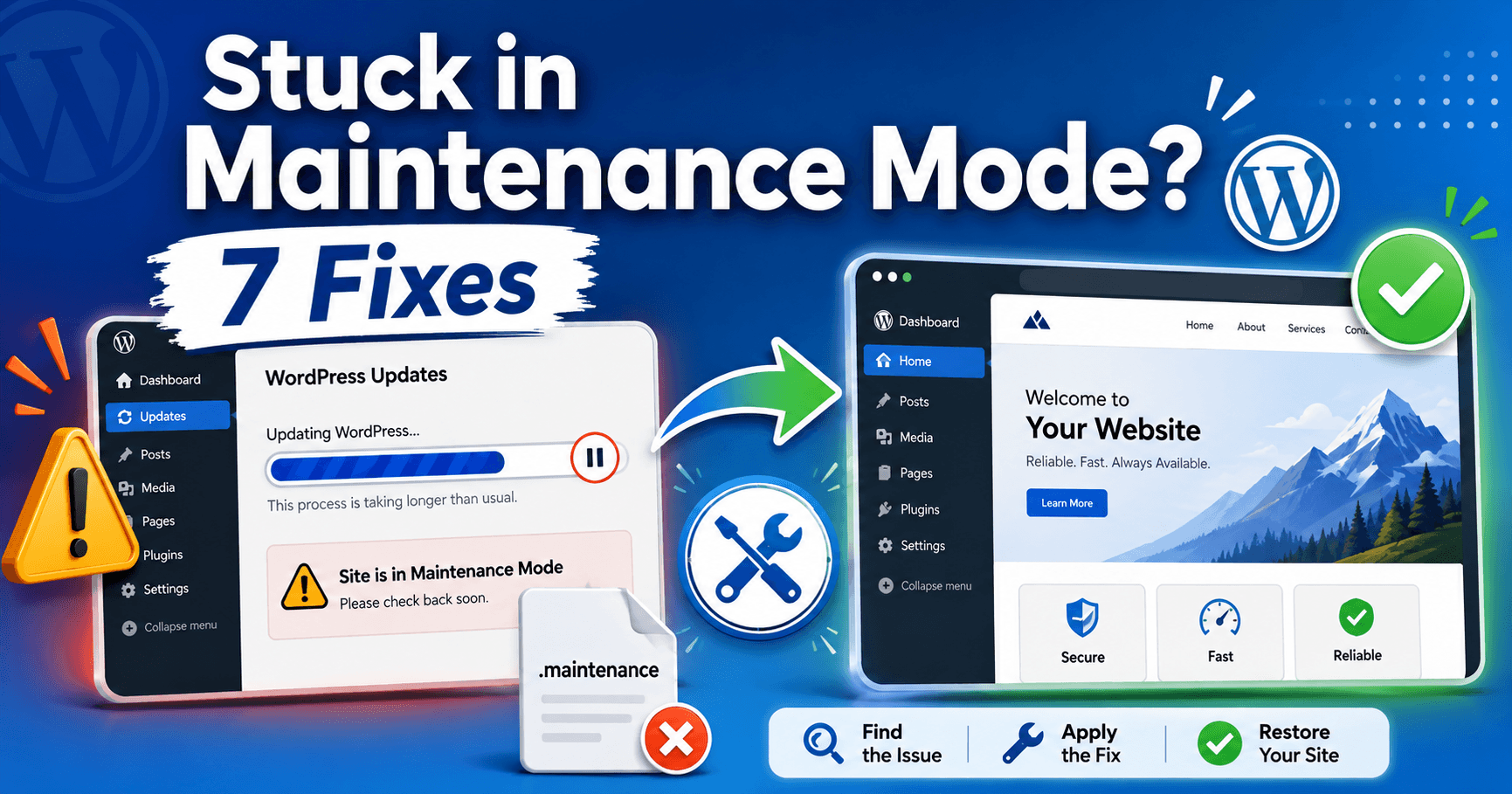
If an update stops but the maintenance notice remains, first confirm that no update is still replacing files. Clearing a stale notice can restore access while leaving an incomplete installation behind.
Identify the correct installation and maintenance layer, recover the affected component and verify its version and function.
Guide reviewed: October 8, 2026. Interface labels may vary by version, account and device.
Quick diagnosis
| Evidence | First action | Next check |
|---|---|---|
| Update is still active | Allow it to complete | Progress and success or failure message. |
| Stopped update with leftover marker | Confirm the correct root directory | Back up the marker and inspect recovery needs. |
| Custom coming-soon page | Identify its plugin or hosting control | Enabled setting and cached response. |
| Access returns but feature breaks | Inspect interrupted component | Installed version and vendor repair procedure. |
Find out whether the update is still running
Check the update screen if it remains available and look for a success or failure message. If hosting staff manage updates, ask whether an update process is active. Avoid starting another update while the first one may still be replacing files.
Record what was being updated: WordPress itself, a theme, or a particular plugin. Keep the approximate start time and any error message. A note that a single plugin update failed is more useful than assuming every component needs to be reinstalled.
Check for a leftover maintenance file
- Confirm the domain’s actual installation folder.
- Check that no update process remains active.
- Preserve the relevant marker and failure message.
- Clear only a confirmed stale marker, then check the interrupted update.
WordPress uses a file named .maintenance during automatic updates. Its troubleshooting documentation explains that the file sits in the installation’s base folder, alongside the wp-admin directory. A file left behind after an interrupted process can be involved in the maintenance message.
Use the hosting file manager or SFTP to locate the correct installation. A hosting account with several websites may contain several similar folders. Confirm the domain and directory before touching a file, and enable the file manager’s hidden-file display if necessary.
Once you have confirmed that no update is running, keep a copy of the file and ask your host to help remove the stale maintenance marker if you are unsure. Do not remove whole WordPress folders or rename unrelated files to make the message disappear. WordPress also advises checking and rerunning a failed update; removing the marker alone is not proof of a completed installation.
Recognize a separate maintenance page
If there is no stale marker, consider whether a maintenance or coming-soon tool controls the page. A branded page with a countdown, custom logo, or owner-written message may come from a different layer than the standard update notice.
Compare the page with the maintenance settings you deliberately enabled. The host can also check whether an old response remains in a cache. Correct the identified setting rather than installing another plugin or repeatedly searching for a file that is not responsible.
Check what the interrupted update left behind
After access returns, review the installed version of the component being updated and any remaining failure notice. Open its settings and test the function it provides. A plugin that appears in the list may still need attention if its update stopped partway through.
For example, a contact-form update should be followed by a test submission and confirmation that the expected notification arrives. For a theme update, check navigation and a representative page on a phone as well as a desktop. Choose checks tied to the change instead of relying on the homepage alone.
If files need to be repaired or an update repeated, use the vendor’s documented procedure with a recoverable backup. Ask the host to investigate the reason for the interruption, such as a relevant resource or file-writing error, before repeating the same unsuccessful operation.
Restore a backup when recovery is uncertain
Recovery scope: give support the backup time and any orders, accounts or content created since then. File restoration and database rollback have different effects. Preserve legitimate recent information before choosing a broader restore.
A recent backup can be the better route when the installation remains broken and the required repair is unclear. Check its time carefully. On an active store or membership site, restoring an older database may discard orders or account changes made after that backup.
Tell support what new data must be preserved. A file repair and a complete database rollback have different consequences, so agree on the recovery scope before restoring anything. Keep a copy of the current state where practical to preserve evidence and recent information.
Confirm the visitor experience before closing the issue
Open the site as a logged-out visitor and check the affected pages and essential forms. Verify that the maintenance notice has gone, the intended update is complete, and ordinary use works. Purge only the relevant stale cache if visitors still receive the old page after the site itself is healthy.
For the next update, keep a fresh backup, allow time to monitor completion, and test the changed component afterward. That routine gives a maintenance message a clear ending instead of leaving you to discover an interrupted update through a visitor’s report.
Confirm the update and visitor experience
Check the component’s installed version, its actual function and logged-out pages. Review fresh logs and any stale cached maintenance response. Keep the interruption cause with the recovery notes before attempting the next update.