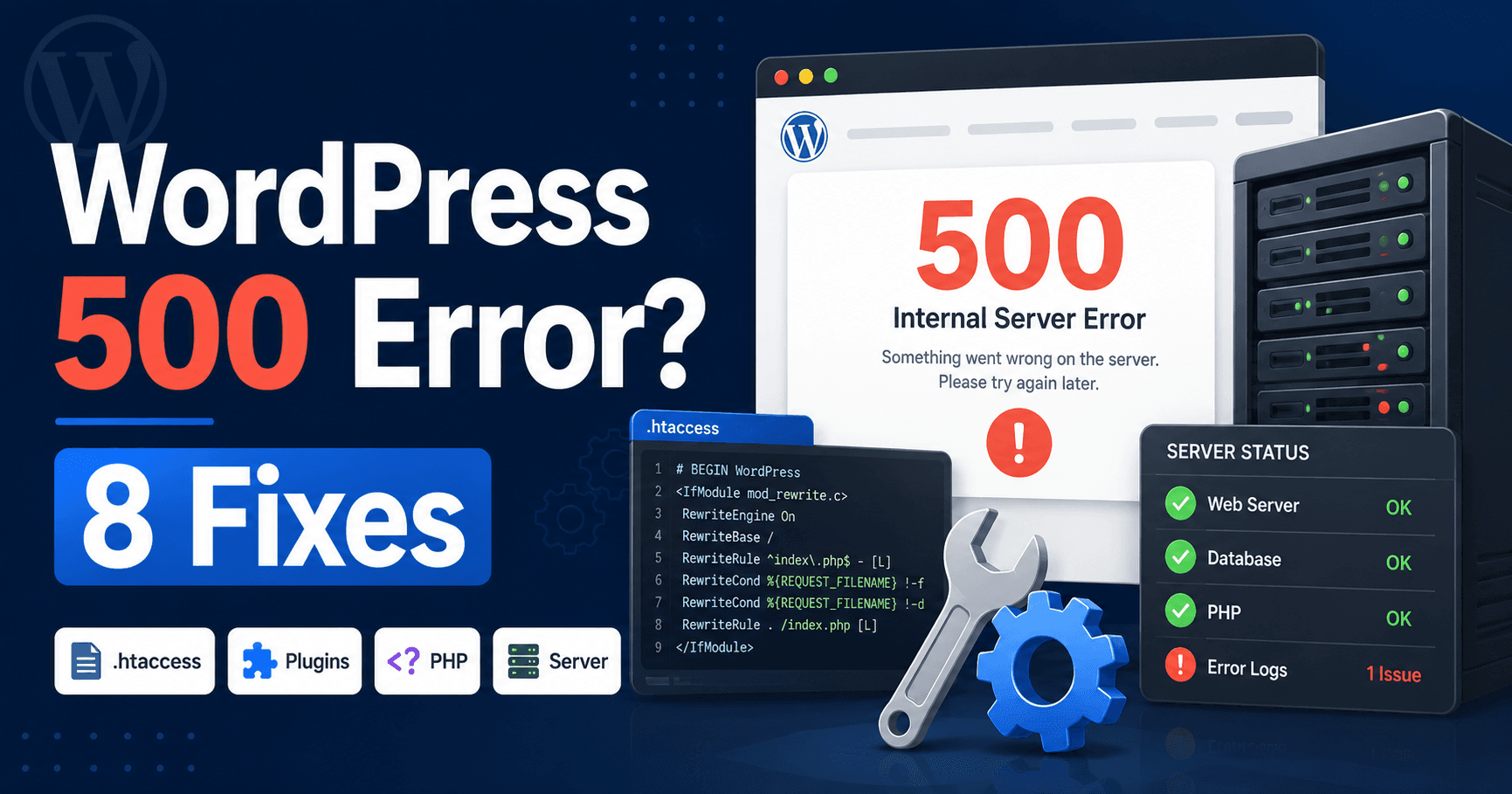
A 500 error means the server could not complete your request. It does not tell you which plugin, file or setting failed. Before changing anything, capture one failed request and match its time with the server log.
Start with the page that broke. If the failure happened during a purchase or form submission, check whether it was recorded before submitting again.
Guide reviewed: October 8, 2026. Menu labels use English WordPress; provider-specific controls may differ.
Quick diagnosis
| When it happens | Check first | Avoid guessing |
|---|---|---|
| Immediately after a PHP edit | The edited file and syntax error | Restore a known-good copy of that file |
| After a plugin update | Component version and PHP fatal log | Check that component’s compatibility |
| After editing .htaccess | Web-server configuration log | Restore the prior rules with the host |
| During a heavy import or export | Memory, execution time and resources | Use the specific limit reported by the log |
Record one clear example
- Record the full URL and the action: viewing, saving, uploading or checking out.
- Note the exact time and timezone.
- Test one ordinary page and the dashboard.
- Tell your host whether the error is limited to one action or affects every dynamic page.
Example: if the homepage opens but saving a post fails, the cached homepage cannot rule out a PHP problem in the save request.
Note the URL, action, time, and complete error wording. If the failure happens while saving a post, compare that with opening a normal public page. If it happens during checkout, check whether an order was recorded before trying again.
Look at the dashboard and a second public page. One failing endpoint can point to its plugin or template, while a whole-site failure suggests a shared component or server configuration. A cached homepage can still work when PHP is failing, so it is not a complete health check.
If the error began after an update, keep the component and version in your notes. If it began after a server change, include that too. Recent changes make useful leads when they are tested against the actual failing request.
Match the time with the right log
Ask for the error belonging to that request, rather than a list of every warning. Allowed memory size exhausted points to memory; a syntax error points to PHP code; an invalid server directive points to server configuration. These are diagnostic examples, not logs collected from your installation.
Your host can inspect web-server and PHP logs. A PHP fatal error may identify a function or file; a web-server configuration error may happen before WordPress starts. The relevant log depends on which layer returned the response.
Temporary WordPress logging can help when the application runs far enough to record the failure. Keep errors out of the public page and protect the log, which may contain paths or private data. Collect the necessary entry and turn off unneeded diagnostics afterward.
A file named in a stack trace is a starting point, not always the entire cause. An extension may call another component that is missing or incompatible. Share the trace privately with the developer along with the action that reproduces it.
Use a focused recovery when a change broke the site
For a recently edited PHP file, restore its known-good version. For an interrupted update, confirm the installed files and package before attempting another update. A backup of both the files and database protects your recovery options.
If a suspected plugin must be paused to regain access, understand which features it provides. A public page may return while forms or checkout remain disabled. Use staging for broader plugin and theme comparisons, keeping the test action the same each time.
Switching PHP versions without checking compatibility can introduce a second failure. Compare the requirements of WordPress, the theme, and the affected plugin before asking the host to change the runtime.
Review server rules and limits when the log points there
- If a server-rule edit caused the failure, keep a copy of both the old and current file.
- Ask the host to validate the changed directive against the server it actually runs.
- Restore the known-good rule if the log confirms it is invalid.
- Retest the original URL before changing PHP or plugins.
Do not paste Apache rules into an Nginx configuration or replace custom redirects with a generic file.
A recent edit to Apache’s .htaccess can produce a server error if it contains an unsupported directive or invalid syntax. Preserve the original and have the relevant rule reviewed. Replacing the entire file can remove redirects and access settings the site still needs.
Nginx uses a different configuration arrangement. WordPress’s permalink screen does not repair an invalid Nginx server block. The hosting provider should inspect and validate the applicable configuration.
If the log reports memory exhaustion, follow the memory guide. If a process times out, use the execution-time guide. Raising every limit together makes it difficult to know which issue was resolved.
Verify the result under the original conditions
Repeat the same request once and check the actual outcome. A form needs a stored or delivered result; a save needs the content to remain after reopening. Then review fresh logs and another representative page.
If the response changes to a 504 timeout or 503 availability error, investigate that evidence separately. An error that disappears temporarily under low load may return when the original workload resumes.
For the status itself, see MDN’s HTTP 500 reference. WordPress’s recovery-mode documentation explains an access option available for certain fatal errors.
A concise support checklist
Send the affected URL, time, recent change, failed action and matching error privately. Include the WordPress, PHP and affected plugin versions when available. The WordPress common-error guide is the reference for component checks; the debugging guide explains collecting diagnostics without displaying them to visitors.