WordPress Favicon Not Showing? Check Site Icon, Image URL and Browser Cache
If your WordPress favicon is missing from browser tabs or bookmarks, use this focused checklist to diagnose the Site Icon setting, image URL, cache, theme output, or HTTPS.
Practical WordPress and website diagnostics covering hosting, DNS, SSL, errors, performance, publishing, media, email, security, and site management. Guides focus on identifying the failing layer before changing settings.
If your WordPress favicon is missing from browser tabs or bookmarks, use this focused checklist to diagnose the Site Icon setting, image URL, cache, theme output, or HTTPS.
A large import, backup or image task can run out of PHP memory even while ordinary pages continue to work. Restarting the entire job may repeat the same failure and can make partial results harder to understand. First record what completed successfully, then test a representative smaller batch. That helps you distinguish an unusually heavy … Read more
A slow WordPress dashboard is not one problem. PHP processing, database queries, external services and browser scripts can each delay a different part of the admin area. Name the exact action that feels slow—opening a screen, saving a post, loading a widget or uploading a file—and measure that same action before changing settings. A precise … Read more
A WordPress update is easier to verify when you plan the recovery point, installation sequence and visitor checks before starting. The goal is to finish with working features, not simply a dashboard showing newer version numbers. Choose a manageable window, preserve files and database, and record each component as it updates. If an operation stops, … Read more
A bulk plugin update can finish some components and leave others unchanged or only partly installed. Running the whole batch again immediately can hide which version is active and which plugin caused the interruption. Record the result of each plugin first, keep a recovery point for the mixed state and repair the failed component on … Read more
After a WordPress migration, the database may arrive correctly while some original image files or generated sizes do not. A broken image on the page is therefore a clue, not proof that every media record is wrong. Open the exact image URL requested by the browser and compare its response with the destination uploads folder. … Read more
A correct password can still lead back to the WordPress login screen after a domain or HTTPS move. The login may succeed, but the browser cannot keep the session when the configured URLs, cookie domain or proxy handling disagree. Trace the address before submitting the form and the address that appears after the redirect. Correct … Read more
ERR_CONNECTION_TIMED_OUT means the browser did not receive a completed connection or response in time. It does not identify WordPress—or a particular plugin—as the cause. Compare the same URL on another permitted network and check whether the request reaches the host, proxy or CDN. That separates a local connection problem from DNS, filtering, server capacity or … Read more
ERR_SSL_PROTOCOL_ERROR appears when the browser cannot finish the secure connection to a hostname. Because the failure happens before WordPress can send a normal page, changing post content or clearing a page cache is unlikely to address it. Start with the exact hostname and the connection visitors reach. Then check the public certificate, proxy-to-origin connection and … Read more
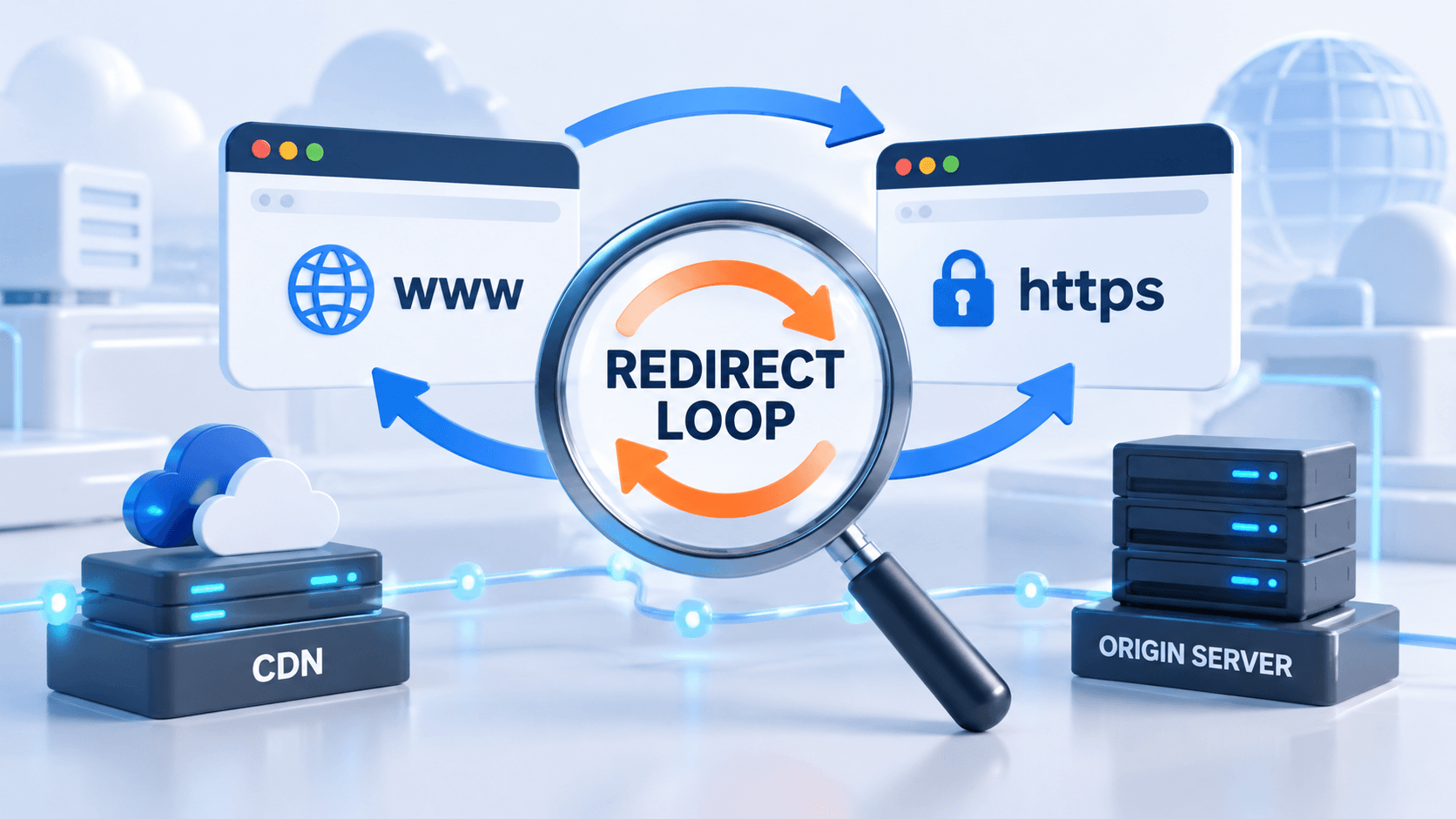
A redirect loop means the browser keeps receiving instructions to visit another address without reaching a final page. With Cloudflare and WordPress involved, different layers may be enforcing conflicting versions of HTTPS, www or the login path. Record the repeating pair before adding another rule. Once you know which addresses send the browser back to … Read more