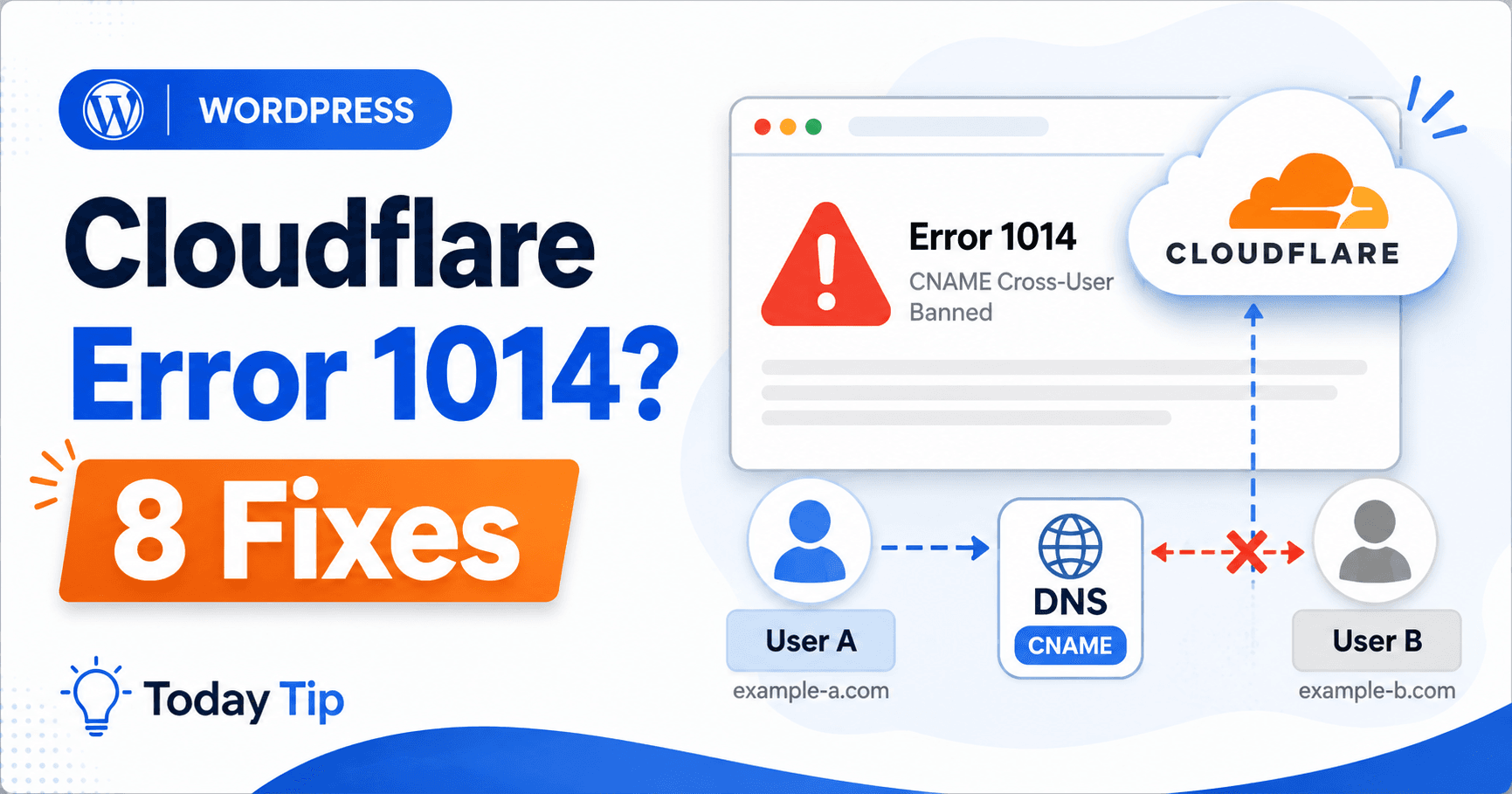
Cloudflare error 1014 can mean a CNAME points to a domain in another Cloudflare account without a supported connection. Check the actual target and the provider’s custom-domain instructions. A hostname that works for another customer does not establish that your own domain has been registered and validated to use it.
Guide reviewed: October 8, 2026. Interface labels may vary by version, account and device.
Confirm the CNAME target and account relationship
| Target relationship | Check | Who can resolve it |
|---|---|---|
| Different provider account | Supported custom-domain setup and exact CNAME target | The target provider and site account owner |
| Domains you manage in separate accounts | Account arrangement and service dependencies | The account administrator |
| Same account or same domain | Actual target chain and specific error context | The responsible domain maintainer |
| R2 or MCP custom domain | Product-specific zone restrictions | The product and zone account owner |
Identify the record and the account relationship
Prepare a simple record of the source hostname, CNAME target, target owner and provider instruction used. If the provider owns the target, ask whether that destination is assigned to your account and whether the custom hostname setup is complete. Keep assumptions about ownership separate from confirmed answers.
Keep the failing hostname and inspect its CNAME record. Note the exact destination, then compare it with the instructions from the service you are connecting to. If a provider manages that destination, ask it to confirm that the hostname is intended for your account.
Cloudflare permits CNAME connections within a domain, across zones in the same account, and through supported Cloudflare for SaaS arrangements. Its error reference explains that an ordinary CNAME between different accounts can be prohibited.
For example, a provider may host a customer site on a platform hostname. Another customer seeing that address resolve does not mean it can be reused for your domain. Your domain may need to be added and validated through the provider’s own custom-domain process.
Use the provider’s supported custom-domain setup
If the destination belongs to a separate provider account, follow that provider’s domain-connection instructions. Cloudflare’s documented cross-account solution involves Cloudflare for SaaS on the target owner’s side. That is not something a WordPress plugin can supply by changing a permalink.
Give the provider your affected hostname, current CNAME target, and error screenshot. Ask it to confirm the required destination and whether your custom hostname has been configured. This keeps the discussion focused on the connection it controls.
If you own both domains but they are in different accounts, review the account arrangement with the administrator before changing it. Moving a zone can affect other services, so it is more than a quick substitute for correcting one record.
Keep special custom-domain cases separate
Cloudflare’s current 1014 reference also includes custom-domain cases involving R2 buckets or MCP portals and zone restrictions. If the error occurs in one of those products, review that product’s setup and account status rather than applying an ordinary WordPress hosting explanation.
For a conventional hosted WordPress site, begin with the provider connection you actually use. Adding unrelated Cloudflare products would create more configuration without establishing why the existing domain cannot be served.
Save the original DNS record and the provider’s verified replacement instructions before making a change. If the provider reports an account restriction, keep its message and follow the relevant review process. Do not guess another target simply to change the visible error.
Confirm that the domain reaches your installation
After the supported connection is complete, open the exact hostname that displayed 1014. Check the intended homepage and an ordinary article. The content should belong to your WordPress installation, not a provider placeholder or another customer site.
Check the expected root and www behavior if both are part of the setup. A working version of one does not verify a CNAME used by the other. Note any redirects that lead to an old provider address.
If the site has a form or account feature, include a harmless test of that workflow. A domain connection can be established while an application setting still refers to the former hostname, so the public page and relevant feature both deserve a check.
If 1014 remains, share the affected hostname, CNAME destination, target owner or provider, recent connection changes, and Ray ID with support. The provider or account administrator may need to inspect configuration that is not visible from WordPress.
Keep the final custom-domain instructions with your domain records. A note about which provider owns the target and how the domain was validated makes future migrations easier and prevents another unsupported cross-account alias from being added later.
Reference: Cloudflare error 1014 documentation.
Verify your installation, not a provider placeholder
Open the originally failing hostname, an article and a relevant harmless form or account workflow. Confirm root and www behavior if both are used. The final content and redirects should belong to your site. Save the target owner and validation process with the domain records for later migrations.