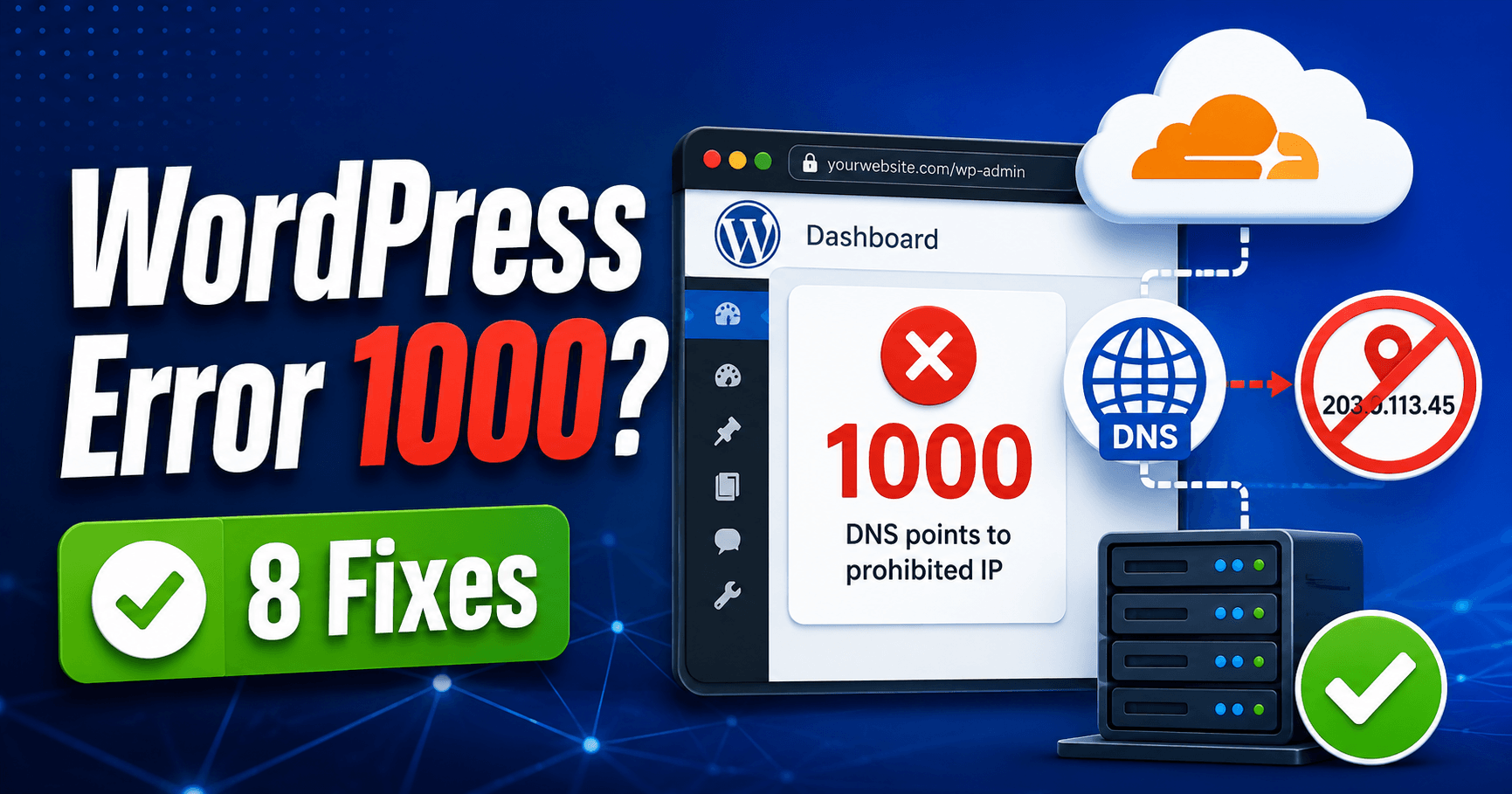
Cloudflare error 1103 or 1101 usually points to a Worker at Cloudflare’s edge, not to WordPress itself. Other 1xxx codes can belong to DNS, security rules or Snippets, while 52x responses describe the connection between Cloudflare and your hosting server.
Save the complete error number, message and affected hostname before changing plugins. For 1103, record the affected URL, timestamp and Ray ID, then follow Cloudflare’s current Worker guidance; for 1101, inspect the Worker exception and deployment logs.
Use the table to locate the responsible layer, then compare one failed request with that layer’s log. This prevents an edge failure from being mistaken for a WordPress or origin-server problem.
Guide reviewed: October 27, 2026. Menu labels use English WordPress; provider-specific controls may differ.
Keep the full Cloudflare code before changing WordPress
| Error family | Start with | Useful evidence |
|---|---|---|
| 1000 / 1001 / 1016 | DNS destination and origin hostname | Active DNS records and intended host |
| 1015 / 1020 | Rate limiting or access policy | Full message and matching security event |
| 1101 / 1102 / 1103 | Worker execution | Error log, deployment result, full message and Ray ID |
| 1201–1206 | Snippets execution or deployment | Exact code and affected Snippet |
| 1200 | Requests queued at the edge for the origin | Origin capacity and cache-hit behavior |
| 521–526 | Origin connection or TLS | Host connection, processing or certificate logs |
Cloudflare identifiers and HTTP statuses are different
Example: an HTML page may display error 1020 while the browser reports an HTTP 403 response. Record both. Do not put the four-digit identifier in a tool field that expects an HTTP status.
A number printed in a Cloudflare error page is not always the HTTP status returned to the browser. Cloudflare’s 1xxx identifiers describe particular conditions, while the response also has an HTTP status. Read both rather than treating a four-digit identifier as an ordinary HTTP code.
The product context matters too. A number mentioned in a domain-setup screen may not explain the same situation as a number displayed during a Worker request. The current documentation for the full message is the best reference when the context is unclear.
DNS and routing errors come before WordPress content
Errors about a prohibited destination, an unresolved hostname or direct access to a Cloudflare IP belong in the DNS and routing investigation. Compare the hostname and intended origin with the Cloudflare zone’s records and the host’s current instructions.
For example, error 1000 concerns a prohibited DNS destination, while 1001 concerns DNS resolution. Browsing to a shared Cloudflare proxy IP instead of the site’s hostname is a different situation again. Re-uploading WordPress files cannot correct those destination choices.
An access error needs the matching security event
- Reproduce one harmless failing request and note its time.
- Copy the Ray ID if shown.
- Use the relevant Cloudflare security/event view to find that request where available.
- Identify the matching rule or product before requesting a narrow correction.
If you are a visitor rather than the site owner, send the owner the displayed details. Do not attempt to bypass the access restriction.
A blocked request may relate to a firewall rule, rate limit or Access policy. The request’s Ray ID and timestamp help locate an event and explain the rule applied. Not every event is available in the same dashboard view or plan, so the full response remains useful when an event is not shown.
For error 1020, review the relevant security policy and event. For a rate-limit message such as 1015, stop repeated retries while establishing which rule applies. A legitimate request may need a narrowly defined policy correction; switching off security across the whole site is not a good substitute for identifying the rule.
Workers, Snippets and transform rules can fail at the edge
Check which deployed script or rule matches the failing route. A Worker exception requires a code-path investigation; a Snippets resource error requires the applicable Snippets limit. Changing PHP memory at the WordPress host does not raise an edge-script memory allowance.
A Worker can process a request before it reaches the host. Error 1101 means the Worker threw a JavaScript exception, while 1102 means it exceeded its CPU time limit. For error 1103, Cloudflare’s current Workers documentation says the Worker owner needs to contact Cloudflare Support. Record the complete error message, affected URL, timestamp and Ray ID before contacting support. These Worker errors occur at Cloudflare’s edge, so changing WordPress plugins or PHP settings is not the first corrective step.
Snippets have their own error family. Codes 1201–1206 cover conditions involving execution, subrequests, resources, deployment or exceptions. Read the exact code in the current Snippets documentation rather than applying an origin-server fix to every one.
Error 1200 describes a cache connection-limit condition and is separate from those Snippets execution errors. Similarly, a failed URL rewrite or header transformation needs the applicable rule inspected. The error message helps identify the product that owns the behavior.
Origin connection errors explain what Cloudflare could not complete
| Code | Useful direction for investigation |
|---|---|
| 521 | The origin refused or could not accept the connection. |
| 522 | The connection to the origin timed out. |
| 523 | The origin could not be reached; routing and destination need attention. |
| 524 | A connection was established, but the origin did not respond within the applicable timeout. |
| 525 | The TLS handshake between Cloudflare and the origin failed. |
| 526 | Cloudflare could not validate the origin certificate under the applicable TLS configuration. |
A 530 response needs its accompanying details read as well. It should not be treated as one universal WordPress fault. For connection and timeout failures, the host’s logs and resource information can reveal whether the server accepted the request and what happened next.
How the response helps identify its owner
Inspect the failed request in the browser’s Network panel. The response body, Ray ID and headers can help distinguish a Cloudflare-generated page from an origin response. Diagnostic headers such as cf-error-type or cf-error-origin may be available, but their absence is not proof that Cloudflare is uninvolved.
Compare that evidence with the relevant security event, edge-script log or host log. If the origin received the request and records a PHP failure, WordPress troubleshooting becomes appropriate. If the request stopped at a Worker exception, the WordPress plugin list is not the first place to look.
Returning to the original task
After the responsible setting or service is corrected, test the same URL and action. A successful home page request does not establish that an upload, login or API request also works. Keep temporary tests and exceptions documented, and retain only the changes required for the intended workflow.
Cloudflare references and focused origin checks
- Cloudflare: 1xxx errors
- Cloudflare: structured error responses and error categories
- Cloudflare: Workers errors 1101–1103
- Cloudflare: Snippets errors 1201–1206
- Cloudflare: Error 1200 cache connection limit
- Cloudflare: troubleshooting domains that cannot be added
Choose a focused origin check
- 521: origin connection refused
- 522: connection timeout
- 524: connected, then timed out
- 526: origin certificate validation
After the repair, repeat the same URL and action and check the relevant event or log. Keep temporary tests separate from the final intended configuration.
Frequently asked question
What does Cloudflare error 1103 mean?
Cloudflare’s current Workers documentation identifies error 1103 as a Worker error that requires the Worker owner to contact Cloudflare Support. Save the full message, affected URL, timestamp and Ray ID before contacting support. Because the failure occurs at Cloudflare’s edge, changing WordPress plugins or PHP settings is not the first corrective step.