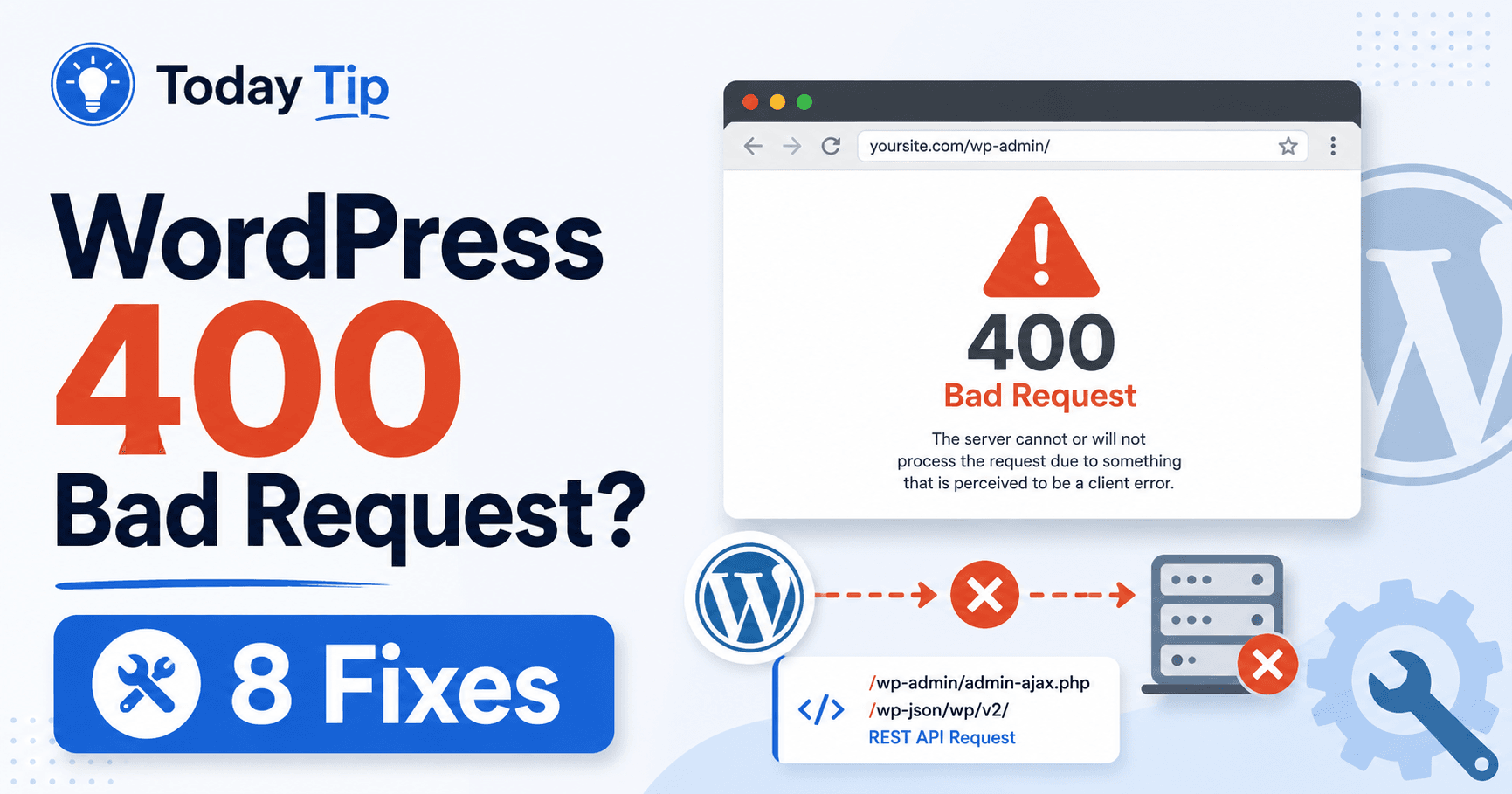
A 400 response means the server considers the request invalid. Keep the full message and identify whether the failure follows one link, one form input or every integration call. Repeating the same request unchanged is unlikely to help; a reduced comparison can reveal the part the responding service rejected.
Guide reviewed: October 8, 2026. Interface labels may vary by version, account and device.
Quick diagnosis
| Scope | Comparison | Next check |
|---|---|---|
| Old copied URL fails | Navigate using the site’s current link | Verify the address without altering private tokens |
| One form input fails | Small harmless valid example | Review the rejected field or request structure |
| Every integration call fails | Documented method, endpoint and content type | Inspect the actual request format |
| Only one session fails | Equivalent request from a fresh session | Record what differs before clearing data |
Keep the full message and the failing action
MDN describes 400 as a request the server considers invalid, with examples including malformed syntax or request framing. Repeating the same request unchanged is expected to produce the same failure. An accompanying response message may explain what could not be read.
If the error appeared after following a copied URL, compare it with the link provided on the website itself. Extra characters or an incomplete address can change the request. Do not edit a private token or an unfamiliar parameter at random; obtain a fresh legitimate link from the relevant service.
For a form, keep a local copy of your unsaved text before navigating away. Note the action that triggered the error and whether the form showed any field-specific message. This protects your work and preserves evidence for the site owner.
Compare the smallest relevant test
Preserve unsaved text, then compare the same public page using a current site link or a harmless form example. Keep one variable different where possible. Record the exact action and response so the owner can reproduce a request rather than a general impression of failure.
For a public page, open the homepage and then navigate to the affected page using the site’s menu. If that works while an old bookmark fails, the bookmark itself deserves attention. If both fail, report that comparison rather than assuming the address is the only issue.
For a form, try a harmless, simple example that meets its stated requirements. If only particular input fails, the form’s maintainer has a narrower case to review. If every submission fails, the request generated by the form or a service in front of it may need investigation.
A different browser session can be a useful comparison when the issue affects one visitor. It should not become an instruction to erase all browsing data for every 400 response. Record what changes between the working and failing cases.
For integrations, inspect the request structure
Compare contract and request together: endpoint, method, declared content type and actual body structure. Data labeled as one format but sent in another can fail before its field values are processed. Use a redacted minimal example for support.
A developer should compare the submitted data, content type, method, and destination with the receiving service’s documentation. A request can look reasonable in a screenshot while its actual structure is not what the endpoint accepts.
For example, a custom tool might send data in one format while labeling it as another. The receiving service may be unable to read it. Correcting that mismatch is more relevant than changing WordPress’s theme or increasing its memory allowance.
Use a reduced, non-sensitive example when discussing the problem. Remove passwords, authorization values, and customer details from copied requests. The structure and response message are usually the useful parts of an initial report.
Locate the service that returned 400
WordPress may sit behind a proxy or a hosting service, and a plugin may contact an external API. Ask the provider or developer to identify where the response originated. The public error screen can hide those boundaries.
Share the affected URL or endpoint, exact time with its time zone, and any request identifier shown. Mention a recent change only as context: it is a lead to compare, not automatic proof of the cause.
A helpful report might say: “The contact form returns 400 for this simple test at 13:40 Seoul time. Ordinary pages still load. Please inspect the request and tell us which component rejected it and what it expected.” That gives support a reproducible action.
Make a correction you can verify
Once the rejected part of the request is identified, correct that part and repeat the same test. For a link, use the valid address. For an integration, follow the service’s accepted request format. For a browser-specific issue, use the evidence to decide whether site data needs attention.
If the action can create an order or another important record, check for an existing result before retrying. A browser error is not a complete transaction history.
Finally, confirm the intended outcome: the page opens, the form creates one test submission, or the integration returns the expected result. Save a brief note of what was invalid and how it was corrected. That explanation is more useful than a record of several unrelated settings changed at once.
Reference: MDN’s explanation of HTTP 400 Bad Request.
Confirm the intended outcome once
After correcting the identified request element, verify the page, single test submission or expected integration response. Check existing results before retrying record-creating actions. Save the invalid element and confirmed correction as a reusable incident note.