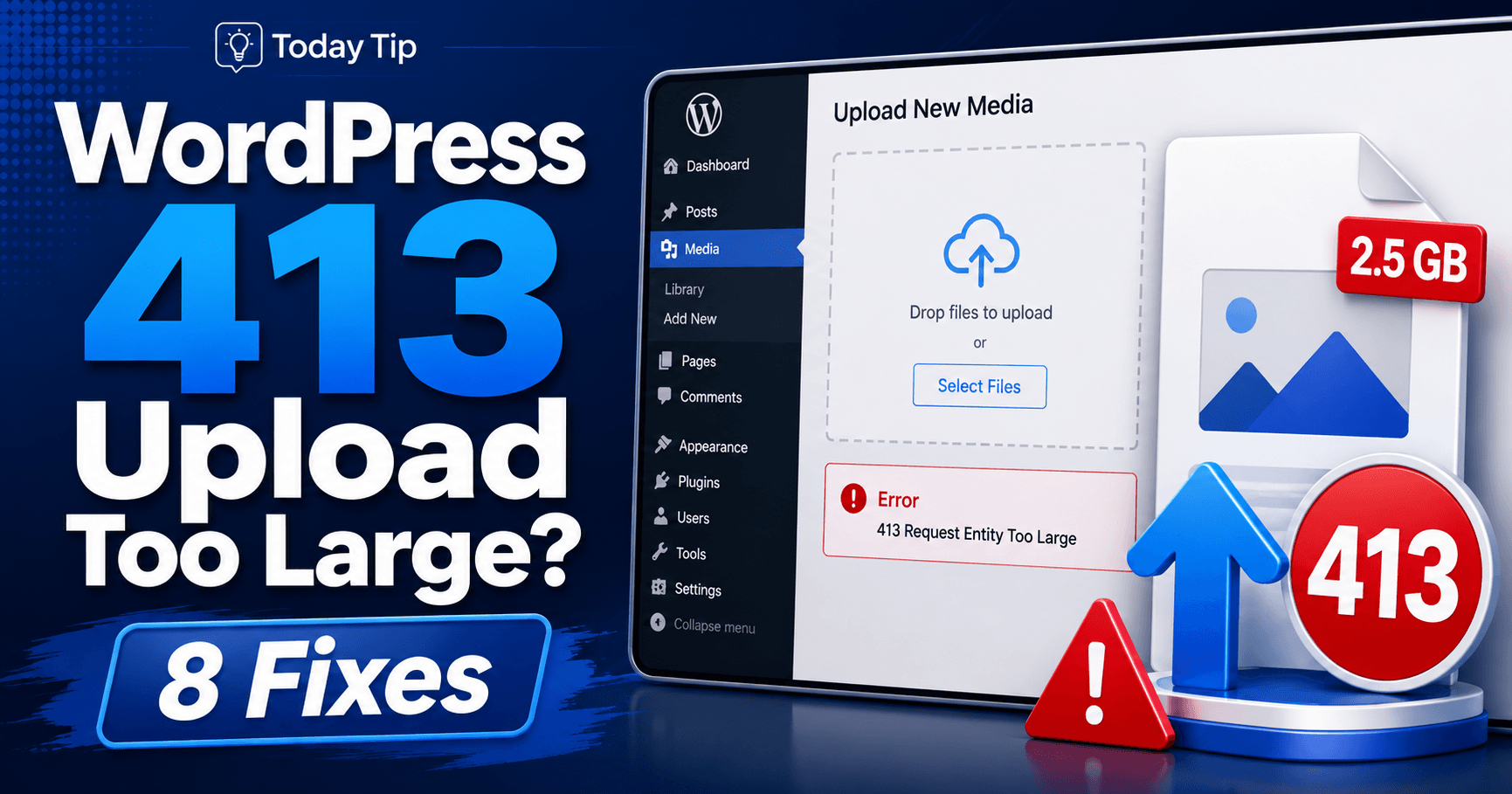
A 413 upload error means the responding service rejected a request that exceeded its accepted size. One attachment, a combined form submission and an import package can reach different limits.
Compare a small test with the failing request, locate the rejecting layer and choose a suitable file size or a documented allowance.
Guide reviewed: October 8, 2026. Interface labels may vary by version, account and device.
Quick diagnosis
| Result | What to check | Next step |
|---|---|---|
| Small upload succeeds; larger one returns 413 | Request size threshold | Compare the displayed allowance with the actual responding service. |
| Several files fail together | Combined request body | Test one permitted non-sensitive attachment. |
| PHP setting changes have no effect | Proxy or web server rejection | Ask the host which layer produced 413. |
| Transfer finishes but processing fails | Application resource or format handling | Diagnose that later error separately. |
Compare the size with the stated requirement
Comparison example: one image succeeds, while the same form with several images fails. Record total attachment size and field limits; request overhead means the full body is not exactly the sum of file sizes. This comparison identifies a path to investigate, not a universal maximum.
MDN calls the status “Content Too Large”; “Payload Too Large” is an older label still commonly shown. The response may explain an accepted maximum. Keep that message and compare it with the size of what you sent.
If the upload field displays a size limit, check that first. A file that exceeds the stated allowance needs a different approach. If the file is below it but still fails, report both values to the maintainer rather than assuming the displayed allowance controls every stage.
For example, several individually modest attachments may create a larger combined submission. Sending one harmless test attachment can help show whether the combined request is relevant. Follow the feature’s documented rules for multiple files.
Reduce the request without damaging the content
For an article image, export a copy sized for its intended display rather than uploading an unnecessarily large original. Keep the original for editing. Check the copy visually so compression does not make text or important details unreadable.
For a document, use the creating application’s appropriate export settings. A reduced PDF is useful only if readers can still read and use it. Renaming the extension does not reduce the file or change its real format.
For a large import or media workflow, check whether the tool supports smaller batches or another documented transfer method. Do not upload a package into an arbitrary server folder and assume WordPress will process it correctly. Use the workflow the application actually supports.
Identify the layer enforcing the limit
- Keep the response text and upload time.
- Compare a small permitted test with the failed request.
- Ask which proxy, web server, PHP or application limit rejected it.
- Adjust only the confirmed limit or use the documented smaller-batch workflow.
Ask the host or developer where the 413 response originated. A proxy or web server can reject a request before PHP or WordPress handles it. In that case, changing a PHP upload setting alone may not affect the rejection.
PHP’s upload guidance distinguishes settings for a file and for the overall posted data, including upload_max_filesize and post_max_size. Those settings are relevant when PHP’s handling is involved, but they are not a universal explanation for every 413.
A useful support request includes the upload feature, approximate request size, the failure time, and the maximum shown in the interface. Ask which accepted limit needs review. Avoid sending a confidential file just to reproduce a size problem; a non-sensitive test can demonstrate the pattern.
Choose a suitable allowance
If normal use needs a larger request, ask for an allowance appropriate to that feature and the hosting plan. There is usually no benefit in choosing an extremely large number without considering the expected workflow and available resources.
The developer should also review any limit enforced by the application itself. A server adjustment that allows data to arrive does not guarantee the application can process it. A large image, for instance, may need further work after transfer.
Keep the previous configuration recorded and test one change at a time. That way you can tell whether the change affected the original rejection or only introduced a different message. Avoid disabling security protections or moving to an unencrypted route to bypass the limit.
Check the full outcome
Repeat the intended upload with a suitable test and verify that the saved file appears, opens, and works in its normal context. For an import, inspect the resulting records and check for duplicates from earlier attempts before running it again.
Then update the instructions near the upload field if its practical limit differs from what users previously saw. Clear guidance about size and supported formats prevents visitors from discovering the rule through an error page.
Keep the confirmed component and allowance in your maintenance notes. If hosting or proxy settings change later, you will know which part of the request path needs to be checked first.
References: MDN’s HTTP 413 explanation and PHP’s upload configuration guidance.
Confirm upload and processing both finish
Open the saved file and use it in its intended page or workflow. For an import, inspect records before repeating an interrupted attempt. Record the effective allowance and update upload instructions when necessary so the visible limit matches what users can submit.