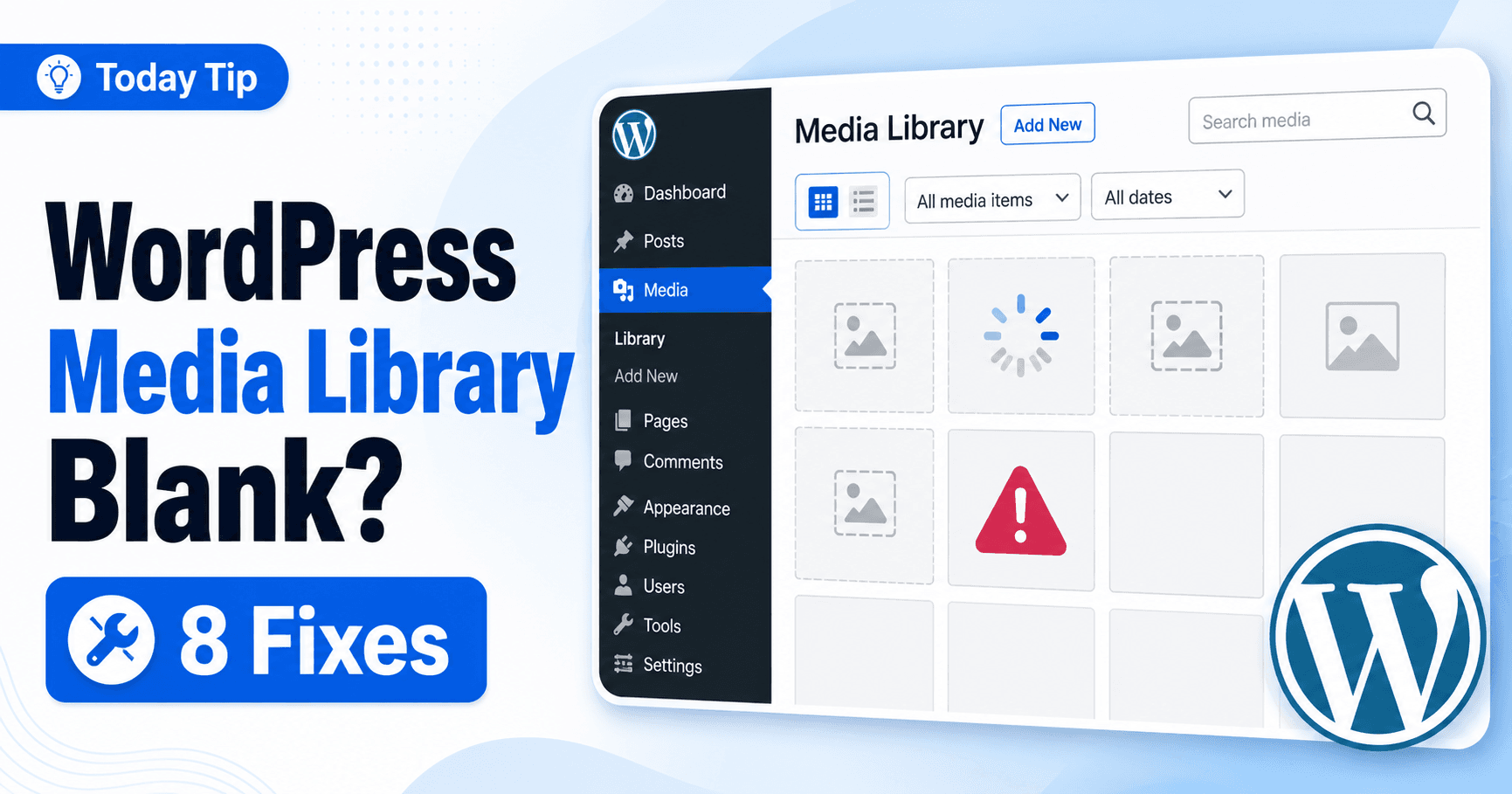
A blank media grid does not prove your image files disappeared. Compare the library list, one attachment’s preview and its original file before re-uploading media or deleting records.
These checks distinguish a filtered view, a failed interface request, a missing generated size and an unavailable file.
Guide reviewed: October 8, 2026. Interface labels may vary by version, account and device.
Quick diagnosis
| Comparison | Likely layer | Next check |
|---|---|---|
| Clearing filters restores entries | Library view | Search, date and media-type controls. |
| List works but grid fails | Interface or preview request | Browser errors and failed requests. |
| Original works; thumbnail fails | Generated image size | Preview path and processing result. |
| Original file returns an error | Storage or access path | Exact status, URL and migration context. |
Rule out a filtered or unfamiliar view
WordPress’s media library offers grid and list views, along with search and filtering controls. Its official documentation also describes the attachment details available for an item. Check whether a search term, date filter, or media-type filter is narrowing what you see.
Clear the filters intentionally and compare the list and grid. If the list shows entries while the grid stays blank, the attachment records may still be available even though that particular display is failing. Record that result before changing plugins or files.
For example, a library filtered to a recent month can look empty when the images were uploaded earlier. That is a display setting rather than lost media. If removing the filter does not help, the comparison still rules out a simple explanation.
Check one existing image at its own address
Comparison worksheet: note whether the attachment appears in list view, whether its preview loads, whether the full-size file opens, and whether a published page displays it. Keeping these four results together prevents a preview-only problem being treated as lost storage.
If you can open an attachment’s details, inspect its file link. Open that link and compare it with the image in a published article. A working full-size file with a blank library thumbnail is useful evidence about what is and is not broken.
If the file itself returns an error, keep the exact response and the address involved. A missing file, denied access, and a server error require different investigations. Do not assume that a database entry guarantees the file is still at the expected location.
If the problem followed a migration, compare the address with the intended current domain and file location. Have the maintainer review the migration rather than replacing every image through the editor. A location problem may affect many files at once.
Compare the library interface
Preserve any unsaved article before testing another browser session. If the media screen works in another authorized session, the browser environment becomes a useful lead. If it fails for every authorized editor, the maintainer should review the screen’s requests and errors.
A developer can inspect the request that retrieves the library and compare its response with what the interface expects. A failed request or an application error is more useful evidence than the blank grid alone.
Describe whether the problem occurs in the main media screen, in the article’s image picker, or both. A plugin may alter one interface without affecting the other. That scope helps the maintainer choose a focused test.
Review recent changes in a controlled test
- Pick one known attachment used on a public page.
- Record list, grid and file results.
- Test the recently changed component on staging.
- Repair the confirmed layer, then repeat the same comparisons.
If the issue began after a plugin or theme update, test that component in a suitable staging copy or another controlled troubleshooting setup. Keep a backup and a record of the previous version. Do not disable several live-site features at once merely to see whether the grid changes.
If the original image works but a generated preview does not, ask the developer to inspect the missing preview and the image-processing result. Regenerating image sizes may be relevant to a confirmed missing-size problem, but it is not a universal fix for a library request that never completes.
Likewise, a file-permissions change is relevant only when the evidence identifies an access problem. Broadly opening permissions or deleting attachment records can create additional work while hiding the original cause.
Verify a complete media workflow
After the correction, find an existing image through the library and insert it into a preview. Also upload one harmless new image and confirm that its details and file link work. These checks cover both existing records and the current upload path.
Check a published article that uses the original image. The library becoming visible is encouraging, but visitors also need the file to display correctly. Remove a test attachment only when you know it is not used elsewhere.
Keep a short note of the failed layer: filtered list, library request, preview file, or original file. That makes any recurrence easier to diagnose and avoids another round of uploading the same media unnecessarily.
Reference: WordPress’s official media library guide.
Confirm existing and new media
Find an existing attachment, insert it in a preview and check its published use. Then upload one harmless test image and inspect both preview and original file. Keep records intact until the responsible layer is established.