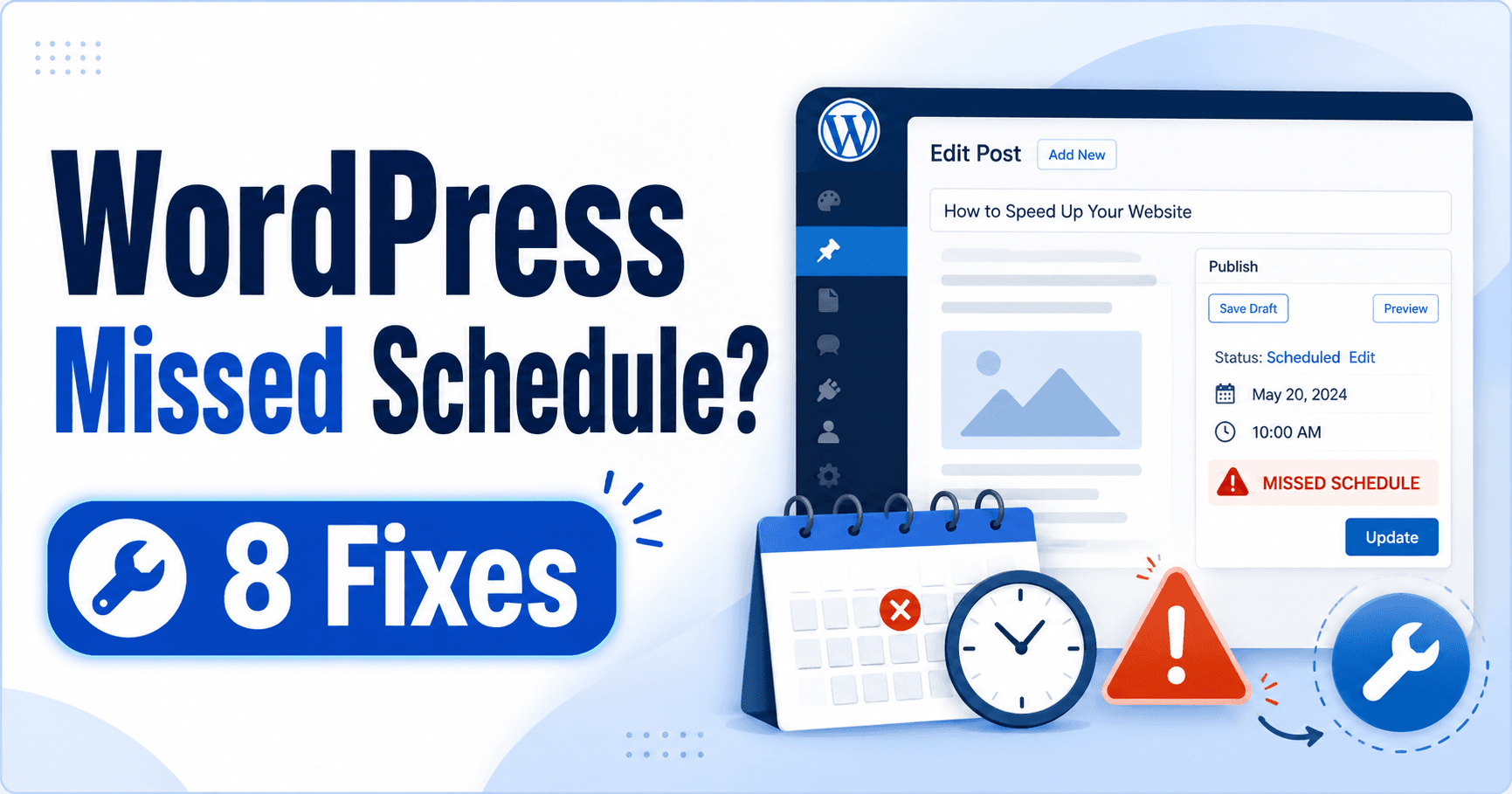
If the planned publication time has passed and WordPress shows Missed schedule, check the post status and site time zone first. Publish the ready overdue article through the normal editor when appropriate, then investigate the scheduler separately. Manual publication does not verify the next scheduled event.
Guide reviewed: October 8, 2026. Interface labels may vary by version, account and device.
Quick diagnosis
| Observation | Check | Next step |
|---|---|---|
| Scheduled time appears wrong | Post time versus site time zone | Confirm the intended date and local time |
| Post is already public | Direct URL versus cached archive | Investigate display rather than scheduling |
| Only one post overdue | Its status and scheduled event | Review that publication |
| Several tasks overdue | WP-Cron or configured system scheduler | Ask the host to verify the active trigger |
Check the intended time first
Record four facts: intended publication time, site time zone, editor’s scheduled time and actual status. Compare these before adjusting the date. If the direct article is public, a stale homepage list needs a different investigation from an overdue event.
Open the post’s publishing details and compare the date and time with the site’s time-zone setting. If you work in a different time zone from the website, a schedule that looks correct at a glance can mean something else.
Also check the post’s actual status. A draft, a scheduled post, and a published post are different states. If the article is already public but does not appear in a list, that may be a display or caching question rather than a missed publishing event.
For example, an editor in Seoul may prepare a post for a website configured to another time zone. Write down the intended local time and the time shown in the editor before changing anything. That comparison may explain the apparent delay.
Publish the overdue article when appropriate
If the content is ready and the planned publication time has passed, use the editor’s normal publishing controls to make it public. Review the date, visibility, and content before saving the change. There is no need to create a second copy of the same article.
Then open the public URL and confirm that the title, body, and images appear. If a homepage or archive still shows an older view, compare the direct article first. That helps you separate publication from the way a cached list displays it.
Keep a note that this particular article was published manually after a missed schedule. It is useful context when checking whether the next scheduled event runs without intervention.
Understand how WordPress normally checks scheduled work
WordPress uses WP-Cron for tasks including scheduled publishing. Its official handbook explains that the normal check is triggered by page loads rather than by a constantly running system timer. On a quiet site, work due at one time may not be triggered until a later visit.
This means low traffic can be a relevant clue, but it is not the explanation for every missed schedule. A task may also need investigation if the website is receiving visits and scheduled work still does not run.
Compare other background activity if your tools expose it. Are several scheduled tasks overdue, or is the problem limited to one post? That distinction gives the host or developer a clearer starting point than a single screenshot of “Missed schedule.”
Ask the host to review the scheduler setup
Ask which trigger is responsible, when it last ran and whether it executed the correct installation successfully. If a system task replaced the ordinary page-load trigger, verify the replacement exists and works. Keep the method and execution result in the maintenance record.
If the problem repeats, ask whether the site uses the ordinary WordPress trigger or a server task configured by the host. Some websites deliberately replace the normal trigger. In that case, the replacement needs to be present and working.
WordPress provides official guidance for connecting WP-Cron to a system scheduler. That is a configuration task for the hosting environment, not a reason to paste a generic command into every account. The provider should confirm the correct site path, frequency, and execution result.
Do not disable the existing trigger before a replacement has been configured and checked. Otherwise, scheduled publishing and other background work can be left without a reliable trigger. Likewise, avoid adding several scheduling plugins at once; they can make it harder to understand which system is responsible.
Test a future schedule
After the correction, create a suitable test post or use a prepared article with a clearly documented future time. Check its status after that time and confirm the public result. A manual publish proves that publishing works, but it does not test the schedule.
If exact timing matters to your site, agree on an acceptable delay with the person managing the scheduler. Then monitor a few normal scheduled articles, including a quiet period when the issue previously occurred.
Record the site time zone, scheduler method, and verified outcome. This gives future editors a simple explanation of how publication timing works and saves them from repeatedly rescuing overdue posts one by one.
References: WordPress’s WP-Cron overview and its system scheduler guidance.
Verify a future scheduled event
Use a prepared article or suitable controlled test with a documented future time. Check the status after that time and inspect the public result. Compare behavior during a quiet period if that was the original pattern. Record the acceptable timing, scheduler method and successful automatic publication.