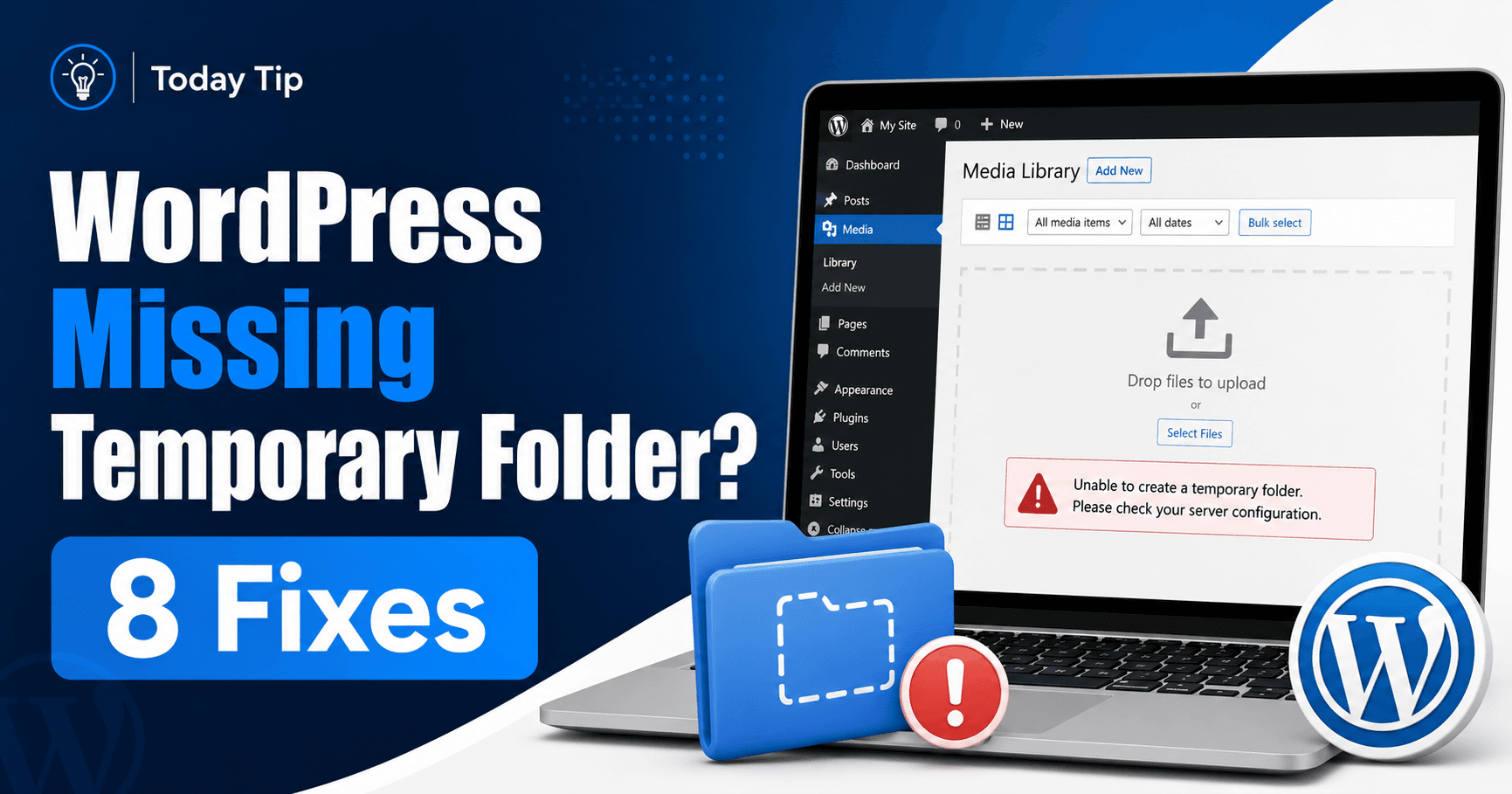
Missing a temporary folder refers to the server’s upload working location. It is separate from the final WordPress media directory and from folders on your computer. Have the host confirm the active PHP upload directory and whether the request-handling process can use it before creating a random replacement folder.
Guide reviewed: October 8, 2026. Interface labels may vary by version, account and device.
Quick diagnosis
| Check | Evidence | Purpose |
|---|---|---|
| Exact message | Small harmless upload result | Distinguish missing directory from failed write |
| Active PHP setting | Effective upload_tmp_dir or default location | Identify the location actually used |
| Directory availability | Existence and appropriate process access | Restore the intended working path |
| Full upload after repair | Library entry, file URL and preview | Verify later stages as well |
Confirm the exact upload message
Keep the complete error and try one small, non-sensitive image. If it produces the same message, note that result. A missing working location can affect small files as well as large ones, so reducing the image repeatedly may not address it.
PHP’s upload handling identifies a missing temporary directory separately from a failure to write a file to disk. The exact message helps the provider distinguish those stages. If the error changes between attempts, preserve both messages and the order in which they appeared.
For example, an upload that fails immediately after a PHP configuration change gives the host a specific event to compare. An error that affects only one custom upload feature may require a different review of that feature’s handling.
Ask which temporary location PHP is using
Ask for the effective web-request configuration. A visible configuration file may differ from the active environment. Record the upload directory PHP actually uses, how the host applies that setting and whether the directory exists and is usable by the relevant process.
PHP’s official upload documentation says files normally use the server’s default temporary directory unless upload_tmp_dir specifies another location. Ask the hosting provider to confirm the effective setting for this website and the location it resolves to.
The word “effective” matters. A configuration file you can see in the account may not be the one controlling the active web request. The provider can check the actual environment serving the site rather than assuming a pasted setting has taken effect.
A useful support request is: “WordPress reports ‘Missing a temporary folder’ for a small image upload. Please check the active upload_tmp_dir setting, whether its location exists, and whether the process handling this site can use it.” Include the failure time and any recent server change.
Restore an appropriate working directory
If the location is missing or unsuitable, the host should restore or configure the intended temporary directory with access appropriate to its server setup. A full server path supplied by the provider is more reliable than a path copied from someone else’s tutorial.
Do not place a temporary upload directory somewhere publicly browsable without understanding the configuration. Incoming files can include material that has not yet been accepted by the application. The provider should choose a suitable location and explain any maintenance requirements.
Similarly, making the entire WordPress installation broadly writable is not a focused correction. The relevant access belongs to the working directory and the process using it. Ask for that specific check.
Be careful with configuration changes
Keep the previous configuration and have the provider apply its documented method. Confirm the effective setting after the change rather than assuming an edited value took effect. A WordPress-level temporary-folder workaround does not alone establish that PHP’s incoming upload stage now works.
If you manage the server yourself, preserve the existing configuration before editing it and follow the hosting environment’s documented method. A setting can be valid in one environment and ignored or inappropriate in another.
Do not confuse a WordPress temporary-directory workaround mentioned in a tutorial with proof that PHP’s incoming upload location has been fixed. Ask the provider which stage needs the location and verify that stage through an actual upload.
After a change, the provider may need to apply it through its normal service-management process. Rather than repeatedly editing the same value, confirm the active setting and then test. This keeps the investigation grounded in what the server is actually using.
Check the complete upload path
Upload a harmless test file through the normal media screen. Confirm that it appears in the library, opens correctly, and can be inserted into a preview. That checks more than the disappearance of the temporary-folder message.
If a different error now appears, such as a failure to move the file, treat it as new evidence about a later stage. Keep the first correction in place if it was valid and have the provider inspect the newly identified step. Avoid assuming that every upload failure shares one cause.
Save the confirmed location, the configuration method, and the successful test in your maintenance notes. When the site moves to another server or changes PHP setup later, those details make it easier to restore a working upload environment without guessing.
References: PHP’s upload handling documentation and its upload error explanation.
Confirm the complete media workflow
Upload a harmless supported file, open its media-library URL and insert it into a preview. If a move or write error now appears, keep that new message as a later-stage finding. Save the verified temporary path and configuration method for future PHP or server changes.