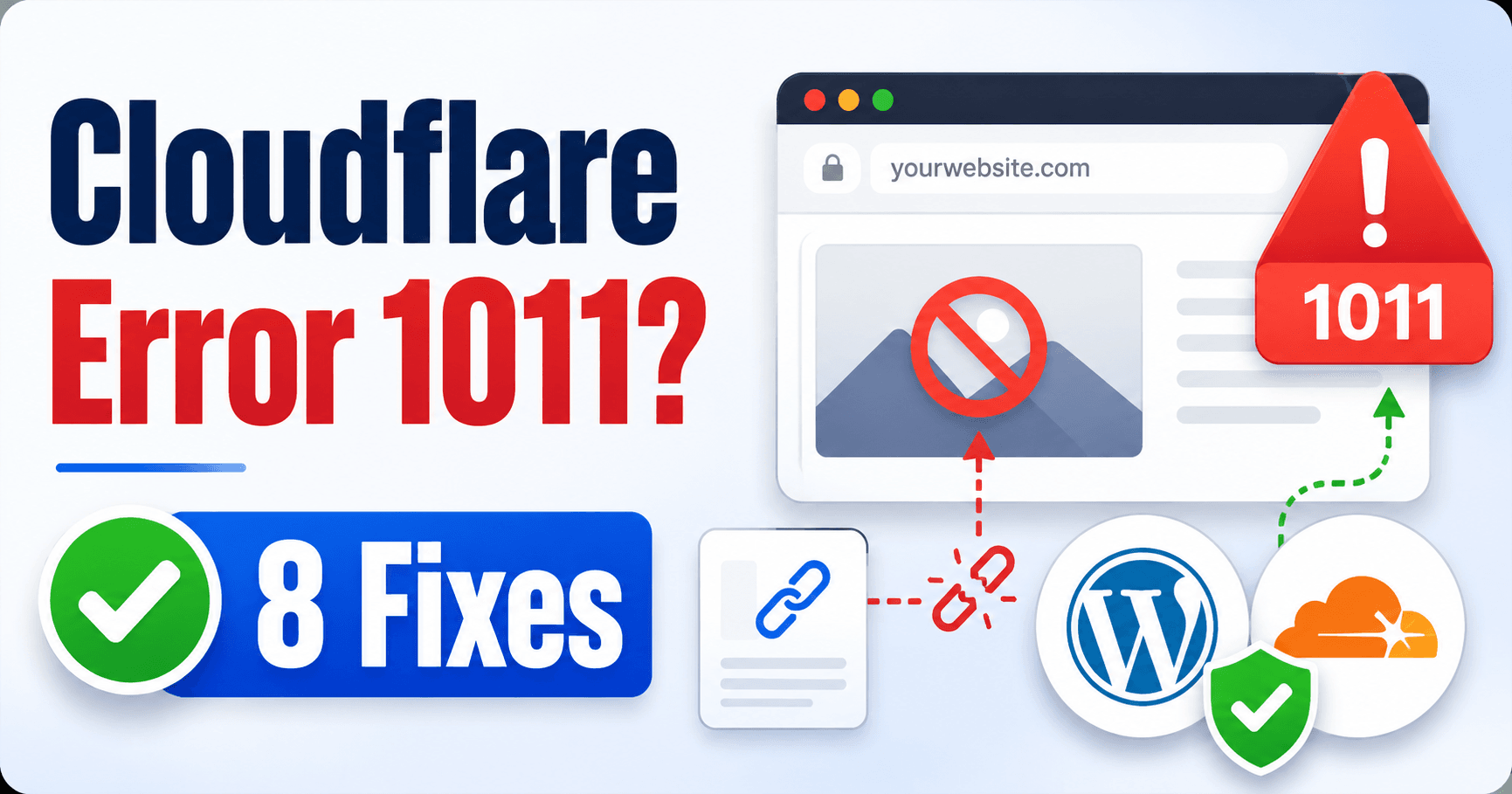
If an image works on your WordPress article but fails on an external page with Cloudflare error 1011, inspect the image request and hotlink policy before uploading another copy. The page and its embedded image are separate requests. A direct image visit can behave differently because its Referer context differs from an external embed.
Guide reviewed: October 8, 2026. Interface labels may vary by version, account and device.
Compare the image request with the page request
| Observation | Check | Interpretation |
|---|---|---|
| Image works on your article | Exact media URL | File may be present and available locally |
| External embed returns 1011 | Embedding page and image response | Hotlink policy is involved |
| Direct image URL opens | Referer context of the embedded request | Direct success does not verify external use |
| Image returns 404 instead | Media path and file existence | Use missing-file troubleshooting |
Compare the page with the image request
Collect two addresses: the page containing the picture and the image URL it requests. Check that the failed response belongs to that image and actually shows 1011. If the page chooses a different preview asset or retains an older cached one, test notes must identify that asset.
Keep the page where the image is missing and the actual image address. They are different requests. The page may load successfully while the image request is denied, so a successful homepage test does not explain the missing picture.
For example, you might publish an article with a picture and later embed that picture in a partner’s page. The article’s visitors can see it, while the partner’s visitors encounter a blocked image. That is consistent with a policy about where images are requested from, rather than evidence that the file disappeared.
Confirm that the displayed error is 1011. A missing file, an incorrect media URL, and a hotlink block need different repairs. Re-uploading files before identifying the response can create duplicates without changing the policy.
Understand what this protection checks
Cloudflare documents Hotlink Protection for gif, ico, jpg, jpeg, and png files. It checks the request’s Referer information and denies requests with a nonblank Referer that does not include the site’s domain. A blank Referer is treated differently, so opening an image directly is not a complete test of an embedded request.
Its documentation also explains that the feature can prevent image display on external services such as Pinterest and Facebook, while not preventing crawling itself. If you depend on external image presentation, review that intended use before selecting a broad policy.
The relevant decision is not whether every external request is good or bad. It is which images you intend to share and which uses should remain restricted.
Choose a policy that matches your publishing plan
For an image owned by someone else, contact that website owner about the block or use content you are entitled to host yourself. The source site’s protection is its decision, and a visitor cannot repair it through their browser.
For your own site, a narrowly scoped configuration can be easier to maintain than turning protection off everywhere. Cloudflare documents configuration rules for selected paths and a hotlink-ok directory for images intentionally available to external pages.
Consider a small set of promotional images meant for partners while the rest of the media library remains under the existing policy. Keep those assets and their intended use clearly identified. That gives the administrator a precise scope to configure rather than a vague request to make all images work everywhere.
If a provider manages custom hostnames for your site, ask it to review the policy in that context. The hostname and Referer relationship may differ from the provider’s primary zone, and the provider should confirm the supported arrangement.
Test the intended external use
Use three checks for a focused policy change: the image inside your own article, the intended external page, and an image outside the agreed exception. These confirm ordinary display, the approved sharing purpose and the boundary of the owner’s existing policy.
After an agreed policy adjustment, check the image on your own article and on the specific external page where it should display. The two tests exercise different request contexts.
Also verify that a file outside the intended exception still follows the policy the owner chose. A change that restores one partner image should not accidentally expose the entire media library to unrestricted embedding if that was not the goal.
For a social preview, record the exact image URL the service is attempting to use. A cached preview or a different selected image can make the result confusing. Keep the asset and intended platform together in the test notes.
If the image remains blocked, provide the administrator with the image path, embedding page, response message, and policy scope. This is enough to begin a focused review without changing WordPress themes or replacing a file that already displays correctly on the site.
References: Cloudflare error 1011 and Hotlink Protection documentation.
Keep intentional sharing identifiable
Document which assets are meant for partners or external services and which policy covers them. If the image belongs to another owner, request permission or use an asset you are entitled to host. If your own image remains blocked, provide its exact URL, embedding page and response context for the administrator’s review.