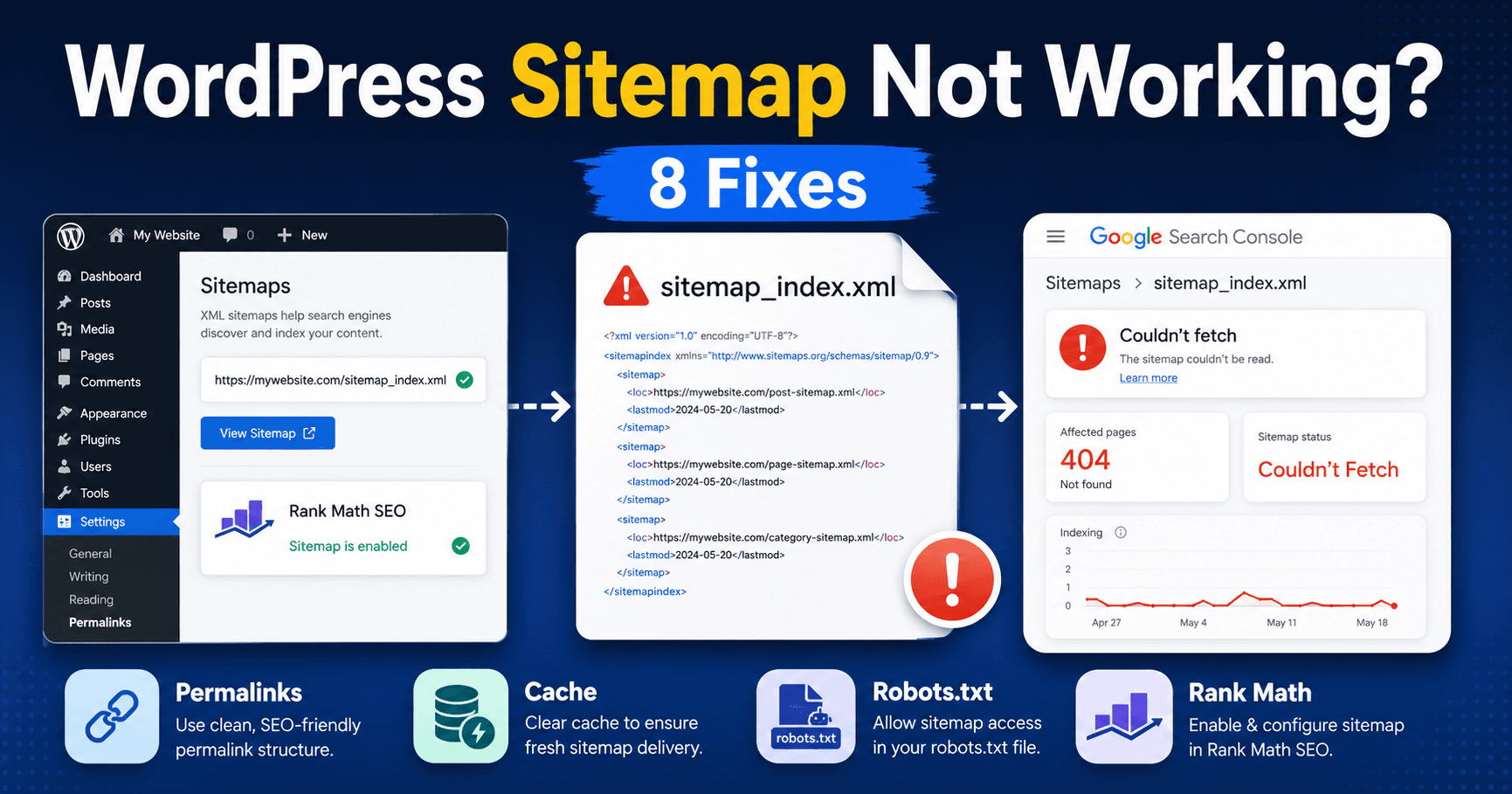
WordPress Sitemap Problems: Diagnose 404, Empty XML and Search Console Fetch Errors

If your WordPress sitemap is not working, search engines may have trouble discovering the URLs you intended to submit.

You may see a 404 error when opening the sitemap, a blank XML page, missing posts, or a “Couldn’t fetch” message in Google Search Console.

The good news is that most WordPress sitemap problems can be traced to a small group of causes: incorrect sitemap URLs, permalink or rewrite rules, caching, robots.txt, SEO plugin settings, indexing rules, or temporary Search Console processing issues.

QUICK ANSWER

If your WordPress sitemap is not working, first open the sitemap URL directly and confirm it loads. With Rank Math, check /sitemap_index.xml. Then verify the Sitemap module, re-save WordPress permalinks, clear or exclude sitemap caches, check robots.txt and security rules, confirm important pages are set to Index, and use Google Search Console’s live URL test if Google reports “Couldn’t fetch.”


What Is a WordPress XML Sitemap?

An XML sitemap is a machine-readable list of URLs that you want search engines to discover.

Depending on your WordPress setup, your sitemap URL may be different.

WordPress core has built-in XML sitemap functionality, commonly available at:

https://example.com/wp-sitemap.xml

SEO plugins can provide their own sitemap system instead.

For example, Rank Math commonly uses:

https://example.com/sitemap_index.xml

A sitemap index can then link to individual sitemaps for posts, pages, categories, and other content types.

Do not assume that every WordPress website uses the same sitemap URL.

IMPORTANT:

A sitemap helps search engines discover URLs, but submitting one does not guarantee that every URL will be crawled or indexed. Sitemap submission and Google indexing are related but separate processes.


1. Check the Exact Sitemap URL First

Before changing WordPress settings, open your sitemap directly in a browser.

If you use Rank Math, try:

https://yourdomain.com/sitemap_index.xml

If you are relying on the native WordPress sitemap instead, try:

https://yourdomain.com/wp-sitemap.xml

Replace yourdomain.com with your actual domain.

You want to determine what happens:

  • The sitemap loads normally
  • It returns a 404 error
  • It displays a blank or white page
  • It redirects somewhere unexpected
  • It shows an HTML page instead of XML
  • It produces a server error

This first test determines which troubleshooting path you should follow.

If the Sitemap Loads Normally

If the sitemap opens correctly in your browser but Google Search Console says Couldn’t fetch, do not immediately rebuild your WordPress site.

The problem may involve Google’s fetch attempt, robots.txt, security filtering, server availability, or simply sitemap processing.

If the Sitemap Returns 404

Continue with the permalink and rewrite checks below.


2. Check Rank Math Sitemap Settings

If you use Rank Math, confirm that its Sitemap feature is enabled.

Go to:

WordPress Dashboard → Rank Math SEO → Dashboard

Look for the Sitemap module and make sure it is enabled.

Then open:

Rank Math SEO → Sitemap Settings

Review which content types are included.

Depending on your site, these may include:

  • Posts
  • Pages
  • Categories
  • Products
  • Custom post types
  • Other taxonomies

Save the settings after confirming the configuration.

TIP:

Do not enable every possible sitemap type simply to create a larger sitemap. Include useful, indexable content that you actually want search engines to discover.


3. Re-Save WordPress Permalinks

If sitemap_index.xml returns a 404 error, flushing WordPress rewrite rules is one of the first fixes to try.

Go to:

Settings → Permalinks

You do not need to change your permalink structure.

Simply click:

Save Changes

Then open your sitemap again:

https://yourdomain.com/sitemap_index.xml

This forces WordPress to refresh its permalink and rewrite configuration.

If the sitemap begins working, no further change may be necessary.

What If It Still Returns 404?

Rank Math generates its sitemap dynamically and depends on web-server rewrite rules.

If the sitemap still fails after saving permalinks, the problem may involve:

  • Apache rewrite configuration
  • Nginx rewrite configuration
  • A damaged .htaccess file
  • Server configuration
  • A conflicting physical sitemap file

If you are not comfortable changing Apache or Nginx rules manually, contact your hosting provider.

Tell them that your WordPress Rank Math sitemap at:

/sitemap_index.xml

returns 404 even after flushing WordPress permalinks.

CAUTION:

Do not paste random Apache or Nginx rewrite rules into a production server unless you understand the configuration. A bad rewrite rule can affect the entire website, not just the sitemap.


4. Exclude the Sitemap From Caching

Caching can create confusing WordPress sitemap problems.

Your sitemap should reflect your site’s current URLs, but an old cached version may continue to be delivered after content or SEO settings change.

Check whether your sitemap is being cached by:

  • A WordPress caching plugin
  • LiteSpeed Cache
  • Your hosting provider
  • A reverse proxy
  • Cloudflare
  • Another CDN

If possible, exclude XML sitemap URLs from page caching.

For Rank Math, that includes URLs such as:

/sitemap_index.xml
/*-sitemap*.xml

The exact exclusion syntax depends on the caching system you use.

After changing cache rules:

  1. Clear the WordPress cache.
  2. Clear hosting cache.
  3. Purge relevant CDN cache.
  4. Open the sitemap in an incognito window.

If you recently updated your WordPress site but old content keeps appearing elsewhere too, see our WordPress Changes Not Showing guide.


5. Check robots.txt, Security Rules, and Googlebot Access

A sitemap that works in your browser is not necessarily accessible to Googlebot.

Security software, firewalls, CDN rules, or robots.txt configuration can treat automated crawlers differently from normal visitors.

Check your robots.txt file:

https://yourdomain.com/robots.txt

Make sure you have not accidentally blocked the sitemap or the areas required for Google to retrieve it.

Also review:

  • WordPress security plugins
  • Cloudflare firewall rules
  • Bot protection
  • Hosting security systems
  • Country or IP restrictions
  • Basic authentication or login protection

Use Google Search Console Live Testing

If Search Console reports that the sitemap could not be fetched, copy the sitemap URL.

Use the URL Inspection tool and run a live test.

Pay particular attention to whether Google reports:

  • Crawl allowed: Yes
  • Page fetch: Successful

If Google cannot fetch the URL, investigate the specific blocking or server issue before repeatedly resubmitting the sitemap.

USEFUL CLUE:

If the sitemap works for you but Google’s live test cannot retrieve it, focus on firewall, robots.txt, CDN, server availability, and crawler-access rules rather than rebuilding the sitemap.


6. Check Why Important URLs Are Missing From the Sitemap

Sometimes the sitemap itself loads perfectly but a specific post or page is missing.

That is a different problem from a broken sitemap.

With Rank Math, a URL may be excluded because:

  • The page is set to Noindex
  • The content type is excluded from Sitemap Settings
  • A custom canonical points to another URL
  • The content is not published
  • A taxonomy or archive is configured not to appear

Open the affected page in WordPress.

Open the Rank Math panel and check:

Advanced → Robots Meta

If you want Google to index the page, make sure it is not accidentally set to:

Noindex

Also check whether you have manually entered a different canonical URL.

Why Can a Custom Canonical Remove a URL?

A canonical tells search engines which version of similar content should be considered the preferred URL.

If a page has a custom canonical pointing somewhere else, an SEO plugin may intentionally exclude the original URL from the sitemap.

Do not remove canonical settings automatically. First confirm whether they were added intentionally.


7. Fix Blank XML, Invalid XML, or Plugin Conflicts

A sitemap can also fail without returning a simple 404.

You might see:

  • A blank white page
  • An XML parsing error
  • “XML declaration allowed only at the start of the document”
  • Missing XML tag errors
  • An HTML page instead of XML

Possible causes include:

  • A plugin conflict
  • A theme conflict
  • PHP warnings or output before the XML begins
  • Extra whitespace from custom PHP files
  • Caching
  • A physical sitemap file conflicting with Rank Math’s dynamic sitemap

Check the Sitemap Source

If the browser appears blank, view the page source.

If XML exists in the source but the page renders strangely, the issue may involve styling or caching rather than missing sitemap data.

If the source itself is empty, investigate plugins, theme code, PHP errors, and server logs.

Check for a Physical sitemap_index.xml File

Rank Math normally generates its sitemap dynamically.

If a manually uploaded file named:

sitemap_index.xml

exists in your server root, it can conflict with the dynamic sitemap.

Do not delete files blindly.

Back up the file and confirm where it came from before removing or renaming it.

IMPORTANT:

If the sitemap began failing immediately after editing functions.php, wp-config.php, or adding custom PHP, check for accidental whitespace or output before the XML response.


8. Fix “Couldn’t Fetch” in Google Search Console

Google Search Console can report:

Couldn’t fetch

even when the sitemap opens in your browser.

First check the basics:

  1. Open the sitemap directly.
  2. Confirm you submitted the exact sitemap URL.
  3. Check that it does not require login.
  4. Check robots.txt.
  5. Run Google’s live URL test.
  6. Confirm the server is available.
  7. Check security and CDN rules.

If those checks are successful, the status can sometimes reflect a temporary fetch or processing delay.

Do not delete and resubmit the sitemap repeatedly every few minutes.

Give Google time to process it and check the Sitemaps report again later.

Submit the Correct Sitemap

In Google Search Console:

Indexing → Sitemaps

For a typical Rank Math setup, submit:

sitemap_index.xml

or the complete URL if the interface requires it.

Once submitted successfully, you do not need to resubmit it every time you publish a new article.

Rank Math automatically updates the sitemap as eligible content changes.

REMEMBER:

A successful sitemap does not mean every submitted URL will automatically be indexed. Google still decides which URLs to crawl and index based on many factors.

If your sitemap is working but your pages still do not appear in Google, see our Website Not Showing on Google guide.


What If the Sitemap Works but New Posts Are Missing?

If older URLs appear but a newly published post does not, check:

  • The post is actually Published
  • The post is set to Index
  • Posts are enabled in Rank Math Sitemap Settings
  • No custom canonical points elsewhere
  • The sitemap cache has been refreshed

Then open the appropriate post sitemap and search for the new URL.

Do not assume that Google Search Console’s discovered-page count updates instantly after every publication.


What If Your Sitemap Returns a 500 Error?

If the sitemap itself returns HTTP 500, the problem is broader than ordinary sitemap settings.

Check PHP errors, plugins, server logs, memory limits, and your hosting environment.

See our WordPress 500 Internal Server Error guide for the correct troubleshooting sequence.


Fastest Sitemap Troubleshooting Order

  1. Open the sitemap directly in your browser.
  2. Confirm the correct sitemap URL.
  3. Check the Rank Math Sitemap module.
  4. Review Rank Math Sitemap Settings.
  5. Go to Settings → Permalinks and click Save Changes.
  6. Clear WordPress, hosting, and CDN caches.
  7. Exclude sitemap URLs from inappropriate caching.
  8. Check robots.txt and security rules.
  9. Check whether missing pages are set to Index.
  10. Check custom canonicals.
  11. Investigate plugin/theme conflicts or malformed XML.
  12. Use Search Console live testing.
  13. Resubmit the correct sitemap if necessary.

WordPress Sitemap Quick Checklist

  • ☐ Correct sitemap URL opens
  • ☐ Sitemap returns normally instead of 404
  • ☐ Rank Math Sitemap module enabled
  • ☐ Correct content types included
  • ☐ Permalinks flushed
  • ☐ Sitemap excluded from stale caching
  • ☐ Hosting/CDN cache cleared
  • ☐ robots.txt checked
  • ☐ Security/firewall rules checked
  • ☐ Important posts set to Index
  • ☐ Custom canonicals checked
  • ☐ No conflicting physical sitemap file
  • ☐ Search Console live fetch tested
  • ☐ Correct sitemap submitted

Frequently Asked Questions

Why is my WordPress sitemap returning a 404 error?

A WordPress sitemap can return 404 because of stale permalink rules, missing server rewrite rules, caching, an SEO plugin configuration problem, or a conflict with a physical sitemap file. Re-saving WordPress permalinks is one of the first troubleshooting steps.

What is the Rank Math sitemap URL?

A typical Rank Math sitemap index is available at /sitemap_index.xml. The index then links to separate XML sitemaps for eligible posts, pages, categories, and other content types.

Why does Google Search Console say “Couldn’t fetch” when my sitemap works?

Google may have experienced a temporary fetch or processing problem, or Googlebot may be affected by robots.txt, firewall, CDN, bot protection, or server availability. Use Search Console’s live URL testing to confirm whether Google can fetch the sitemap.

Why is a WordPress post missing from my sitemap?

The post may be set to Noindex, excluded from the sitemap settings, unpublished, or using a custom canonical URL that points to another page.

Should I submit my sitemap every time I publish a new post?

No. A dynamically generated WordPress sitemap updates as eligible content changes. Once Google knows the sitemap URL, you generally do not need to resubmit it for every new article.

Does submitting a sitemap guarantee Google indexing?

No. A sitemap helps Google discover URLs, but Google independently decides whether and when individual pages are crawled and indexed.

Should WordPress sitemaps be cached?

A stale sitemap cache can delay changes or cause troubleshooting problems. If caching interferes with sitemap generation or updates, exclude the sitemap URLs from the relevant page, server, or CDN caching layer.


Final Thoughts

A broken WordPress sitemap should be diagnosed before you repeatedly remove and resubmit it to Google Search Console.

Start by opening the sitemap directly. Then verify Rank Math settings, refresh WordPress permalinks, check caching and rewrite rules, and confirm that Googlebot can access the sitemap.

If individual URLs are missing, inspect their Index and canonical settings rather than rebuilding the entire sitemap.

And remember: a working sitemap helps search engines discover your content, but strong internal linking, useful content, crawl accessibility, and proper indexing settings are still essential for getting pages into search results.

Leave a Comment