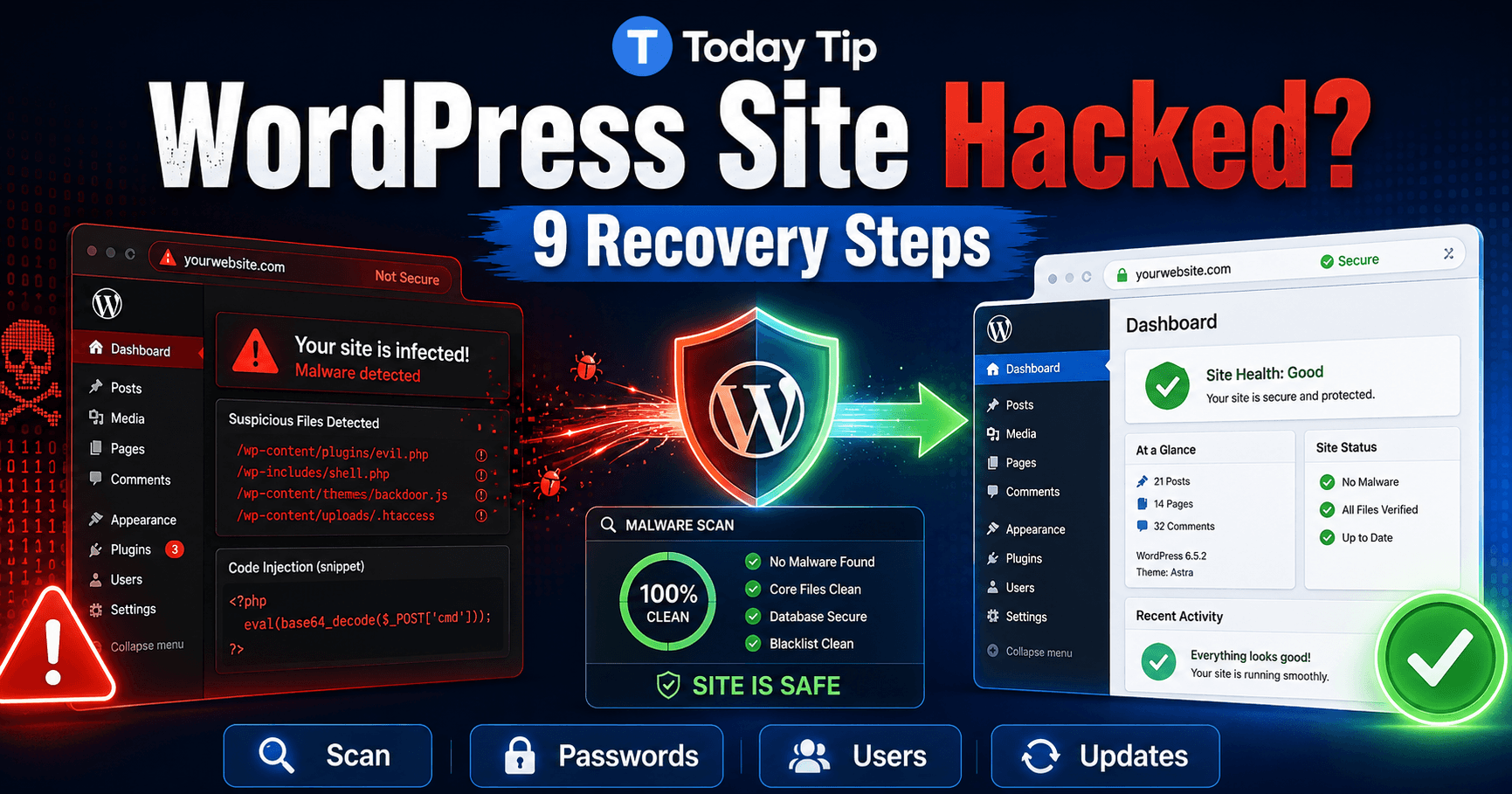
If your WordPress site has been hacked, you may see spam redirects, unfamiliar administrator accounts, malware warnings, strange pages in Google, or changes you never made.
A hacked website needs more than deleting one suspicious file. The attacker may have changed WordPress files, added users, injected content into the database, or left a hidden way to regain access.
The safest recovery process is to document what happened, contain the problem, clean the site carefully, replace compromised components with trusted copies, reset access credentials, and then monitor the site for reinfection.
QUICK ANSWER
If your WordPress site is hacked, first document the symptoms and create a backup for recovery and investigation. Then check your host and Google Search Console for security warnings, reset important passwords, remove unauthorized users, scan and replace compromised WordPress files, review the database for injected content, update WordPress and all extensions, harden access, and request a Google security review only after the entire site is clean.
How Do You Know If Your WordPress Site Was Hacked?
Not every WordPress error means the site was compromised.
However, these symptoms deserve immediate investigation:
- Your website redirects visitors to spam or unfamiliar websites
- Google displays a malware or hacked-site warning
- Your hosting provider reports malware
- New administrator users appear without your permission
- Spam pages suddenly appear in Google Search
- Website content changes without your action
- Unknown plugins or files appear
- Your site starts sending unexpected email
- Visitors report antivirus or browser warnings
- You are suddenly locked out of WordPress
Do not assume a single symptom tells you exactly how the attacker entered.
Your goal is to confirm the compromise and understand its scope before making major changes.
1. Document the Symptoms Before Cleaning Anything
Before deleting files or restoring backups, write down exactly what you are seeing.
Record:
- The date and time you first noticed the issue
- The affected URLs
- Any browser warning messages
- Unexpected redirects
- Unknown users
- Recent plugin or theme installations
- Recent WordPress updates
- Recent hosting or server changes
Take screenshots where useful.
This creates a basic incident record and helps you compare the site before and after cleanup.
TIP:
If the site is redirecting visitors to harmful pages or distributing malware, contact your hosting provider immediately about temporarily restricting public access while you investigate.
2. Create a Full Backup Before Cleanup
Even though the site may be infected, create a copy before making destructive changes.
The backup can help you:
- Recover content if cleanup damages the site
- Compare infected files with clean replacements
- Investigate when suspicious changes appeared
- Preserve evidence of the compromise
Back up:
- WordPress files
- The database
wp-config.php- The uploads directory
- Important server configuration files
IMPORTANT:
Treat an infected backup as potentially unsafe. Do not restore it to another live website unless you have verified that the backup itself is clean.
3. Check Your Hosting Account and Google Search Console
Your hosting provider may have detected malware before you did.
Check the hosting dashboard for:
- Malware alerts
- Suspicious file reports
- Account suspensions
- Unexpected CPU or bandwidth usage
- Security logs
Ask hosting support whether they can identify:
- Recently modified files
- Malware signatures
- Suspicious login activity
- Server-level compromise
Check Google Search Console
Open:
Google Search Console → Security & Manual Actions → Security Issues
If Google detected hacked content, malware, phishing, or harmful downloads, the report may show sample affected URLs.
Remember that the examples may not represent every infected page.
You must clean the problem across the entire site before requesting a review.
4. Reset Passwords and Secure Important Accounts
If an attacker gained access to WordPress, you should assume that other credentials may also be at risk.
Change passwords for:
- WordPress administrator accounts
- Your hosting control panel
- SFTP or FTP accounts
- SSH accounts
- The WordPress database user if appropriate
- Related administrator email accounts if compromise is suspected
Use a different strong password for every account.
Do not reuse the previous password with a small variation.
Enable Two-Factor Authentication
Where available, enable two-factor authentication for:
- Hosting
- WordPress administrator accounts
- Domain registrar
SECURITY PRIORITY:
Changing only the WordPress administrator password is not enough if an attacker also has access to the hosting account, SFTP credentials, or your administrator email.
5. Remove Unknown WordPress Users
Go to:
Users → All Users
Look carefully at accounts with the Administrator role.
Investigate any user you do not recognize.
Check:
- Username
- Email address
- Role
- Creation history if available
If you confirm that an account is unauthorized, remove it.
Before deleting a user, WordPress may ask what should happen to content assigned to that account.
Do not accidentally delete legitimate posts while removing a suspicious user.
What If You Cannot Log In?
If you are locked out of WordPress, first recover administrator access through your hosting environment or a trusted recovery method.
See our WordPress Login Not Working guide if the problem is related to wp-admin access.
6. Scan the Site and Replace Compromised Files With Clean Copies
A security scan can help identify suspicious or modified files.
You can use:
- Your hosting malware scanner
- A reputable WordPress security plugin
- A trusted external website scanner
A scan is useful for identifying candidates, but do not assume that deleting one detected file means the entire site is clean.
Attackers may modify multiple locations or leave persistent access behind.
Replace WordPress Core Files
If WordPress core files are modified, replacing them with clean files from the official WordPress release is usually safer than manually editing suspicious code.
Do not replace:
- Your
wp-config.phpwithout understanding the configuration - Your entire
wp-contentdirectory - Your database
Those areas contain site-specific data.
Reinstall Plugins and Themes From Trusted Sources
If a plugin or theme appears compromised:
- Confirm you have any required settings or license details.
- Remove the compromised copy.
- Download a fresh version from the official developer or repository.
- Install the clean copy.
Remove plugins and themes that you no longer use.
WARNING:
Avoid nulled, cracked, pirated, or unofficial premium plugins and themes. They can contain modified code and create a serious security risk.
7. Check the Database and Website Content for Injected Spam
A hacked WordPress site may contain malicious changes that do not exist as obvious files.
Attackers can inject unwanted content into:
- Posts
- Pages
- Widgets
- Plugin settings
- Theme options
- Database options
- SEO metadata
Look for:
- Spam links
- Unknown JavaScript
- Unexpected iframes
- Pharmaceutical or gambling keywords
- Foreign-language pages you never created
- Unknown URLs indexed by Google
Search Google with:
site:yourdomain.com
and review unfamiliar results.
Also review the URLs listed in Google Search Console’s Security Issues report.
CAUTION:
Do not delete database rows simply because they look unfamiliar. Create a database backup first and confirm what data belongs to WordPress, your theme, and your plugins.
8. Update WordPress and Harden the Site
Cleaning malware is only half the job.
If you do not close the weakness that allowed the compromise, the site can be infected again.
After the site is clean:
- Update WordPress core
- Update all plugins
- Update your theme
- Remove unused plugins and themes
- Use strong unique passwords
- Enable two-factor authentication
- Keep regular off-site backups
- Review file permissions
- Limit administrator accounts
- Keep your hosting environment supported and updated
Review Plugin and Theme Sources
Only install software from sources you trust.
A plugin or theme that has been abandoned or is no longer maintained can become a long-term security risk.
Protect wp-admin
Reduce the number of accounts with administrator access.
Use the lowest role each user actually needs.
For example, someone who only writes articles does not normally need full Administrator permissions.
GOOD PRACTICE:
Security works best in layers: updates, strong authentication, limited permissions, backups, monitoring, secure hosting, and trusted plugins all work together.
9. Verify the Cleanup and Request a Google Review
Do not assume the site is clean simply because the homepage looks normal.
Check:
- The frontend
- wp-admin
- Several important posts and pages
- Mobile and desktop versions
- Users → All Users
- Security scans
- Server logs
- Google Search Console
Watch for:
- Spam redirects returning
- Unknown users reappearing
- Suspicious files being recreated
- Unexpected new pages
- Browser malware warnings
Request a Security Review in Google Search Console
If Google flagged the site, go to:
Security Issues
Only request a review after all listed security problems have been fixed across the entire site.
In your review request, clearly describe:
- What happened
- What you removed or repaired
- What vulnerability or access problem you fixed
- What security improvements you added
Google may take time to complete the review.
Do not repeatedly resubmit while an existing review is still being processed.
Should You Restore a Backup Instead?
A verified clean backup from before the compromise can be one of the safest recovery options.
However, restoring a backup alone may not solve the problem if:
- The vulnerable plugin is still installed
- The compromised password is still active
- The backup was already infected
- The attacker still has hosting access
If you restore a clean backup, immediately:
- Update WordPress.
- Update plugins and themes.
- Remove unnecessary extensions.
- Reset credentials.
- Apply security hardening.
- Scan the restored site again.
What If the Malware Keeps Coming Back?
Reinfection usually means that the original access path or a hidden malicious component was not removed.
Possible causes include:
- A compromised hosting account
- A vulnerable plugin or theme
- A compromised administrator account
- A hidden unauthorized user
- Malicious code left in the database
- An infected backup being restored
- A compromised site elsewhere on the same hosting account
If the infection repeatedly returns after a careful cleanup, consider involving your hosting provider or a professional WordPress security specialist.
This is particularly important for:
- E-commerce websites
- Membership websites
- Sites storing sensitive customer data
- Sites processing payments
Fastest Hacked WordPress Recovery Order
- Document the symptoms.
- Protect visitors if the site is actively harmful.
- Create a full backup.
- Check hosting security alerts.
- Check Search Console Security Issues.
- Reset important passwords.
- Remove unauthorized users.
- Scan the site.
- Replace compromised core, plugin, and theme files with trusted copies.
- Review the database and content.
- Update WordPress, plugins, and themes.
- Harden login and permissions.
- Scan and verify the site again.
- Request a Google review if required.
- Monitor for reinfection.
WordPress Hacked Site Quick Checklist
- ☐ Symptoms documented
- ☐ Full backup created
- ☐ Hosting provider checked
- ☐ Search Console Security Issues checked
- ☐ WordPress passwords reset
- ☐ Hosting password reset
- ☐ SFTP/FTP/SSH access reviewed
- ☐ Unauthorized administrators removed
- ☐ Security scan completed
- ☐ WordPress core verified or replaced
- ☐ Plugins and themes checked
- ☐ Database reviewed
- ☐ Spam pages and links removed
- ☐ WordPress updated
- ☐ Plugins and themes updated
- ☐ Two-factor authentication enabled where possible
- ☐ Backups configured
- ☐ Google review requested if required
- ☐ Site monitored for reinfection
Frequently Asked Questions
How do I know if my WordPress site has been hacked?
Common indicators include spam redirects, unknown administrator accounts, malware warnings, unexpected website changes, unfamiliar pages in Google Search, suspicious plugins or files, and security alerts from your hosting provider.
Can I clean a hacked WordPress site myself?
Simple compromises may be recoverable by an experienced site administrator, but malware cleanup can involve files, databases, server configuration, credentials, and security logs. If you are not comfortable with those areas, use your hosting support or a qualified WordPress security professional.
Should I delete my entire WordPress site after a hack?
Not automatically. A clean verified backup or clean replacement of compromised components may allow recovery without rebuilding everything. The correct choice depends on how extensive the compromise is and whether you can verify what is clean.
Why does my WordPress site keep getting hacked again?
Recurring infections usually indicate that the original vulnerability, stolen credential, unauthorized account, malicious file, database injection, or other access path was not completely removed.
Should I change my passwords after a WordPress hack?
Yes. Reset WordPress administrator credentials and other important access credentials such as hosting, SFTP, SSH, and related accounts that could allow someone to modify the website.
Can Google remove a hacked website warning?
Yes. After cleaning the entire site and fixing the underlying security problem, you can request a review through Google Search Console’s Security Issues report if Google has flagged the website.
Will restoring a backup fix a hacked WordPress site?
A verified clean backup can help, but you must also fix the reason the site was compromised. Otherwise, the restored website may be hacked again.
Final Thoughts
A hacked WordPress website should be treated as a security incident, not just a broken page.
Do not focus only on the most visible malware file or spam redirect.
Secure every access point, remove unauthorized users, replace compromised software with clean trusted copies, review the database, update the entire WordPress installation, and monitor the site after recovery.
The cleanup is complete only when the malware is gone and the path that allowed the attacker in has also been closed.