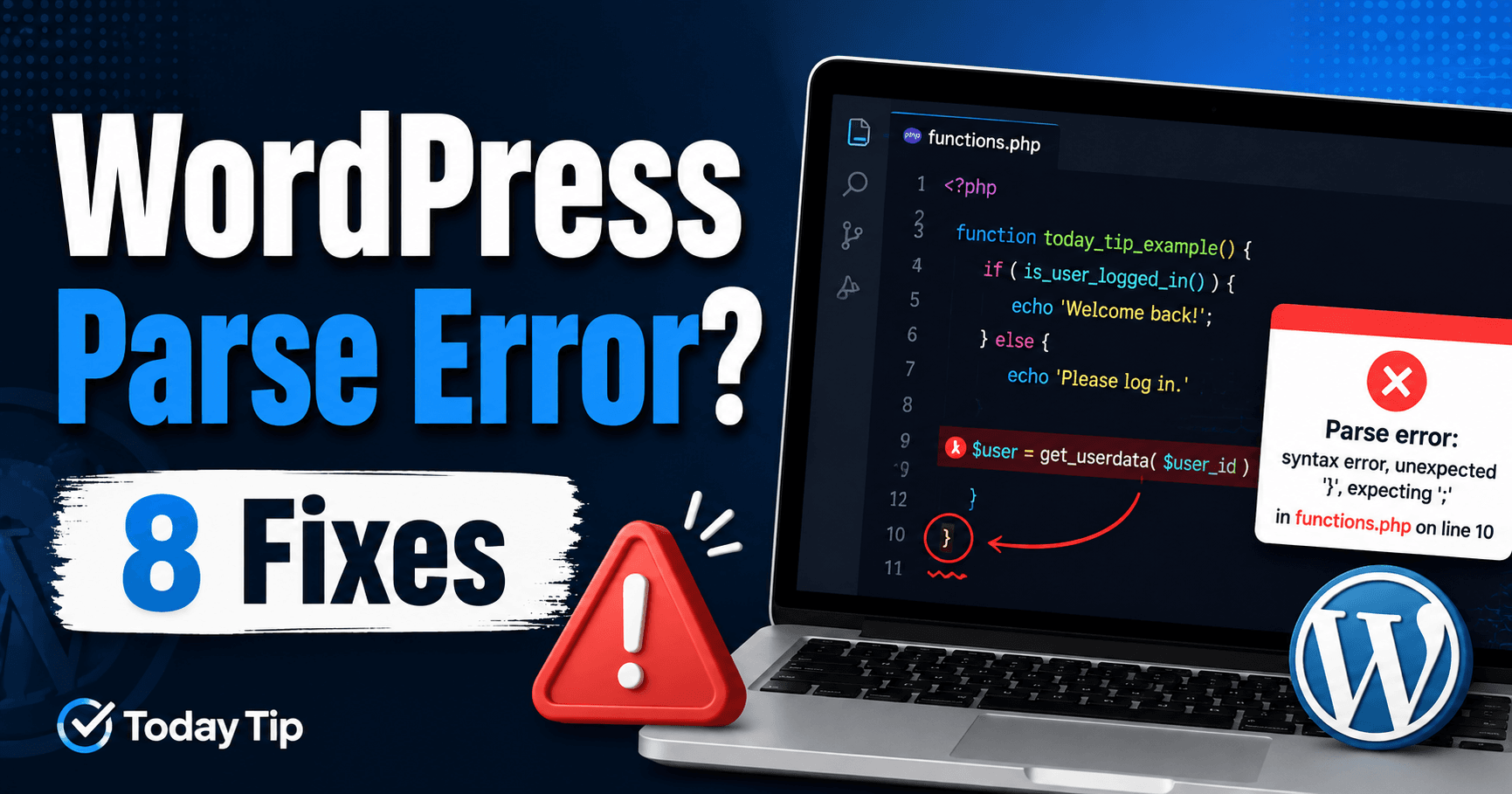
A parse error after a snippet edit or update means PHP could not interpret a file as valid syntax. The message’s file path is the starting point; its line number may identify where PHP noticed an earlier missing quote or bracket.
Restore access with a known working copy, then investigate the specific change before reapplying it.
Guide reviewed: October 8, 2026. Interface labels may vary by version, account and device.
Quick diagnosis
| Evidence | First action | Avoid |
|---|---|---|
| Error immediately after editing a file | Restore that file from a known working copy | Editing unrelated files. |
| Path inside a plugin or theme | Check that component and PHP requirements | Replacing the entire site by default. |
| Dashboard unavailable | Use host file access or an available recovery link | Assuming recovery email always arrives. |
| Error after an interrupted update | Compare with a clean official package | Losing custom modifications. |
Read the file path before changing anything
Diagnosis note: record the component, file, reported line, PHP version and last change. Inspect several lines before the reported location. An unclosed string can make a correct later statement look like the source of the failure.
A message such as Parse error: syntax error, unexpected token normally includes a file path and a line number. The path is the most useful starting point. A file under wp-content/plugins belongs to a plugin; a file under wp-content/themes belongs to a theme. An error in wp-config.php concerns the site’s main configuration file.
The line number shows where PHP noticed the problem. The actual mistake can be earlier. For example, an opening quote on one line may never close, leaving PHP confused when it reaches an otherwise ordinary statement below it. Read the surrounding lines as well as the highlighted line.
Keep the full message privately, including the time it appeared and what changed just beforehand. Server paths can reveal account details, so a public support post does not need the complete private directory structure. The relevant plugin or theme name, error text, and line number are usually enough to begin a discussion.
Recover when the dashboard will not open
Your hosting file manager or SFTP access still works independently of the WordPress dashboard. Download the affected file before editing it, then restore a known-good copy if you have one. If the problem began after a manual edit to a child theme’s functions.php, restoring that specific file is more focused than replacing the entire theme.
When a plugin causes the failure and you cannot reach its settings, an administrator can temporarily rename its directory to prevent WordPress from loading it. This also stops the plugin’s features, so consider forms, checkout, memberships, or other dependencies before doing it on a live site. Restoring the folder name does not repair the faulty code; keep the plugin inactive until the issue is resolved.
Some sites provide a WordPress recovery-mode email for fatal errors. If a valid recovery link is available, it may let you enter the dashboard and pause the affected component. Not every failure produces that email, and a parse error in an early configuration file may prevent recovery features from running at all.
Look at the change, not just the error wording
- Compare the changed file with the last working copy.
- Check matching quotes, parentheses, braces and statement endings.
- Run a syntax check using the target PHP version when available.
- Test WordPress behavior on staging; a syntax check cannot validate dependencies or business logic.
Common causes include an unclosed quote, a missing semicolon, mismatched parentheses, or an extra closing brace. Code copied from a formatted document can also contain curly quotation marks where PHP expects ordinary straight quotes.
For example, a configuration statement should have a complete pair of quotes and a semicolon: define( 'WP_DEBUG', false );. If a pasted version loses the closing quote, the error may appear on the next line. Adding punctuation at the reported line without examining the statement above it can make the problem harder to follow.
A text editor with PHP syntax highlighting helps show where a string or bracket stops matching. A developer can also run PHP’s syntax check against the file before uploading it. That check catches parsing problems, but it cannot prove that the code will behave correctly inside WordPress.
When you did not edit any code
If the error began during an update, the installed package may be incomplete or incompatible with the server’s PHP version. Compare the affected plugin or theme’s requirements with the version shown in your hosting panel. Newer PHP syntax will not necessarily run on an older server, even if the copied code looks correct.
Use a clean package from the developer when repairing an interrupted installation. Keep custom changes separately so they are not lost during replacement. Our WordPress update troubleshooting guide can help distinguish an incomplete file replacement from a failure that happens after the update completes.
An unexpected change to a core file deserves closer investigation. Restoring a clean file can recover the site, but you should also establish how it changed. Repeated unexplained changes may call for a security review rather than another round of punctuation edits.
Check the site after the error disappears
Open the dashboard and a few important public pages, then test the feature associated with the repaired file. If you restored an earlier version, note which change still needs to be reapplied. Keep the original error and your repair notes so a developer can reproduce the issue on staging.
A site that still shows a general failure after the parse error is fixed may have a second problem. See our guides to the WordPress critical error message and HTTP 500 errors for those symptoms. For background on diagnosing code failures, WordPress provides common error guidance and a plugin and theme troubleshooting lesson.
Confirm recovery before reapplying the change
Open the dashboard and an uncached public page, then repeat the feature associated with the repaired file. Check fresh logs and note any change that remains unapplied. If files change again without an authorized edit, investigate their source rather than repeatedly restoring them.