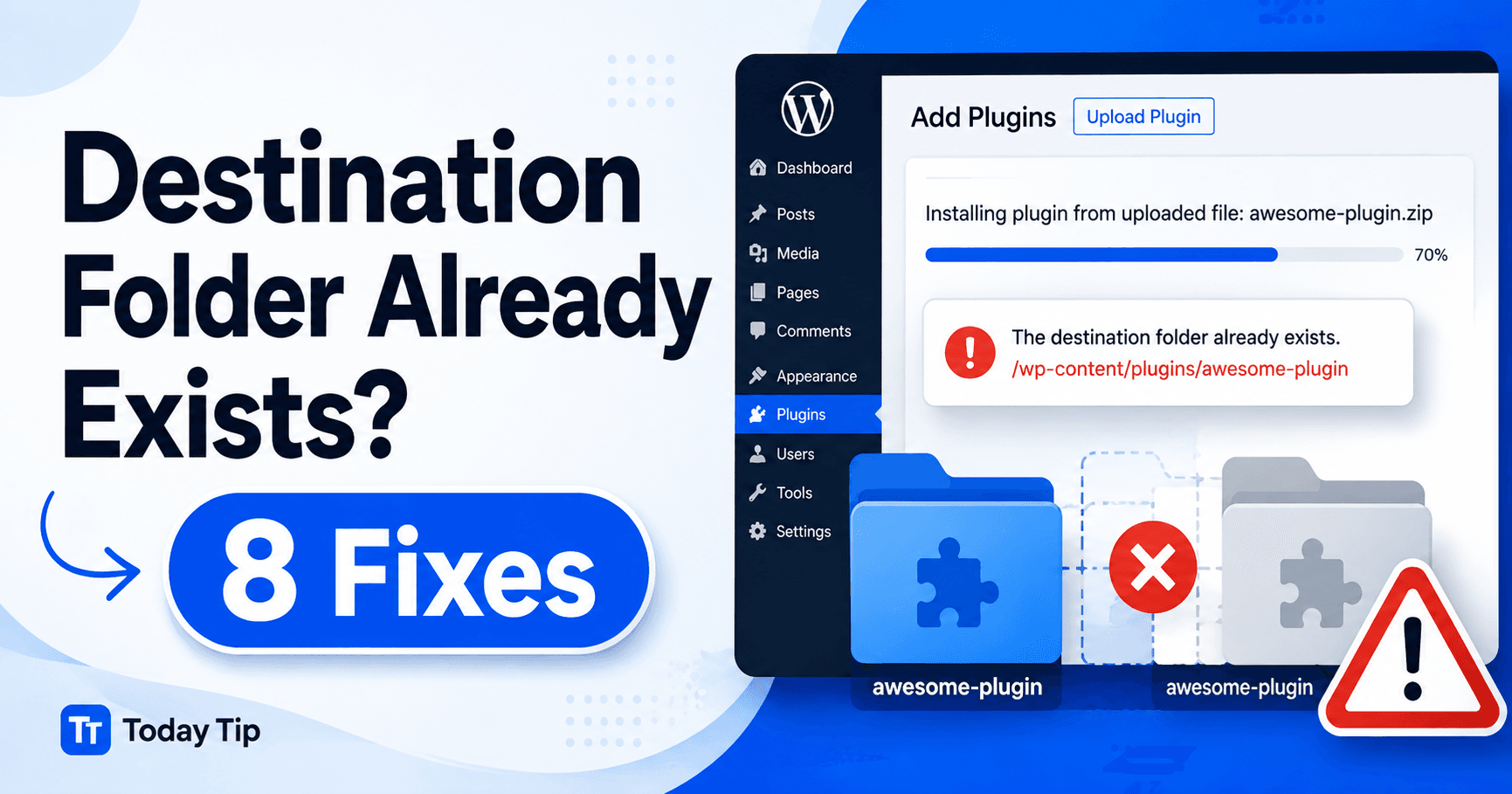
WordPress Destination Folder Already Exists: Safely Repair Plugin or Theme Installs

A WordPress destination folder already exists error usually appears when you try to install a plugin or theme but WordPress finds a folder with the same name already stored on the server.

You may see “Installation failed: Destination folder already exists.” even when the plugin or theme does not appear to be installed in your WordPress dashboard.

This often happens after a failed update, interrupted installation, incomplete deletion, manual FTP upload, migration, or restoration that leaves old plugin or theme files behind.

The fix is usually straightforward: identify the existing folder, confirm that it is not currently required, remove or rename the leftover files, and then install a clean copy.

QUICK ANSWER

If WordPress says the destination folder already exists, do not keep retrying the installation. Check whether the plugin or theme is already installed, clear any failed update state, open your hosting file manager or FTP/SFTP, and inspect the relevant folder inside wp-content/plugins or wp-content/themes. If an incomplete leftover folder exists, rename it first for safety, confirm your site still works, and then reinstall the plugin or theme from a clean trusted package.


What Does “Destination Folder Already Exists” Mean?

When WordPress installs a plugin or theme, it extracts the ZIP package into a specific directory.

Plugins normally go into:

/wp-content/plugins/

Themes normally go into:

/wp-content/themes/

For example, a plugin named:

example-plugin

may be installed into:

/wp-content/plugins/example-plugin/

If that folder already exists, WordPress may refuse to create another folder with the same name.

This can happen even when the plugin is not visible under:

Plugins → Installed Plugins

because the existing files may be incomplete or corrupted.


1. Check Whether the Plugin or Theme Is Already Installed

Start with the WordPress dashboard before modifying server files.

For a plugin, go to:

Plugins → Installed Plugins

Search for the plugin name.

For a theme, go to:

Appearance → Themes

Check whether the theme already exists.

If the plugin or theme is already installed, you may not need to install another copy.

Instead, you may only need to:

  • activate it,
  • update it,
  • repair the existing installation,
  • or delete the old copy before reinstalling.

Do not delete an active plugin or theme just because the installer reports that the folder exists.

First determine whether WordPress is currently using it.


2. Check for a Failed or Interrupted Installation

A previous installation attempt may have created the destination directory before failing.

This can happen because of:

  • a browser connection interruption,
  • a PHP timeout,
  • insufficient disk space,
  • a failed WordPress update,
  • file permission problems,
  • a server error,
  • or an incomplete ZIP extraction.

The result may be a partially populated folder.

For example:

/wp-content/plugins/example-plugin/

may exist but contain only some of the files required by the plugin.

WordPress sees the folder and stops the new installation, while the dashboard may not recognize the incomplete plugin correctly.

If the problem started after a failed WordPress update, see our WordPress Update Failed? 8 Fixes guide.


3. Open Your Hosting File Manager or FTP/SFTP

If the plugin or theme does not appear correctly in the dashboard, inspect the filesystem directly.

You can use:

  • your hosting file manager,
  • FTP,
  • or SFTP.

For a plugin, navigate to:

/wp-content/plugins/

For a theme, navigate to:

/wp-content/themes/

Look for a folder matching the plugin or theme you are trying to install.

For example:

/wp-content/plugins/example-plugin/

If the folder exists but WordPress does not list the plugin correctly, it may be incomplete, damaged, or left behind from an older installation.

Do not immediately delete it.

Rename it first so you have an easy rollback option.


4. Rename the Existing Folder Before Deleting It

Renaming is safer than immediately deleting the existing directory.

For example, rename:

example-plugin

to:

example-plugin-old

Then reload WordPress.

Check:

  • the homepage,
  • wp-admin,
  • important forms,
  • WooCommerce functions if applicable,
  • and any feature provided by that plugin.

If the website works normally and the plugin was not required, you now know that the old folder was probably abandoned or incomplete.

You can then try installing the plugin again.

WordPress should now be able to create a fresh:

example-plugin

directory.

Once the new installation is confirmed to work, you can remove the renamed old folder.


5. Download a Fresh Plugin or Theme Package

If the old installation was incomplete, do not reuse the same possibly corrupted ZIP file without checking it.

Download a clean copy from a trusted source.

For free WordPress.org plugins and themes, use the official WordPress repository.

For premium products, download the installation package directly from the developer or marketplace where you purchased it.

Avoid downloading plugins and themes from unknown third-party websites.

Modified or “nulled” packages can contain:

  • malware,
  • backdoors,
  • hidden administrator accounts,
  • spam injection,
  • or malicious redirects.

Also make sure you have the actual installable ZIP file.

Some premium downloads contain a larger package with:

  • documentation,
  • license information,
  • demo files,
  • child themes,
  • and another ZIP containing the actual plugin or theme.

6. Check File Ownership and Permissions

If the same problem keeps returning, WordPress may be unable to properly remove or replace old installation files.

Check filesystem permissions and ownership.

Common permission values on many Linux WordPress environments are:

  • 755 for directories,
  • 644 for files.

However, the correct ownership configuration depends on your hosting environment.

If WordPress cannot remove old files after an update, leftover directories may remain behind and cause future installation conflicts.

Ask your hosting provider to verify:

  • WordPress file ownership,
  • directory permissions,
  • PHP/web-server ownership,
  • and whether WordPress can modify wp-content.

Do not set your entire WordPress installation to permission 777.

That is not a proper fix and can create security problems.


7. Check Disk Space and File Limits

An incomplete plugin or theme folder may be created when the hosting account runs out of storage during extraction.

Check your hosting dashboard for:

  • available disk space,
  • storage quota,
  • inode or file-count limits,
  • temporary storage,
  • and backup storage usage.

Large amounts of storage can be consumed by:

  • old backups,
  • cache files,
  • staging sites,
  • migration archives,
  • debug logs,
  • and unused media.

If the server runs out of space while extracting a plugin, WordPress may leave a partially created directory behind.

Free sufficient storage before attempting the installation again.

Do not delete active WordPress files simply to create space.


8. Install the Plugin or Theme Manually if Necessary

If the dashboard installer continues failing but the filesystem is working correctly, manual installation may help.

Manual Plugin Installation

Extract the plugin ZIP on your computer.

Upload the plugin directory to:

/wp-content/plugins/

Then go to:

Plugins → Installed Plugins

and activate it.

Manual Theme Installation

Extract the theme ZIP.

Upload the theme directory to:

/wp-content/themes/

Then go to:

Appearance → Themes

and activate it when appropriate.

Make sure the directory structure is correct.

You do not want:

/wp-content/plugins/example-plugin/example-plugin/example.php

when WordPress expects:

/wp-content/plugins/example-plugin/example.php

An extra nested directory can prevent WordPress from recognizing the plugin correctly.


Why Does the Error Appear After Deleting a Plugin?

Sometimes deleting a plugin through the WordPress dashboard does not completely remove its directory.

This may happen because:

  • the deletion process was interrupted,
  • WordPress lacked permission to delete some files,
  • the plugin was partially damaged,
  • or the server stopped the PHP process.

The dashboard may show the plugin as removed while the physical folder remains.

Inspect:

/wp-content/plugins/

and remove or rename the leftover folder only after confirming the plugin is no longer active.


Why Does the Error Appear After a Failed Plugin Update?

During an update, WordPress may temporarily:

  1. download a new package,
  2. extract it,
  3. replace the existing plugin files,
  4. and clean up temporary files.

If the process fails between those stages, WordPress may leave behind:

  • the original plugin folder,
  • a partial replacement,
  • or temporary files.

Trying to install the plugin again can then produce the destination-folder error.

Before deleting anything, make a backup and determine which copy contains the working version.


Why Does the Theme Installer Say the Folder Already Exists?

The same rule applies to themes.

If WordPress attempts to install:

example-theme

but finds:

/wp-content/themes/example-theme/

the installation may stop.

This can occur when:

  • the theme was previously installed,
  • the dashboard deletion failed,
  • a migration restored the theme folder,
  • or an earlier installation was interrupted.

If the theme is currently active, do not delete it while the live website depends on it.

Switch to another valid theme or create a backup before replacing the active theme files.


Destination Folder Already Exists After Site Migration

A migration may copy old plugin and theme directories even if WordPress database information does not perfectly match the filesystem.

After migration, you might find:

  • old plugin directories,
  • duplicate themes,
  • partial plugin folders,
  • staging leftovers,
  • or manually uploaded directories.

Compare:

  • what appears in wp-admin,
  • what physically exists under wp-content,
  • and which plugins or themes are actually active.

Do not delete folders based only on their names if you are unsure about their purpose.


Can You Simply Delete the Existing Folder?

Yes, but only after confirming that it is safe.

Deleting the wrong folder could:

  • disable an active plugin,
  • remove an active theme,
  • break WooCommerce functionality,
  • remove custom code,
  • or take down the site.

Renaming is usually a safer first step.

For example:

plugin-name-old

lets you quickly restore the directory if necessary.

Once the replacement installation works correctly, you can remove the old copy.


Destination Folder Already Exists vs Update Failed

These issues are related but not identical.

Destination folder already exists means the installer found a directory with the same name.

Update failed can be caused by many other problems, including:

  • permissions,
  • disk space,
  • PHP limits,
  • download failures,
  • or server errors.

A failed update can leave behind a directory that later causes the destination-folder error.


Destination Folder Already Exists vs 413 Upload Too Large

A 413 error happens before or during file transfer because the request exceeds the permitted size.

The destination-folder error happens after WordPress recognizes that a directory with the requested name already exists.

If the ZIP file itself cannot be uploaded because it is too large, see our WordPress 413 Request Entity Too Large? 8 Fixes guide.


Can a Corrupted ZIP Cause This Error?

Not directly in every case, but a corrupted or interrupted installation can create the leftover folder that causes the next installation to fail.

If the same plugin installation repeatedly fails:

  • delete the old download,
  • download a fresh official package,
  • verify sufficient storage,
  • and retry after removing or renaming the incomplete directory.

What if WordPress Cannot Delete the Old Folder?

If your hosting file manager or WordPress cannot remove the directory, check:

  • file permissions,
  • ownership,
  • locked files,
  • malware protection,
  • and server filesystem errors.

Contact your hosting provider if files owned by another server user cannot be modified through your account.

Give them the exact folder path, for example:

/public_html/wp-content/plugins/example-plugin/

and ask them to verify ownership and permissions.


How to Prevent the Error in the Future

After fixing the issue, reduce the chance of incomplete folders returning.

  • Keep enough free hosting storage.
  • Do not close the browser during active updates.
  • Avoid updating many large plugins simultaneously.
  • Keep regular backups.
  • Use supported PHP versions.
  • Keep filesystem ownership correct.
  • Remove failed staging or migration files.
  • Install plugins and themes only from trusted sources.

A clean and writable WordPress filesystem makes plugin and theme updates much more reliable.


Final Checklist

If WordPress says the destination folder already exists, work through these steps:

  1. Check whether the plugin or theme is already installed.
  2. Identify whether a previous installation or update failed.
  3. Inspect wp-content/plugins or wp-content/themes.
  4. Rename the existing folder before deleting it.
  5. Download a clean installation package.
  6. Verify filesystem ownership and permissions.
  7. Check hosting disk space and file limits.
  8. Install manually through FTP/SFTP when necessary.

The error usually does not require reinstalling WordPress. In most cases, an old or incomplete plugin or theme directory is blocking the new installation. Identify that directory, protect yourself with a backup, and replace it with a clean working copy.

Leave a Comment