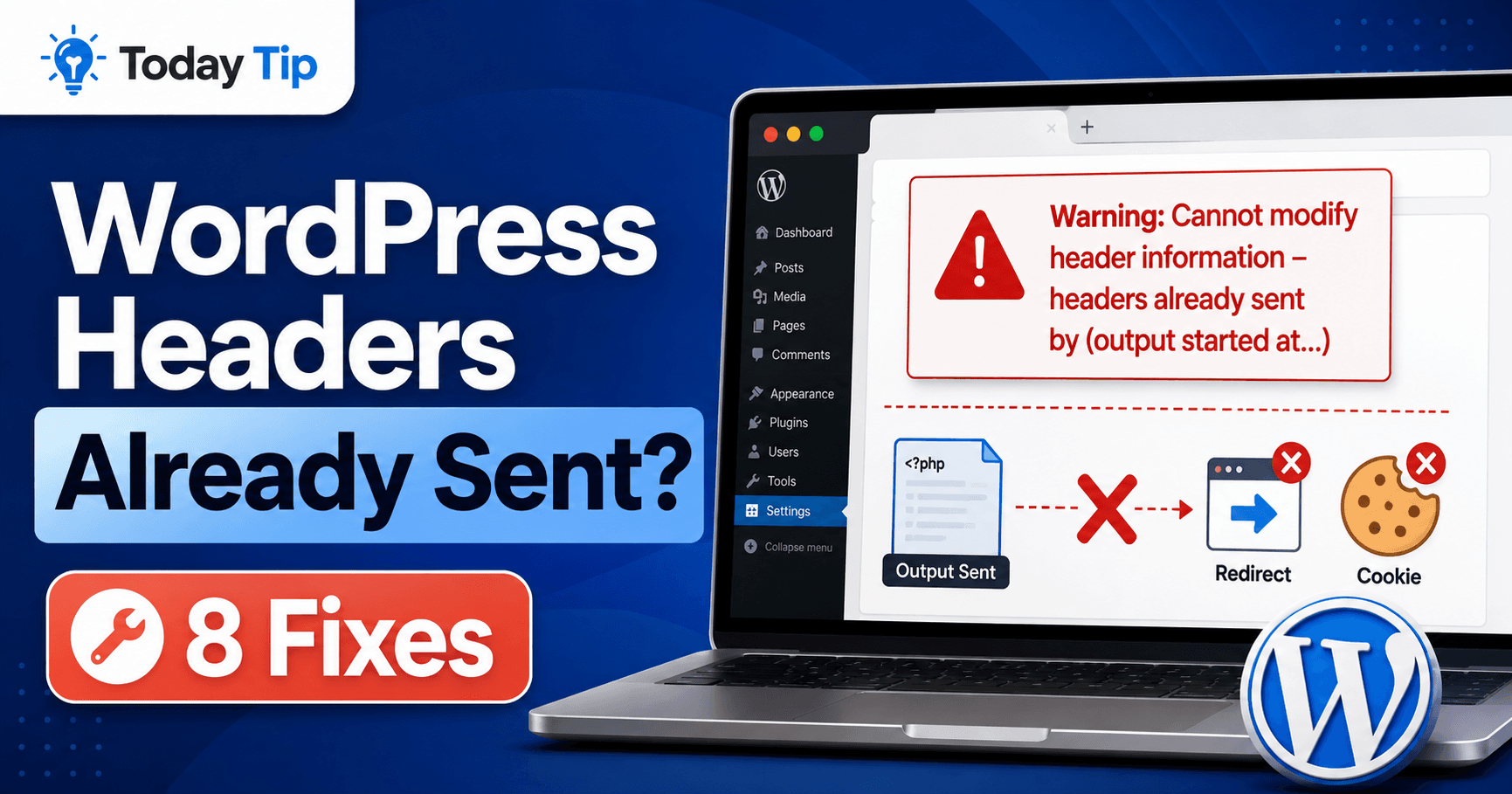
WordPress Headers Already Sent: Find the First Output Before the Warning

A WordPress headers already sent error usually appears when PHP tries to send HTTP headers after some output has already been sent to the browser.

You may see a warning such as “Cannot modify header information – headers already sent by…” followed by one or more WordPress file paths and line numbers.

The site may still partially load, but login sessions, redirects, cookies, downloads, REST API responses, or wp-admin functions can stop working correctly.

Common causes include whitespace before or after PHP tags, accidental text output, UTF-8 BOM characters, PHP warnings, broken plugins or themes, and recently edited functions.php or wp-config.php files.

QUICK ANSWER

If WordPress says headers were already sent, read the error carefully and find the file listed after “output started at”. Open that file, remove accidental spaces, blank lines, text, or BOM characters before PHP output, and undo recent code edits. If a plugin or theme file is responsible, temporarily disable that component. Also check for PHP warnings that may be printing before WordPress sends cookies or redirects. Back up files before editing them.


What Does “Headers Already Sent” Mean?

Before a normal webpage is displayed, the server may send HTTP headers containing information such as:

  • cookies,
  • redirect instructions,
  • content type,
  • cache rules,
  • authentication information,
  • and response status codes.

These headers must normally be sent before the actual page output begins.

If PHP has already printed text, whitespace, an error message, or another character to the browser, later header operations may fail.

A typical warning may look similar to:

Warning: Cannot modify header information - headers already sent by
(output started at /wp-content/themes/example/functions.php:25)
in /wp-includes/pluggable.php on line 1435

The most important part is usually:

output started at ...

That location often points to the file where the unwanted output began.


1. Find the “Output Started At” File First

Do not begin by editing the WordPress file mentioned at the very end of the warning.

For example, the message may say:

output started at /wp-content/themes/mytheme/functions.php:25

and later mention:

/wp-includes/pluggable.php

In this example, functions.php is the more important file to inspect.

The WordPress core file may simply be where PHP later attempted to send a cookie or redirect header.

Look for the file path following:

“output started at”

Then note:

  • the exact file,
  • the line number,
  • and whether that file belongs to a plugin, theme, WordPress core, or your own configuration.

Check several lines before and after the reported line because the actual problem may begin slightly earlier.


2. Remove Whitespace Before the Opening PHP Tag

A very small amount of whitespace can cause this error.

A PHP file should not contain blank spaces or empty lines before its opening PHP tag.

Incorrect:


    <?php

Correct:

<?php

Open the file listed in the error using a proper text or code editor.

Check the very beginning of the file.

Make sure there are no:

  • blank lines,
  • spaces,
  • tabs,
  • unexpected characters,
  • or copied text

before:

<?php

Then save the file and reload WordPress.

If the warning disappears immediately, the leading whitespace was the cause.


3. Remove Extra Output at the End of PHP Files

Extra whitespace at the end of a PHP file can also create unwanted output.

This is one reason many WordPress PHP files intentionally omit the closing:

?>

tag when the entire file contains PHP.

For example, avoid editing a PHP-only file so that it ends like this:

?>


Those blank lines may be treated as output in some situations.

If a PHP-only file does not need a closing tag, leaving it out can reduce the risk of accidental trailing whitespace.

Do not randomly remove closing tags from mixed PHP and HTML templates without understanding the file structure.


4. Check Recently Edited functions.php and wp-config.php

The error frequently begins after manually editing:

functions.php

or:

wp-config.php

Think about your most recent changes.

Did you:

  • paste a new PHP snippet,
  • add analytics code,
  • modify a redirect,
  • add security code,
  • change a WordPress constant,
  • or paste code from another website?

If yes, undo that change first.

For wp-config.php, check carefully for whitespace or text before:

<?php

Also check whether anything unnecessary was added after the final configuration section.

Before editing either file, download a backup copy.

If the problem began after a PHP code edit and the message also reports a syntax problem, see our WordPress Parse Error? 8 Fixes guide.


5. Check for UTF-8 BOM Characters

A file can appear completely normal but still contain an invisible character at the beginning.

One possible cause is a UTF-8 BOM or Byte Order Mark.

The character may be inserted when a PHP file is saved using certain text editors or encoding settings.

PHP can treat the BOM as output before WordPress has sent its headers.

Open the affected file in a code editor that lets you control text encoding.

Save the file as:

UTF-8 without BOM

Then upload or save the corrected file and reload the page.

This is particularly worth checking when:

  • you cannot see any whitespace,
  • the error points to line 1,
  • the file was recently edited outside WordPress,
  • or the problem began after transferring files between different editors or operating systems.

6. Disable the Plugin or Theme Named in the Error

If the “output started at” path points to a plugin, that plugin may be printing output too early.

For example:

/wp-content/plugins/example-plugin/example.php

If wp-admin still works, temporarily deactivate the plugin.

Then reload the affected page.

If wp-admin Does Not Work

Use your hosting file manager or FTP/SFTP.

Navigate to:

/wp-content/plugins/

Rename the suspected plugin folder.

For example:

example-plugin

to:

example-plugin-disabled

Reload WordPress.

If the warning disappears, the plugin is confirmed as the immediate cause.

Then:

  • check for an update,
  • replace it with a clean copy,
  • review custom modifications,
  • or contact the developer.

The same principle applies when the error path points to:

/wp-content/themes/

Test the active theme or child theme.


7. Fix PHP Warnings or Notices Printed Before the Header

The unwanted output is not always whitespace.

A PHP warning or notice can itself be printed to the page before WordPress attempts to send headers.

For example, you may see another message immediately before the header warning:

Warning: Undefined variable...

or:

Notice: Trying to access array offset...

That earlier PHP message may be the actual cause.

Fix the first error rather than only hiding the later header warning.

Check:

  • PHP error logs,
  • WordPress debug logs,
  • plugin logs,
  • and your hosting error logs.

For troubleshooting, WordPress debugging can be configured in wp-config.php:

define( 'WP_DEBUG', true );
define( 'WP_DEBUG_LOG', true );
define( 'WP_DEBUG_DISPLAY', false );

With logging enabled, debugging information can be written to:

/wp-content/debug.log

Using:

WP_DEBUG_DISPLAY = false

is useful because PHP warnings printed directly to visitors can themselves interfere with headers and expose technical information.

After troubleshooting, restore the appropriate production settings.


8. Restore a Clean File or Backup When the Source Is Unclear

If the error references a file you did not intentionally edit, the file may be:

  • corrupted,
  • partially updated,
  • incorrectly transferred,
  • modified by malware,
  • or different from the original plugin or theme package.

For a plugin, download a clean copy from a trusted source.

For a theme, compare the affected file with a clean version.

For WordPress core files, avoid manually patching random lines.

Replace the appropriate core files using a clean official WordPress package when necessary.

Do not overwrite:

wp-config.php

or remove your:

wp-content

directory.

If the problem began immediately after an incomplete update, see our WordPress Update Failed? 8 Fixes guide.

If you cannot confidently identify what changed, restoring a known-good backup may be safer than manually editing many files.


Why Does the Error Mention pluggable.php?

This confuses many WordPress users.

You may see:

/wp-includes/pluggable.php

near the end of the warning.

That does not necessarily mean pluggable.php is damaged.

WordPress may simply be trying to send a cookie, redirect, or another header from that file after unexpected output already occurred elsewhere.

Always look for:

“output started at”

and investigate that file first.

Do not edit WordPress core files just because they appear later in the warning.


Why Does Headers Already Sent Break WordPress Login?

WordPress authentication relies on cookies.

Cookies are sent through HTTP headers.

If PHP output begins before WordPress can send the login cookie, authentication may fail.

Symptoms can include:

  • login redirect loops,
  • returning to the login screen,
  • being logged out immediately,
  • cookies not being set,
  • or wp-admin failing to open correctly.

If the header warning is gone but login problems remain, see our WordPress Login Not Working? 8 Fixes guide.


Why Does the Error Happen After Adding a Code Snippet?

Custom snippets can produce output accidentally.

Examples include:

echo
print
var_dump()
print_r()

These functions may be useful while debugging but can interfere with redirects or cookies when left in production code.

A snippet can also introduce:

  • leading whitespace,
  • a BOM,
  • unclosed PHP code,
  • or unintended HTML.

If the problem began immediately after adding a snippet, disable it first.

Then check the snippet carefully before enabling it again.


Why Does the Error Appear After Editing functions.php?

The active theme’s functions.php file is loaded during many WordPress requests.

Accidental output there can affect:

  • the homepage,
  • wp-admin,
  • login cookies,
  • redirects,
  • REST API responses,
  • feeds,
  • and downloads.

Check the exact line reported by the error and several lines above it.

If you recently pasted PHP code, remove that code and test again.

For future custom PHP, using a child theme or carefully managed snippets can make recovery easier than directly modifying a parent theme.


Headers Already Sent vs WordPress Parse Error

These are different PHP problems.

Parse error: PHP cannot correctly interpret the code syntax.

Headers already sent: output occurred before PHP attempted to send HTTP headers.

A broken PHP edit can sometimes cause both kinds of errors, but they require different troubleshooting.


Headers Already Sent vs Invalid JSON Response

These errors can also be connected.

WordPress REST API endpoints are expected to return structured responses.

If a PHP warning or unwanted text is printed before the API response, the editor or another application may receive invalid data.

This can contribute to:

“The response is not a valid JSON response.”

If you fix the PHP output but the editor still reports JSON problems, see our WordPress Invalid JSON Response? 8 Fixes guide.


Can a Plugin Update Cause Headers Already Sent?

Yes.

A plugin update can introduce:

  • new PHP warnings,
  • compatibility problems,
  • incorrect output,
  • a corrupted file,
  • or PHP-version incompatibility.

If the problem began immediately after updating one plugin, temporarily disable that plugin.

If the error disappears, check for a newer release or restore the previous working version.


Can PHP Version Changes Cause This Error?

Yes, indirectly.

A newer PHP version may expose warnings or compatibility problems in outdated plugins, themes, or custom code.

If those warnings are displayed to the browser before WordPress sends its headers, you may then see the headers already sent warning.

If the problem started immediately after changing PHP versions:

  • check your PHP logs,
  • update plugins and themes,
  • test custom PHP,
  • and verify compatibility.

Do not permanently run an outdated PHP version merely to hide an abandoned plugin problem.


Why Does the Error Point to Line 1?

If the message says output started on line 1 but you cannot see anything wrong, suspect:

  • UTF-8 BOM,
  • hidden characters,
  • spaces before <?php,
  • or a corrupted file.

Open the file using a proper code editor and inspect its encoding.

Resave it as UTF-8 without BOM if necessary.


Should You Hide the Warning Instead of Fixing It?

Production websites generally should not display PHP warnings to visitors.

However, hiding the warning does not fix the unwanted output that caused the problem.

If cookies, redirects, or API responses are failing, you still need to correct the underlying code or file.

Use logging for diagnosis and fix the source rather than treating error suppression as the final solution.


How to Prevent Headers Already Sent Errors

After fixing the site, follow a few practices to reduce future problems:

  • Back up PHP files before editing.
  • Use a proper code editor.
  • Save PHP files as UTF-8 without BOM when appropriate.
  • Avoid unnecessary closing PHP tags in PHP-only custom files.
  • Do not leave var_dump(), echo, or debugging output in production code.
  • Use staging for risky PHP changes.
  • Keep plugins and themes compatible with your PHP version.
  • Check PHP logs after major updates.

Most headers already sent errors become much easier to solve once you identify the very first unwanted output.


Final Checklist

If WordPress shows “Cannot modify header information – headers already sent,” work through these steps:

  1. Find the file listed after “output started at.”
  2. Remove whitespace before the opening PHP tag.
  3. Check for unnecessary output at the end of PHP files.
  4. Review recent edits to functions.php and wp-config.php.
  5. Check for UTF-8 BOM characters.
  6. Disable the plugin or theme named in the error.
  7. Fix earlier PHP warnings or notices.
  8. Replace corrupted files or restore a clean backup if necessary.

The key is to find the first output, not the last file mentioned in the warning. Once the accidental output is removed, WordPress can normally send cookies, redirects, and other HTTP headers correctly again.

Leave a Comment