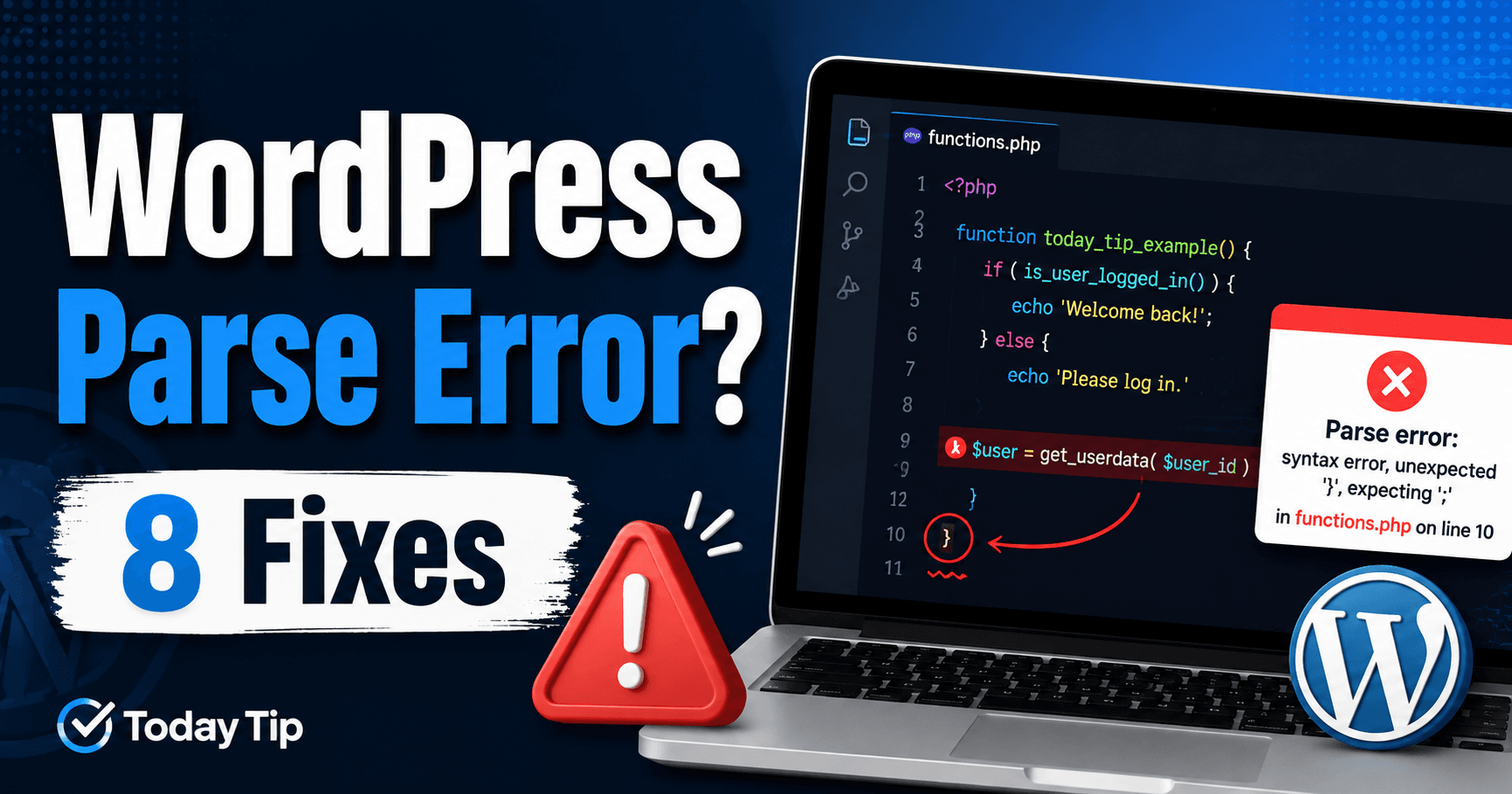
WordPress Parse Error: Find and Recover From Broken PHP Syntax

A WordPress parse error usually means PHP found invalid code and could not finish reading a WordPress file.

You may see an error such as “Parse error: syntax error, unexpected…” after editing PHP code, installing or updating a plugin, changing a theme, adding a code snippet, or switching PHP versions.

The message often includes the exact file path and line number where PHP stopped processing the code.

That information is extremely useful. Instead of reinstalling WordPress immediately, identify the affected file, undo the recent change, and check the PHP syntax around the reported line.

QUICK ANSWER

If WordPress shows a parse or syntax error, note the exact file and line number first. Undo the most recent PHP edit, disable the affected plugin or theme through your hosting file manager if wp-admin is unavailable, check for missing semicolons, quotes, brackets, or parentheses, verify PHP compatibility, and replace damaged files with a clean copy when necessary. If you cannot identify the change, review PHP logs or restore a clean backup.


What Is a WordPress Parse Error?

WordPress runs primarily on PHP.

PHP code has specific syntax rules. If PHP encounters code that does not follow those rules, it may stop processing the file and display a parse error.

A typical error may look similar to:

Parse error: syntax error, unexpected token ";" in /path/to/wordpress/wp-content/themes/example/functions.php on line 42

Another message might mention:

  • unexpected token,
  • unexpected variable,
  • unexpected end of file,
  • unexpected string,
  • unexpected identifier,
  • or an unmatched bracket.

The important parts are:

  • the error type,
  • the affected file,
  • and the reported line number.

Start there before changing unrelated WordPress settings.


1. Read the File Path and Line Number Carefully

A parse error frequently tells you exactly which PHP file could not be processed.

For example:

/wp-content/plugins/example-plugin/example.php on line 105

This immediately suggests that the problem is inside a plugin.

If the path contains:

/wp-content/themes/

the active theme or child theme is likely involved.

If it contains:

/wp-content/plugins/

check the named plugin.

If the error references:

functions.php

think about any code recently added to your theme.

Do not assume the exact mistake is always on the line shown in the error.

A missing quote or bracket a few lines earlier can cause PHP to fail later in the file.

Check several lines above and below the reported location.


2. Undo the Most Recent PHP or Code Snippet Change

If the error appeared immediately after editing code, undo that change first.

Common triggers include:

  • editing functions.php,
  • adding code through WPCode or another snippets plugin,
  • modifying a child theme,
  • editing a custom plugin,
  • adding tracking or integration PHP,
  • or pasting code copied from another website.

If wp-admin still works, disable the most recently added snippet.

If the dashboard is inaccessible, use your hosting file manager or FTP/SFTP.

Open the affected file and remove only the code you recently added.

Do not delete large sections of PHP code unless you know exactly what they do.

Save the file and reload the site.

If WordPress returns immediately, the recent code change caused the parse error.


3. Check for Common PHP Syntax Mistakes

Many WordPress syntax errors are caused by a very small typo.

Check the reported area for these common problems.

Missing Semicolon

Incorrect:

$name = 'Today Tip'

Correct:

$name = 'Today Tip';

Missing Closing Quote

Incorrect:

$message = 'Hello;

Correct:

$message = 'Hello';

Unmatched Parentheses

Incorrect:

if ( is_admin() {

Correct:

if ( is_admin() ) {

Unmatched Braces

A missing:

}

can cause PHP to report an unexpected end-of-file error.

Incorrect Copy-and-Paste Characters

Code copied from formatted documents can occasionally contain curly quotes instead of normal code quotes.

For PHP, use normal:

'single quotes'
"double quotes"

rather than typographic quote characters.


4. Disable the Broken Plugin Without wp-admin

If the parse error references a plugin and you cannot open the WordPress dashboard, disable the plugin through the filesystem.

Open your hosting file manager or connect through FTP/SFTP.

Go to:

/wp-content/plugins/

Find the plugin named in the error.

For example:

example-plugin

Temporarily rename it to:

example-plugin-disabled

Reload WordPress.

If the website works again, the plugin is confirmed as the immediate cause.

You can then:

  • download a clean copy,
  • check for an update,
  • contact the plugin developer,
  • or restore the previous working version.

Do not reactivate the same broken code until the syntax problem has been corrected.


5. Test the Active Theme or Child Theme

If the error references your theme, the active theme may contain invalid PHP.

This commonly occurs after editing:

  • functions.php,
  • template files,
  • custom hooks,
  • child-theme PHP,
  • or theme-specific integration code.

If wp-admin works, temporarily switch to another valid WordPress theme.

If the dashboard is unavailable, use:

/wp-content/themes/

and inspect the affected theme.

Before renaming an active theme directory, confirm that another valid theme is installed.

If switching themes fixes the site, compare the modified theme files with a clean copy.

If you are using a child theme, check the child theme first because custom PHP is often stored there.


6. Check PHP Version Compatibility

A plugin or theme may contain PHP syntax that is valid in one PHP version but incompatible with another.

This is especially important if the parse error appeared immediately after changing the server’s PHP version.

Check your active PHP version in:

Tools → Site Health → Info → Server

or through your hosting control panel.

Then check whether:

  • WordPress supports that PHP version,
  • your active theme supports it,
  • your plugins support it,
  • and custom PHP code was written for that version.

Do not automatically downgrade PHP permanently just to keep an abandoned plugin working.

If an outdated plugin is incompatible with a supported PHP version, replacing or updating that plugin is generally the better long-term solution.

However, temporarily reverting to the previous working PHP version can be a useful diagnostic step after a recent server change.


7. Replace Corrupted Plugin, Theme, or WordPress Files

If you did not manually edit the file, it may have been damaged during:

  • a failed update,
  • an interrupted file transfer,
  • a broken deployment,
  • a malware infection,
  • or an incomplete restoration.

If the affected file belongs to a plugin, download a clean copy of the same plugin version from a trusted source.

If it belongs to a theme, compare it with a clean theme package.

If the error references WordPress core files, avoid editing those files manually.

Download a clean copy of WordPress and replace the appropriate core files carefully.

Do not overwrite:

wp-config.php

and do not delete your:

wp-content

directory.

If the corruption appeared during an update, see our WordPress Update Failed? 8 Fixes guide.


8. Check PHP Logs and Restore a Clean Backup if Necessary

If the source of the parse error is not obvious, review your PHP and WordPress logs.

Useful logs include:

  • PHP error logs,
  • hosting error logs,
  • WordPress debug logs,
  • Apache logs,
  • and Nginx logs.

For troubleshooting, an administrator may temporarily enable WordPress debugging in wp-config.php:

define( 'WP_DEBUG', true );
define( 'WP_DEBUG_LOG', true );
define( 'WP_DEBUG_DISPLAY', false );

WordPress can then write debugging information to:

/wp-content/debug.log

Do not leave unnecessary debug information publicly displayed on a production website.

If the error began after several unknown changes and you cannot safely identify the damaged file, restoring a known-good backup may be faster and safer than manually editing multiple PHP files.

After restoring the backup, apply updates and custom code again one change at a time.


What Does “Unexpected End of File” Mean?

An unexpected end-of-file message usually means PHP reached the end of the file while still expecting something to be closed.

Common causes include a missing:

  • closing brace },
  • closing parenthesis ),
  • closing quote,
  • or another incomplete PHP structure.

Check the entire block around the reported line rather than only the final line.


Why Did the Parse Error Appear After Editing functions.php?

functions.php is executed as part of the active theme.

A syntax mistake there can prevent both the public website and wp-admin from loading correctly.

If the error appeared immediately after editing the file:

  1. open it through your hosting file manager or FTP/SFTP,
  2. find the code you just added,
  3. remove or correct it,
  4. save the file,
  5. and reload WordPress.

For future customizations, a properly managed child theme or code-snippet system can make custom PHP easier to isolate than repeatedly editing a parent theme.


Why Did a Plugin Update Cause a Syntax Error?

A plugin update can expose a parse error if:

  • the plugin package is corrupted,
  • the update was interrupted,
  • the plugin requires a newer PHP version,
  • another plugin modifies the same code path,
  • or the developer released incompatible code.

Temporarily disable the plugin.

Then download a fresh copy or restore the previous working version.

If multiple updates are failing, investigate the broader WordPress update problem instead of repeatedly reinstalling individual plugins.


WordPress Parse Error vs Critical Error

A parse error is a specific PHP syntax problem.

A WordPress critical error is a broader failure that can be caused by many types of PHP fatal errors.

A syntax error can trigger a critical error screen, but not every critical error is a parse error.

If WordPress only displays:

“There has been a critical error on this website.”

without a visible syntax message, see our WordPress Critical Error? 9 Fixes guide.


WordPress Parse Error vs 500 Internal Server Error

A PHP syntax failure may result in an HTTP 500 response, especially when PHP errors are hidden from visitors.

However, HTTP 500 has many other possible causes.

If your server shows only:

500 Internal Server Error

and no PHP parse message, see our WordPress 500 Internal Server Error? 8 Fixes guide.


Why Is the Reported Line Not the Actual Mistake?

PHP often reports the line where it finally becomes impossible to continue parsing.

The original mistake can be several lines earlier.

For example, a missing closing quote on line 40 may cause PHP to complain about an unexpected token on line 45.

Always inspect the surrounding code rather than editing only the exact line named in the error.


Can WPCode or a Snippets Plugin Cause a Parse Error?

Yes.

Any plugin that executes custom PHP can cause a syntax error if invalid PHP is added.

If the problem begins immediately after activating a snippet:

  • disable the snippet if wp-admin works,
  • use the plugin’s safe mode if available,
  • or temporarily disable the snippets plugin through the filesystem.

Do not keep repeatedly reactivating code that has not been syntax-checked.


Can You Check PHP Syntax Before Uploading a File?

Yes, if you have command-line access and understand the environment.

PHP includes a syntax-checking option:

php -l filename.php

If the file contains a syntax problem, PHP will report it without executing the script.

Developers can also use a code editor with PHP syntax validation before uploading custom code to a production WordPress site.


How to Prevent Future WordPress Syntax Errors

After recovering the site, reduce the chance of another parse error.

  • Back up files before editing PHP.
  • Avoid editing WordPress core files.
  • Use a child theme for theme customizations.
  • Test code on staging when possible.
  • Use a proper code editor.
  • Make one PHP change at a time.
  • Keep plugins and themes compatible with your PHP version.
  • Keep a recent restore point.

When you know exactly which change caused a problem, recovery is much faster.


Final Checklist

If WordPress displays a parse or syntax error, work through these steps:

  1. Read the affected file path and line number.
  2. Undo the most recent PHP or snippet change.
  3. Check for missing quotes, brackets, parentheses, and semicolons.
  4. Disable the affected plugin through the filesystem if necessary.
  5. Test the active theme or child theme.
  6. Verify PHP version compatibility.
  7. Replace corrupted files with clean copies.
  8. Review PHP logs or restore a known-good backup.

A WordPress parse error often looks serious because it can take down the entire site, but the actual cause may be only one incorrect character in one PHP file. Use the file path and line number to isolate the error instead of changing unrelated WordPress settings.

Leave a Comment