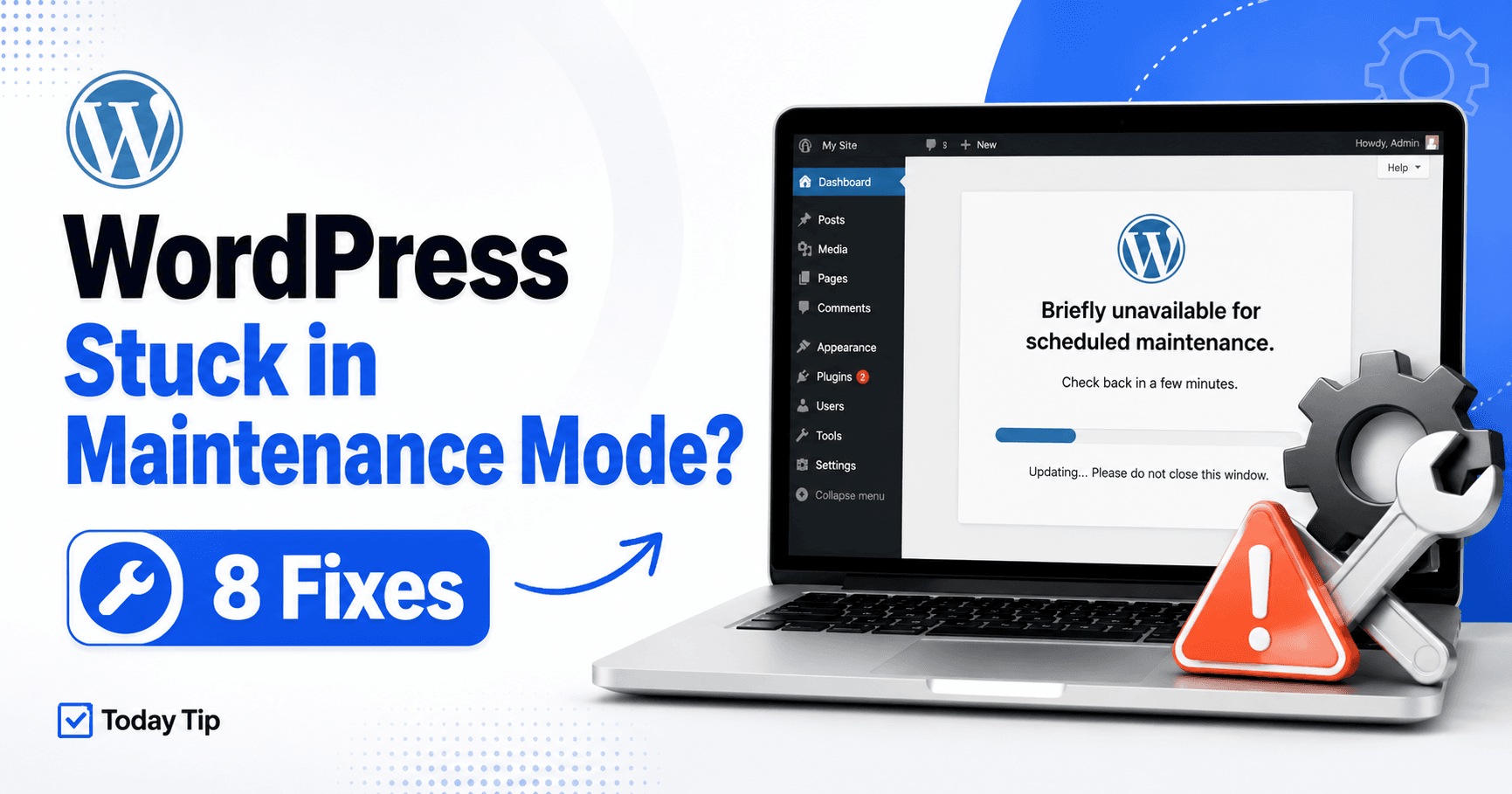
Your site still says “Briefly unavailable for scheduled maintenance” after an update. First establish whether the update is still replacing files. A disconnected browser tab does not tell you whether the server stopped.
Once the update has stopped, distinguish the WordPress maintenance marker from a maintenance plugin, hosting page or cached response. Removing a marker cannot finish a half-installed update.
Guide reviewed: October 8, 2026. Menu labels use English WordPress; provider-specific controls may differ.
Quick diagnosis
| What you see | Check | Next step |
|---|---|---|
| Update is still active | Hosting activity or update process | Wait for completion; do not expose half-replaced files |
| Core maintenance message after a stopped update | Correct installation root and .maintenance | Preserve the leftover marker and remove only that marker |
| Branded maintenance page | Plugin or hosting maintenance setting | Use that feature’s supported controls |
| Only logged-out visitors see maintenance | Visitor cache or maintenance feature | Compare uncached public access after the underlying fix |
Give an active update time to finish
Check the update screen, host activity and available logs before changing files. A slow update may still be doing useful work. Removing its maintenance marker while files are being replaced can expose visitors to an inconsistent installation.
Record what was updating and when it started. A single plugin update gives a clearer recovery path than a simultaneous batch of core, theme and plugin updates.
If the update screen has disconnected, that alone does not prove that the server process stopped. Ask the host to confirm activity when you cannot tell whether it is still running.
Distinguish WordPress’s marker from a maintenance plugin
Core WordPress checks a file named .maintenance in the installation root. Its normal maintenance check also uses the timestamp stored in that file and considers an old marker expired after ten minutes. A file existing on disk therefore does not, by itself, explain an indefinitely displayed message.
A maintenance plugin, a hosting setting or cached HTML can keep showing a different maintenance page. If the message persists well beyond an inactive core marker, investigate those possibilities rather than repeatedly looking for the same file.
This distinction is especially useful when administrators can browse the site while logged-out visitors see a branded maintenance screen. That behavior may belong to a plugin or hosting feature.
Remove a leftover marker only after confirming the update stopped
- Open the hosting file manager or your usual SFTP connection.
- Find the installation containing
wp-admin,wp-includesandwp-config.php. - Enable hidden-file display and locate the exact
.maintenancefile. - Confirm no update is running, and preserve a copy.
- Remove only the confirmed leftover marker, then reopen the dashboard and a public page.
If no marker exists: stop searching for files to delete. Check the maintenance plugin, hosting setting and cached response instead.
Using the host’s file manager or your usual SFTP connection, locate the correct WordPress installation root. It is the installation you are recovering, not necessarily the top-level hosting folder or a neighboring staging site.
Enable hidden-file display if necessary and inspect the exact .maintenance file. Preserve a copy before removing a confirmed leftover marker. Do not delete other dotfiles or WordPress folders as part of this step.
Where WP-CLI is supported, it also provides maintenance-status and deactivation commands. These still require the same understanding that the update is no longer actively replacing files.
Check what the interrupted update left behind
- Open Dashboard → Updates.
- For the interrupted plugin, check its version under Plugins → Installed Plugins.
- Test its main feature, not just the homepage.
- If a fatal error appears, keep that message and follow the critical-error guide before retrying.
Once access returns, review Dashboard → Updates and the relevant plugin or theme. Confirm the installed version and whether the component loads normally.
If a critical error appears, keep the error details and investigate the affected component. A known-good backup or a clean package from the official source may be needed. Do not assume that removing the maintenance marker repaired incomplete files.
A store also needs its normal order and payment workflow checked after recovery. Opening the homepage alone may not reveal a damaged integration.
Find out why the update stopped
Check available disk space, file-count limits, temporary storage, permissions and update logs. Resource limits or connectivity problems during download can leave different evidence, so match the correction to the failure.
File ownership matters as well as numeric permissions. Broadly granting write access to every file is not a suitable shortcut. Ask the host to confirm the ownership and permissions required by its configuration.
If logs identify exhausted memory or a processing limit, review the workload and host settings. Repeatedly clicking Update can create more confusing attempts without correcting the constraint.
Confirm the public result
After the cause is fixed, compare a logged-out public page with the admin view. If one still shows a stored maintenance page, refresh the relevant cache and test again.
Retry the affected update only when recovery and a usable backup are in place. Updating components in manageable steps makes a further failure easier to locate. Keep the component, version, time and failure reason in your maintenance notes so the same problem is less likely to repeat unnoticed.
Further reading
- WordPress update failure guide
- WordPress memory exhaustion guide
- WordPress execution-time guide
- Existing destination-folder guide
- WordPress 503 availability guide
- WordPress: core maintenance-mode check
- WP-CLI: maintenance-mode commands
Why the ten-minute detail matters
The standard core check treats an old marker as expired after ten minutes. A lingering maintenance screen can therefore come from another layer, including cached output. The presence of a file alone does not establish that core is still enforcing maintenance. See the official core maintenance check and WordPress update instructions.