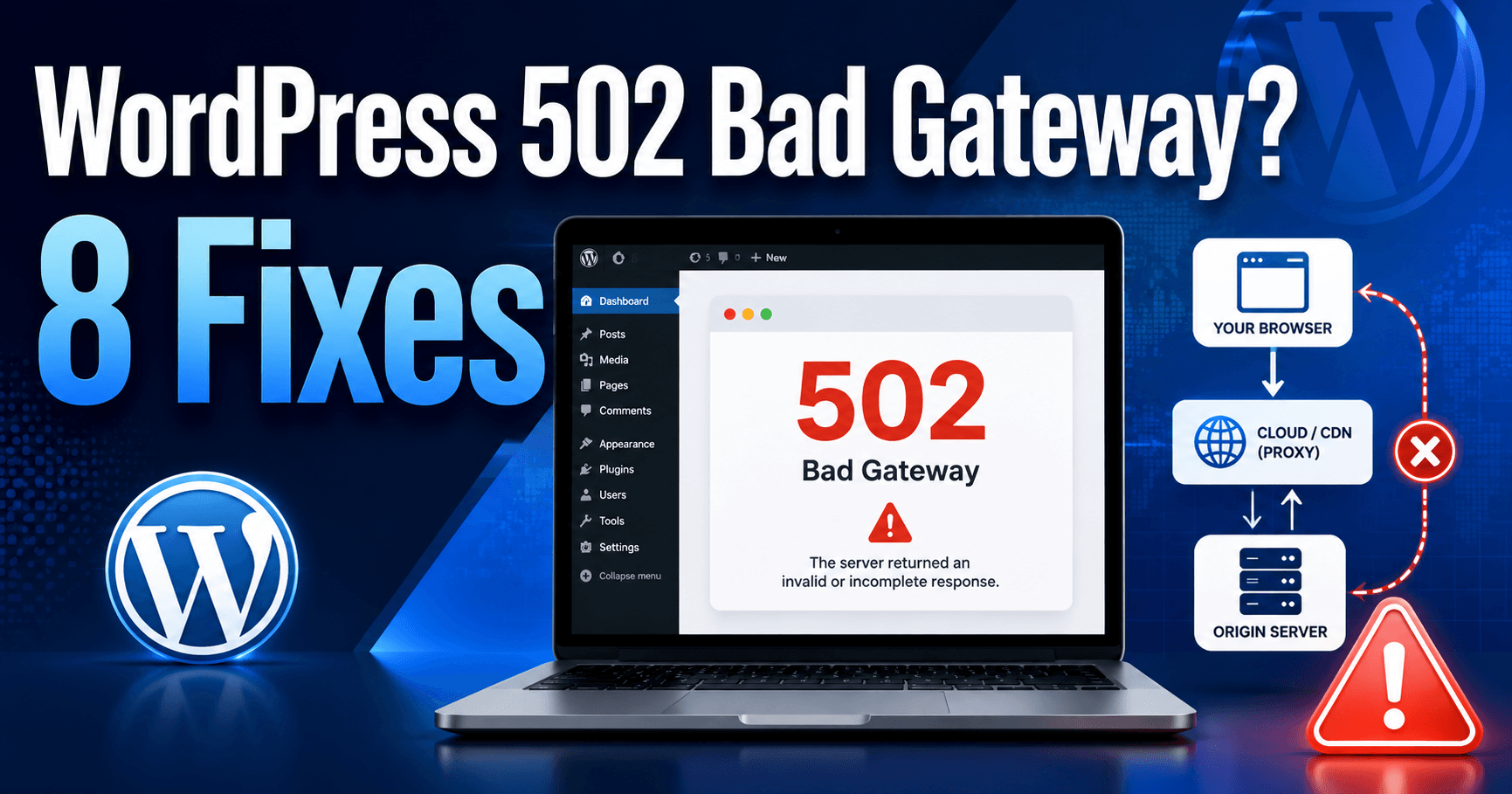
A WordPress 502 Bad Gateway error usually means one server acting as a gateway or proxy received an invalid response from another server responsible for processing the WordPress request.
You may see “502 Bad Gateway,” “HTTP Error 502,” “502 Proxy Error,” or a Cloudflare-branded 502 page when opening your site, accessing wp-admin, saving a post, running a plugin task, or processing a resource-heavy request.
The problem can originate from PHP-FPM, an overloaded origin server, Nginx or Apache, Cloudflare, a reverse proxy, exhausted PHP workers, broken plugins, database problems, or temporary hosting infrastructure issues.
The fastest way to fix it is to determine whether the 502 comes from your browser or CDN layer, your web server, or the PHP/WordPress application behind it.
QUICK ANSWER
If WordPress shows a 502 Bad Gateway error, reload the site once and test wp-admin and another device first. Then check your hosting status and server resource usage, restart or verify PHP-FPM when your host allows it, temporarily disable recently changed plugins, clear WordPress and CDN caches, review Cloudflare or reverse-proxy settings, inspect PHP and web-server logs, and contact your host if the origin server is failing. If the site consistently fails only during heavy tasks, investigate PHP workers, memory, execution time, database performance, and server capacity.
What Does 502 Bad Gateway Mean in WordPress?
A WordPress request may pass through several systems before a page reaches the visitor.
A simplified request can look like:
Visitor
↓
Cloudflare / CDN / Proxy
↓
Nginx or Apache
↓
PHP-FPM
↓
WordPress
↓
Database
If one layer expects a valid response from the next layer but receives an invalid, incomplete, or broken response, it may return:
502 Bad Gateway
This means the system displaying the error may not be the system that actually caused the failure.
For example, Cloudflare may display the 502 page while the real problem exists on your WordPress hosting server.
1. Reload Once and Determine How Much of the Site Is Affected
A temporary 502 can disappear quickly if it was caused by a short server restart or brief resource spike.
Reload the page once.
Then test:
- the homepage,
- a normal post,
/wp-login.php,/wp-admin/,- and another page that is not cached.
Also test using:
- an incognito browser window,
- another device,
- or a mobile connection.
If only one browser shows the problem, clear browser cache and cookies before changing WordPress.
If every page returns 502 for every visitor, the problem is much more likely to involve the hosting, proxy, PHP, or origin server.
If only one WordPress action triggers the error, focus on that action.
For example, a 502 that appears only when creating a backup may indicate resource exhaustion rather than a complete server outage.
2. Check Your Hosting Status and Server Resources
Before disabling plugins, check whether the server itself is under pressure.
Open your hosting dashboard and review:
- CPU usage,
- RAM usage,
- PHP worker usage,
- entry processes,
- database usage,
- disk space,
- inode usage,
- and any resource-limit warnings.
Also check whether your host reports:
- scheduled maintenance,
- server outages,
- PHP problems,
- database interruptions,
- or network incidents.
A sudden traffic spike can also exhaust available PHP workers.
When every worker is busy, new requests may fail or wait too long for a valid upstream response.
This is particularly common during:
- traffic spikes,
- bot attacks,
- WooCommerce sales,
- backup jobs,
- imports,
- malware scans,
- and bulk image processing.
If the server repeatedly reaches its plan limits during normal traffic, plugin changes alone may not solve the long-term problem.
3. Check PHP-FPM and PHP Worker Problems
Many WordPress hosting environments use PHP-FPM to execute PHP code.
Nginx or another web server sends WordPress PHP requests to PHP-FPM.
If PHP-FPM:
- crashes,
- stops responding,
- runs out of workers,
- hits memory limits,
- or cannot communicate with the web server,
the gateway layer can return HTTP 502.
Possible log messages may reference:
upstream
PHP-FPM
connect() failed
connection refused
prematurely closed connection
upstream sent invalid response
On VPS or dedicated servers, administrators may be able to check or restart PHP-FPM directly.
On shared or managed WordPress hosting, ask the hosting provider to verify PHP-FPM and PHP worker health.
Do not repeatedly restart services without identifying why they are failing.
If PHP-FPM repeatedly crashes because one plugin consumes excessive memory, restarting it only provides temporary relief.
4. Temporarily Disable Recently Changed Plugins
A plugin can generate PHP errors, extremely slow database queries, excessive external requests, or memory-intensive processes that prevent PHP from returning a valid response.
Think about changes made immediately before the 502 appeared.
Pay particular attention to:
- backup plugins,
- security scanners,
- WooCommerce extensions,
- page builders,
- import/export tools,
- image optimization plugins,
- cache plugins,
- and plugins connecting to external APIs.
If wp-admin still works, temporarily deactivate the suspected plugin.
Then test the failing page again.
If wp-admin Is Unavailable
Use your hosting file manager or FTP/SFTP.
Navigate to:
/wp-content/plugins/
Rename the suspected plugin folder.
For example:
example-plugin
to:
example-plugin-disabled
Then reload WordPress.
If you do not know which plugin caused the problem, you can temporarily rename:
plugins
to something such as:
plugins-disabled
to test whether plugins are involved.
Restore the directory name afterward.
If disabling plugins removes the 502, reactivate them carefully and identify the component causing the failure.
5. Clear WordPress, Hosting, and CDN Caches
Caching layers can sometimes continue serving an error or interfere with requests after the underlying problem has been corrected.
Clear:
- WordPress page cache,
- LiteSpeed Cache if used,
- hosting-level cache,
- object cache such as Redis when appropriate,
- Cloudflare cache,
- and browser cache.
Then test the website again.
However, cache clearing should not be used to hide an ongoing origin-server failure.
If every uncached request still returns 502, continue troubleshooting the server and PHP layers.
If the error began immediately after changing cache or optimization settings, temporarily revert those changes.
6. Check Cloudflare and Reverse Proxy Configuration
If your WordPress site uses Cloudflare, a load balancer, Nginx reverse proxy, or another CDN, determine whether the proxy can communicate normally with your origin server.
Review:
- Cloudflare status,
- DNS records,
- origin server availability,
- SSL/TLS configuration,
- firewall rules,
- proxy configuration,
- and hosting IP changes.
If you recently moved your website to a new host, confirm that Cloudflare DNS points to the current origin IP.
An outdated origin address can send visitors to a server that no longer handles the site correctly.
Also check whether your hosting firewall allows requests from the proxy or CDN.
A server that incorrectly blocks proxy traffic can produce gateway failures.
Do not disable all firewall protection permanently.
Correct the specific origin, DNS, SSL, or access problem.
7. Check PHP Memory, Execution Time, and Database Performance
A WordPress request can fail upstream because PHP never completes properly.
Check logs for:
Allowed memory size exhausted
If you see that message, investigate PHP memory.
See our WordPress Memory Exhausted Error? 7 Fixes guide.
Also look for:
Maximum execution time exceeded
If that appears, see our WordPress Maximum Execution Time Exceeded? 8 Fixes guide.
Database problems can also make PHP requests extremely slow or fail entirely.
Look for:
- slow database queries,
- too many database connections,
- database server restarts,
- locked tables,
- or large autoloaded WordPress options.
If the 502 appears only during one resource-heavy WordPress operation, that operation is an important clue.
For example:
- a huge import,
- a full-site backup,
- an image optimization batch,
- or a database search-and-replace
may need to be processed in smaller batches.
8. Review Nginx, Apache, PHP, and WordPress Logs
Logs are often the fastest way to distinguish a PHP problem from a proxy or server problem.
Useful logs include:
- Nginx error logs,
- Apache error logs,
- PHP-FPM logs,
- PHP error logs,
- WordPress debug logs,
- database logs,
- Cloudflare events,
- and hosting resource logs.
Reproduce the 502 once and note the exact time.
Then search the logs around that time for:
502
upstream
PHP fatal
memory
timeout
connection refused
PHP-FPM
database
worker
If you contact hosting support, provide:
- the affected URL,
- the exact time the error occurred,
- whether wp-admin also fails,
- whether Cloudflare is enabled,
- and what WordPress action triggered the error.
Ask them specifically to check:
- PHP-FPM,
- PHP workers,
- origin server health,
- proxy-to-upstream communication,
- server resource limits,
- and web-server error logs.
WordPress 502 Bad Gateway vs 500 Internal Server Error
These errors are related but different.
500 Internal Server Error generally means the server encountered an internal failure while processing the request.
502 Bad Gateway means a gateway or proxy received an invalid response from an upstream service.
If WordPress itself or PHP crashes, that problem can sometimes cause a proxy in front of it to display 502.
If your browser clearly shows HTTP 500, see our WordPress 500 Internal Server Error? 8 Fixes guide.
WordPress 502 vs 503 Service Unavailable
502 Bad Gateway usually concerns an invalid upstream response.
503 Service Unavailable generally means the server or application is temporarily unable to handle the request.
A server under extreme load may produce either type depending on the infrastructure.
If the response is specifically 503, see our WordPress 503 Service Unavailable? 8 Fixes guide.
WordPress 502 vs 504 Gateway Timeout
This distinction is important.
502 Bad Gateway: the gateway received an invalid or unusable upstream response.
504 Gateway Timeout: the gateway waited too long for the upstream server to respond.
A slow PHP process can potentially lead to either error depending on how the infrastructure behaves.
If your site displays 504, see our WordPress 504 Gateway Timeout? 8 Fixes guide.
Why Does WordPress Show 502 Only in wp-admin?
If the public site works but wp-admin returns 502, the administrative request may be heavier than normal frontend requests.
Possible causes include:
- a broken admin plugin,
- WooCommerce dashboard queries,
- security scanning,
- large database queries,
- plugin update processes,
- or admin AJAX requests.
Check the browser Network panel and hosting logs while loading wp-admin.
If one plugin repeatedly appears in PHP errors, disable it temporarily.
Why Does 502 Appear Only When Saving a Post?
Saving a post can trigger much more than a simple database update.
Plugins may run:
- SEO analysis,
- custom-field processing,
- API calls,
- image processing,
- cache purges,
- webhooks,
- and revision creation.
If a simple new post saves correctly but one complex post returns 502, inspect the content and plugin processes associated with that post.
Also test without recently added editor or SEO plugins.
Why Does 502 Appear During Plugin Installation?
Installing a plugin involves:
- downloading a package,
- extracting files,
- writing to disk,
- and activating PHP code.
A large or broken plugin can cause the request to fail if the server reaches memory, execution-time, or worker limits.
If the plugin directory remains incomplete afterward, reinstall a clean copy after fixing the server problem.
Why Does WooCommerce Show 502 During Checkout?
Checkout can involve multiple systems:
- WordPress,
- WooCommerce,
- the database,
- payment gateways,
- shipping APIs,
- tax services,
- email,
- and inventory plugins.
If 502 occurs only during checkout, inspect WooCommerce logs and PHP logs at the exact time of the transaction.
Also test recently changed:
- payment plugins,
- shipping extensions,
- checkout customizations,
- and security rules.
Do not repeatedly submit real payments while troubleshooting.
Can Cloudflare Cause a WordPress 502 Error?
Cloudflare can display a 502 response when it cannot receive a valid response from the origin infrastructure.
However, the underlying problem may still be on the hosting server.
Check:
- origin server availability,
- Cloudflare DNS records,
- firewall access,
- SSL configuration,
- and hosting logs.
If disabling the Cloudflare proxy temporarily makes the site work, investigate proxy-to-origin communication rather than assuming WordPress itself is broken.
Can a WordPress Plugin Cause 502 Bad Gateway?
Yes.
A plugin can indirectly cause a 502 by making PHP:
- crash,
- run out of memory,
- consume every PHP worker,
- perform extremely slow database queries,
- or wait too long for external APIs.
A security scan or backup plugin is especially worth checking if the error appears during a resource-intensive scheduled process.
Can Bots or Traffic Spikes Cause HTTP 502?
Yes.
A sudden increase in requests can exhaust:
- CPU,
- RAM,
- PHP workers,
- database connections,
- or hosting process limits.
Review traffic analytics and firewall logs around the time the 502 errors started.
If the traffic is malicious, use appropriate CDN, firewall, bot-management, or rate-limiting tools rather than simply increasing PHP limits.
Can a Database Problem Cause a 502 Error?
Yes, indirectly.
WordPress PHP may wait for the database or fail while executing a request.
Check for:
- database server outages,
- slow queries,
- connection exhaustion,
- large tables,
- and plugin-generated queries.
If WordPress specifically reports an error establishing a database connection, troubleshoot that message directly instead of treating it as a generic gateway failure.
Why Does 502 Disappear After Refreshing?
A single temporary 502 can occur during:
- a PHP worker restart,
- a brief hosting resource spike,
- a server deployment,
- a database restart,
- or a short proxy communication failure.
If it happens once and never returns, extensive changes may not be necessary.
If it happens repeatedly, check logs and resource graphs to identify a pattern.
Why Did 502 Start After Moving WordPress?
After migration, verify:
- DNS records,
- Cloudflare origin IP,
- SSL certificates,
- PHP version,
- PHP-FPM configuration,
- server resources,
- firewall rules,
- and database connectivity.
If the old origin IP remains in your CDN configuration, some requests may still be sent to the wrong server.
What Should You Ask Your Hosting Provider?
If you cannot access server-level logs or PHP-FPM settings, give your host specific information.
Tell them:
- “My WordPress site returns HTTP 502 Bad Gateway.”
- the exact affected URL,
- the approximate time,
- whether Cloudflare is enabled,
- whether the error affects wp-admin,
- and which action triggered it.
Ask them to check:
- PHP-FPM availability,
- PHP workers,
- CPU and memory limits,
- Nginx or Apache upstream errors,
- database performance,
- and origin-server health.
How to Prevent Future WordPress 502 Errors
After fixing the site, reduce the chance of another gateway failure:
- Keep WordPress, plugins, and themes updated.
- Remove abandoned plugins.
- Monitor PHP worker and CPU usage.
- Keep adequate server resources available.
- Run backups during lower-traffic periods.
- Process large imports in smaller batches.
- Monitor WooCommerce and database performance.
- Keep Cloudflare DNS and origin settings current.
- Review server logs after recurring 502 errors.
Final Checklist
If WordPress displays 502 Bad Gateway, work through these steps:
- Reload once and determine which parts of the site fail.
- Check hosting status and server resource usage.
- Verify PHP-FPM and PHP workers.
- Temporarily disable recently changed plugins.
- Clear WordPress, hosting, and CDN caches.
- Check Cloudflare and reverse-proxy configuration.
- Review PHP memory, execution time, and database performance.
- Inspect web-server, PHP, WordPress, and hosting logs.
A 502 error usually means the system displaying the error could not get a valid response from the next server or application layer. Identify whether that failure occurs between Cloudflare and your host, the web server and PHP-FPM, or PHP and WordPress before making broad configuration changes.