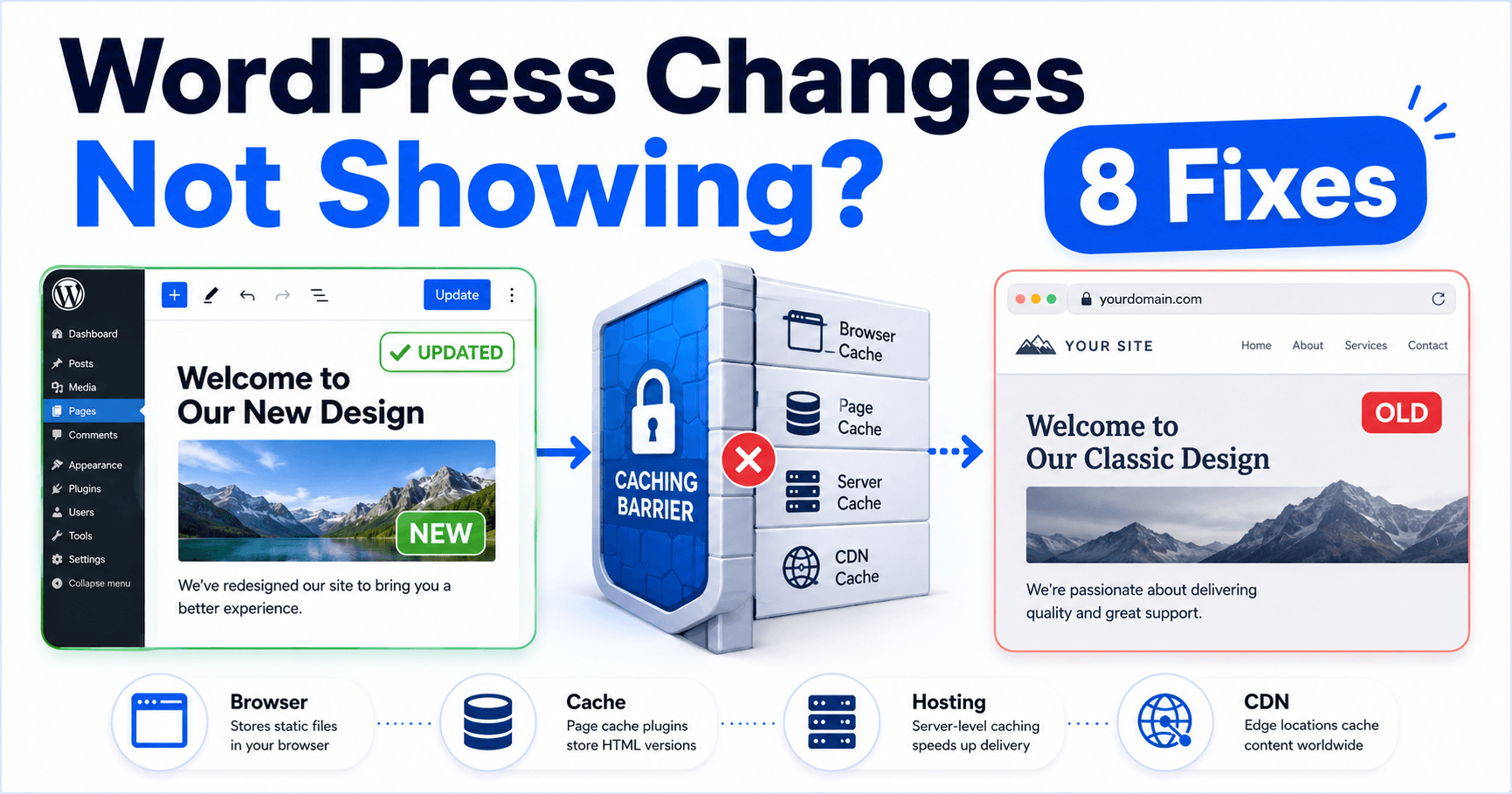
You edited a WordPress page, changed some text, replaced an image, or updated your design — but the live website still shows the old version.
This frustrating problem is usually caused by caching, but not always. Sometimes the change was saved to the wrong page, a page builder is serving generated files, the homepage points somewhere else, or logged-in users and visitors are seeing different versions of the site.
The fastest solution is to identify exactly where the old version is being stored instead of repeatedly editing the page.
QUICK ANSWER
If WordPress changes are not showing, first confirm the page was actually updated and view it in an incognito window. Then clear browser, WordPress plugin, hosting, and CDN caches. If the old version remains, check the correct homepage or template, page-builder generated files, and whether visitors are seeing a cached version that logged-in administrators bypass.
Why Are My WordPress Changes Not Showing?
WordPress can serve content through several different layers before it reaches a visitor’s browser.
Depending on your setup, an old version may be stored by:
- Your web browser
- A WordPress caching plugin
- Your hosting provider
- A CDN such as Cloudflare
- A page builder or optimization plugin
- A reverse proxy or server cache
- Generated CSS or JavaScript files
There are also situations where caching is not the problem at all.
For example, you may have edited a page that is not actually assigned as the homepage, changed a draft instead of the published page, or edited content that is being overridden by a template.
The troubleshooting order matters because clearing every cache repeatedly will not help if you are editing the wrong page.
1. Confirm the Change Was Actually Saved
Start inside the WordPress editor.
Open the page or post you changed and make sure the updated content is still visible in the editor.
Check whether the button at the top of the editor says:
- Update
- Save
- Publish
If you changed the content but left the editor before saving, the live site will continue displaying the previous version.
Click Update or Save and wait until WordPress confirms that the change has been stored.
Check the Page Status
Make sure you are editing the published page rather than:
- A draft
- A private copy
- A duplicate page
- An old revision
- A staging-site version
TIP:
After saving, click View Page from WordPress rather than opening an old bookmark. This helps confirm that you are checking the same page you just edited.
2. Check the Site in an Incognito Window
Before changing WordPress settings, open the affected page in a private or incognito browser window.
This is one of the fastest ways to determine whether your normal browser is showing an old cached version.
If the new content appears in incognito mode but not in your normal browser, WordPress itself is probably working correctly.
Clear the cached data for your website in the normal browser and reload the page.
You can also perform a hard refresh.
Common desktop shortcuts include:
Windows: Ctrl + F5
Windows: Ctrl + Shift + R
Mac: Command + Shift + R
The exact shortcut can vary by browser.
Test Another Device
Also check the page on:
- Your phone
- Another browser
- Another computer
- A device not logged into WordPress
This comparison can quickly reveal whether the issue affects only your browser or all visitors.
3. Purge Your WordPress Caching Plugin
If you use a WordPress caching plugin, it may be serving a previously generated copy of the page.
Look in the WordPress dashboard or admin toolbar for an option such as:
- Purge Cache
- Clear Cache
- Flush Cache
- Purge All
Run the cache purge and reload the affected page in an incognito window.
Do not install a new caching plugin simply because you are troubleshooting this problem.
If your site does not currently use a cache plugin, move to the next step.
USEFUL TEST:
If the new version appears immediately after purging the WordPress cache, caching was almost certainly involved. The next question is whether your plugin is automatically clearing the correct pages when content changes.
4. Clear the Hosting or Server Cache
Even if you do not have a WordPress caching plugin, your hosting provider may cache pages at the server level.
This is common with managed WordPress hosting and performance-focused hosting plans.
Open your hosting control panel and look for options such as:
- Cache Manager
- Clear Cache
- Purge Cache
- Flush Cache
- LiteSpeed Cache
Purge the server cache and test the page again while logged out of WordPress.
If you cannot find a cache control, ask your hosting provider whether page caching or a reverse proxy is active on your account.
Tell them:
I updated a WordPress page successfully, but logged-out visitors are still seeing the previous version. Please check whether a server-side cache is serving a stale copy.
This description gives hosting support a much clearer starting point.
5. Purge Your CDN Cache
If your website uses Cloudflare or another content delivery network, the CDN may store a cached copy closer to visitors.
This means:
WordPress can contain the new page while the CDN continues delivering the old page.
Open your CDN dashboard and purge the cache for the affected URL.
If necessary during troubleshooting, purge the broader website cache — but remember that clearing the entire CDN cache can temporarily reduce cache performance while files are stored again.
How to Recognize a CDN Cache Problem
A CDN should be investigated when:
- The new page appears while logged into WordPress
- Logged-out visitors still see the old page
- Different locations or devices show different versions
- Your WordPress and hosting caches have already been cleared
TIP:
If only visitors see stale content while administrators see the new version, investigate page caching, hosting cache, and CDN cache before repeatedly editing the page.
6. Make Sure You Are Editing the Correct Homepage or Template
If the problem affects your homepage, make sure the page you are editing is actually assigned as the homepage.
Go to:
Settings → Reading
Check the homepage configuration.
If your site uses a static homepage, verify that the correct page is selected.
For example, your site may contain:
Home
Home New
Homepage
Front Page
Home Copy
Editing Home will not change the live homepage if WordPress is actually displaying Home New.
Check Theme Templates
Modern block themes and page builders may also use templates that control parts of the page separately from the page content.
Examples include:
- Header
- Footer
- Single Post template
- Page template
- Archive template
- Template parts
If you changed the page editor but the visible element comes from a template, editing the page itself may have no effect.
Identify whether the content belongs to the page, the theme, the Site Editor, or a page-builder template.
7. Clear Page Builder and Generated CSS Files
Some page builders and optimization systems generate separate CSS, JavaScript, or cached layout files.
As a result, the WordPress editor may contain the correct design while the frontend still loads an older generated file.
Look for a builder option such as:
- Regenerate CSS
- Regenerate Files
- Clear Generated CSS
- Sync Library
- Clear Asset Cache
The exact wording depends on the builder or optimization plugin.
After regenerating files:
- Clear the WordPress cache.
- Clear the hosting cache.
- Purge the CDN if applicable.
- Reload the site in an incognito window.
CAUTION:
Do not start deleting CSS or JavaScript files directly from your server unless you understand how your theme or page builder regenerates them. Use the builder’s own maintenance tools first.
8. Compare Logged-In and Logged-Out Versions
This is one of the most useful diagnostic tests for WordPress changes that do not appear.
Open the same URL in two windows:
Window A: Logged into WordPress
Window B: Incognito or logged out
If Window A shows the new page and Window B shows the old page, the problem strongly suggests a caching layer that treats administrators differently from ordinary visitors.
Caching systems frequently avoid serving cached pages to logged-in WordPress administrators.
This can make the site appear correct while you are editing it even though normal visitors still receive stale content.
Work through the cache layers in this order:
- WordPress cache plugin
- Hosting/server cache
- CDN cache
- Reverse proxy or additional optimization service
If both logged-in and logged-out visitors see the old page, return to the editor and confirm that you edited the correct page, template, and site environment.
What If Only CSS or Design Changes Are Missing?
If text updates appear but colors, fonts, spacing, or layout changes do not, investigate generated CSS and asset caching.
Check:
- Page-builder CSS regeneration
- Theme cache
- Optimization/minification plugins
- CDN CSS cache
- Browser CSS cache
A page can contain the new HTML while still loading an old stylesheet.
That makes it look as though the design was never updated.
What If the Wrong Version Was Saved?
WordPress revisions can help you compare previously saved versions of a post or page.
Open the editor and check whether Revisions are available for that content.
You can review earlier versions and restore the appropriate revision if necessary.
This is useful when:
- The wrong edit was published
- Content disappeared after an update
- You need to compare two versions
- You accidentally overwrote a previous change
REMEMBER:
Revisions help recover saved WordPress content. They do not clear a stale browser, server, or CDN cache.
Fastest Troubleshooting Order
- Confirm the correct page was saved and updated.
- Click View Page from the editor.
- Test the URL in an incognito window.
- Perform a hard refresh.
- Purge the WordPress caching plugin.
- Clear the hosting/server cache.
- Purge the CDN cache.
- Check Settings → Reading for the correct homepage.
- Check page-builder or theme templates.
- Regenerate builder CSS or generated files if necessary.
- Compare logged-in and logged-out versions.
WordPress Changes Not Showing Checklist
- ☐ Page or post was actually updated
- ☐ Correct URL checked
- ☐ Incognito window tested
- ☐ Browser cache cleared
- ☐ WordPress cache purged
- ☐ Hosting cache purged
- ☐ CDN cache purged
- ☐ Correct homepage confirmed
- ☐ Correct template confirmed
- ☐ Page-builder generated files checked
- ☐ Logged-in and logged-out versions compared
- ☐ WordPress revisions checked if necessary
Frequently Asked Questions
Why are my WordPress changes not showing on the live site?
The most common reason is cached content being served by the browser, a WordPress plugin, your hosting server, or a CDN. Other causes include editing the wrong page, an incorrect homepage assignment, templates, or stale generated CSS.
Why do I see my WordPress changes when logged in but visitors do not?
A caching system may bypass cached pages for logged-in administrators while serving cached copies to normal visitors. Purge WordPress, hosting, and CDN caches and test again while logged out.
Why does clearing my browser cache not fix WordPress?
The stale version may be stored somewhere other than your browser. WordPress plugins, managed hosting systems, reverse proxies, and CDNs can all cache pages independently.
Why are text changes showing but design changes are not?
The HTML may be updated while an old CSS file is still cached. Clear optimization caches and regenerate CSS or generated files through your theme or page builder if that feature is available.
Why is my homepage not changing after I edit it?
Check Settings → Reading to confirm which page WordPress is actually using as the homepage. Also check whether the visible content comes from a theme or page-builder template instead of the page itself.
How can I tell whether WordPress caching is the problem?
Compare the page while logged into WordPress with the same page in an incognito window. If the administrator sees new content while logged-out visitors see an older version, caching is a strong suspect.
Final Thoughts
When WordPress changes are not showing, avoid repeatedly editing and republishing the same page.
First confirm the correct content was saved. Then compare logged-in and logged-out versions and work through the browser, WordPress, hosting, and CDN cache layers one at a time.
If caching is not responsible, verify the homepage assignment, theme or page-builder template, and generated CSS files.
A systematic approach helps you find exactly where the outdated version is being stored instead of clearing random caches and hoping the problem disappears.