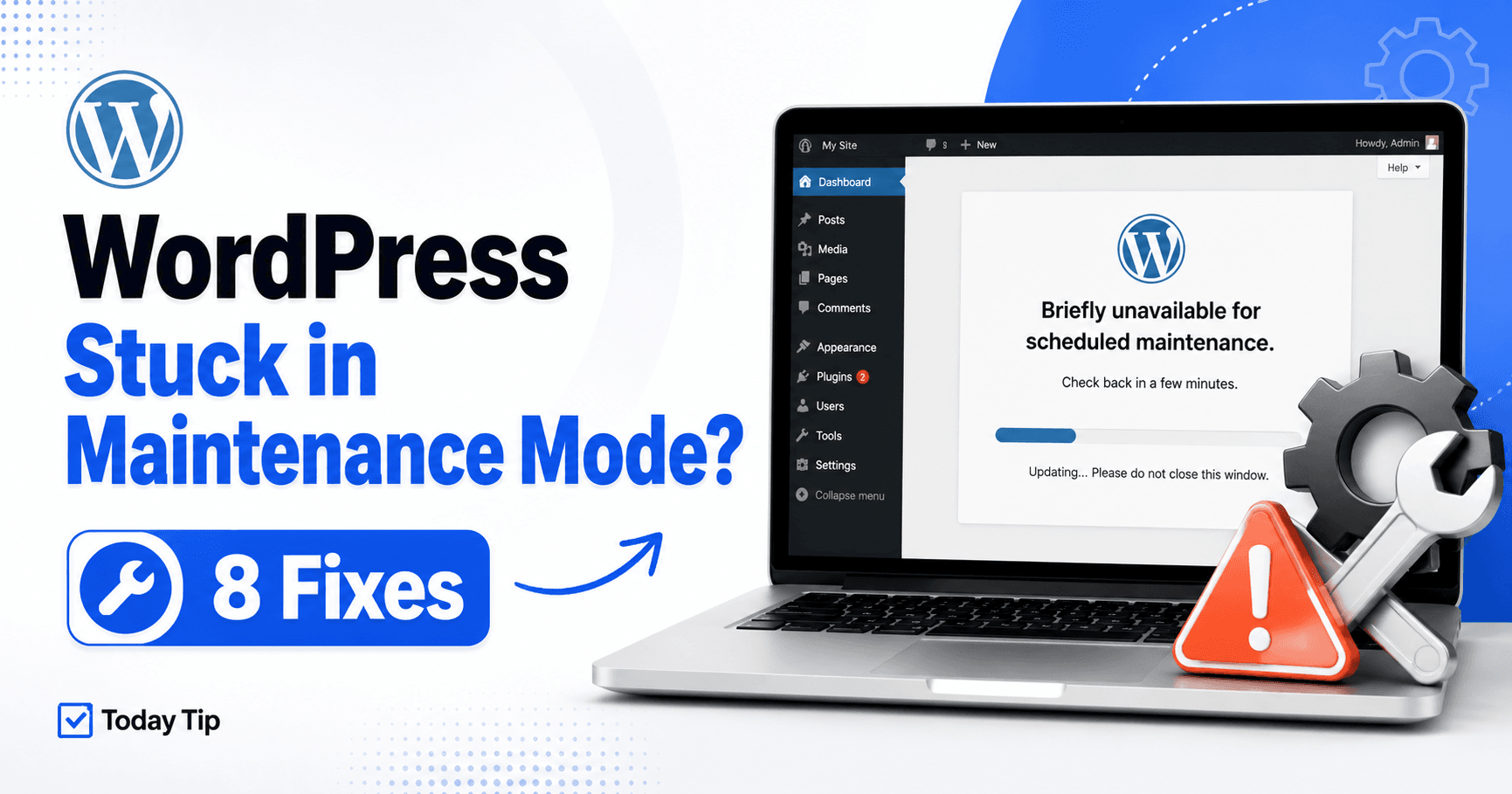
WordPress Stuck in Maintenance Mode: Recover Safely After an Update

A WordPress stuck in maintenance mode problem usually happens when a core, plugin, or theme update begins but WordPress does not complete the cleanup process correctly.

Instead of your website, visitors may see “Briefly unavailable for scheduled maintenance. Check back in a minute.”

WordPress normally creates a temporary .maintenance file while an update is running and automatically removes it when the update finishes.

If the update is interrupted, times out, runs out of memory, loses its connection, or cannot complete a file operation, that file may remain behind and keep the entire site in maintenance mode.

QUICK ANSWER

If WordPress is stuck on “Briefly unavailable for scheduled maintenance,” wait a few minutes first to make sure an update is not still running. If the message remains, open your hosting file manager or FTP/SFTP, go to the WordPress root directory, and remove the hidden .maintenance file. Then clear all caches, check wp-admin, verify that plugins, themes, and WordPress core finished updating correctly, and investigate PHP memory, execution time, permissions, or disk space if the problem returns.


What Is WordPress Maintenance Mode?

WordPress automatically uses maintenance mode while performing certain updates.

This prevents visitors from loading the website while WordPress is replacing important files.

During the update process, WordPress creates a temporary file named:

.maintenance

in the main WordPress directory.

A typical WordPress root directory may contain:

wp-admin
wp-content
wp-includes
wp-config.php
index.php
.maintenance

When the update finishes normally, WordPress deletes the .maintenance file automatically.

If the process is interrupted, however, the file can remain and continue forcing the website into maintenance mode.


1. Wait a Few Minutes Before Changing Anything

Do not immediately delete files the moment you see the maintenance message.

A legitimate update may still be running.

This is particularly true when updating:

  • WordPress core,
  • large plugins,
  • WooCommerce,
  • page builders,
  • security plugins,
  • or several plugins at the same time.

Wait approximately a few minutes and reload the site once.

If WordPress finishes the update successfully, the maintenance message should disappear automatically.

If the message remains for an unusually long time and wp-admin is also unavailable, the update probably did not complete normally.

At that point, continue with the next steps.


2. Delete the WordPress .maintenance File

The most common fix is removing the leftover .maintenance file.

Open your hosting file manager or connect using FTP/SFTP.

Navigate to the folder where WordPress is installed.

On many hosting accounts this may be:

/public_html/

Look for:

.maintenance

Because the filename begins with a dot, your file manager may treat it as a hidden file.

If you do not see it, enable an option such as:

  • Show Hidden Files,
  • Show Dotfiles,
  • Display Hidden Files,
  • or Show System Files.

Once you find .maintenance, delete it.

Then reload your website.

In many cases, the site immediately becomes available again.

Important

Do not delete the file while a WordPress update is genuinely still running.

Wait long enough to confirm that the update is stuck before manually removing it.


3. Clear WordPress, Hosting, CDN, and Browser Caches

After deleting .maintenance, you may still see the maintenance page because a cached version is being served.

Clear all caching layers used by your website.

This may include:

  • your WordPress caching plugin,
  • LiteSpeed Cache,
  • hosting-level cache,
  • object cache,
  • Cloudflare or another CDN,
  • reverse-proxy cache,
  • and browser cache.

Then open your website in an incognito browser window.

Also test:

/wp-admin/

If the public site works in incognito mode but your normal browser still shows the maintenance message, the problem is probably only cached locally.

Do not keep repeatedly purging every cache if the actual .maintenance file still exists. Remove the cause first, then clear caches.


4. Check Whether the WordPress Update Actually Finished

Removing maintenance mode restores access, but it does not guarantee that the original update completed successfully.

Log in to WordPress and go to:

Dashboard → Updates

Then check:

  • WordPress core version,
  • plugin updates,
  • theme updates,
  • and any components that were updating immediately before the site became stuck.

Also open:

Plugins → Installed Plugins

and check for:

  • plugins showing update warnings,
  • plugins that became inactive unexpectedly,
  • missing plugins,
  • or plugins that no longer load correctly.

If the same update fails again, do not repeatedly click Update.

Investigate the underlying update failure first.

See our WordPress Update Failed? 8 Fixes guide.


5. Check PHP Memory and Maximum Execution Time

A WordPress update may become stuck because the server cannot finish the process before reaching a resource limit.

Check your hosting dashboard and:

Tools → Site Health → Info → Server

Review:

  • PHP memory limit,
  • maximum execution time,
  • PHP version,
  • CPU usage,
  • RAM usage,
  • and PHP worker availability.

If your PHP logs show:

Allowed memory size exhausted

the update may be running out of memory before WordPress can remove maintenance mode.

See our WordPress Memory Exhausted Error? 7 Fixes guide.

If the logs instead show:

Maximum execution time exceeded

see our WordPress Maximum Execution Time Exceeded? 8 Fixes guide.

Increasing server limits may help, but do not use extremely large limits simply to hide an inefficient or broken update process.


6. Check Disk Space, File Ownership, and Permissions

WordPress must be able to download, extract, replace, and delete files during an update.

If the hosting account cannot perform one of those operations, the update may stop before maintenance mode is removed.

Check your hosting dashboard for:

  • available disk space,
  • storage quota,
  • inode or file-count limits,
  • temporary storage,
  • and filesystem errors.

Storage is often consumed by:

  • old backups,
  • cache directories,
  • migration archives,
  • debug logs,
  • staging sites,
  • and unused files.

Also verify file permissions.

On many Linux WordPress hosting environments, commonly used permissions are:

  • 755 for directories,
  • 644 for files.

The correct ownership depends on your hosting configuration.

If WordPress cannot modify files inside:

/wp-content/

or the WordPress root directory, ask your host to check ownership and permissions.

Do not use permission 777 across your WordPress installation as a shortcut.


7. Check for a Broken Plugin or Theme Update

Sometimes maintenance mode is only the first symptom.

After removing the .maintenance file, the website may display:

  • a critical error,
  • a blank screen,
  • HTTP 500,
  • a PHP syntax error,
  • or a broken plugin message.

This can happen if the update stopped after removing old files but before installing the complete replacement.

If you know which plugin was being updated, inspect:

/wp-content/plugins/

Check whether its directory exists and appears complete.

If necessary, temporarily rename the plugin folder.

Then reload WordPress.

If the site returns, download a clean copy of the plugin from a trusted source and reinstall it.

For themes, inspect:

/wp-content/themes/

If an incomplete update leaves a conflicting directory and WordPress later says the destination folder already exists, see our WordPress Destination Folder Already Exists? 8 Fixes guide.


8. Restore or Manually Update WordPress When Necessary

If WordPress remains unstable after removing maintenance mode, you may need to repair the failed update.

Before making major changes:

  • back up the database,
  • back up wp-content,
  • back up wp-config.php,
  • and record the current WordPress version.

For a failed WordPress core update, you can download a clean WordPress package from the official source and carefully replace core files.

Do not overwrite or delete:

wp-config.php

and do not replace your:

wp-content

directory.

If you have a reliable backup created immediately before the failed update, restoring it may be safer than manually repairing several damaged files.

After recovery, apply updates again one at a time instead of updating many major components simultaneously.


Why Does WordPress Say “Briefly Unavailable for Scheduled Maintenance”?

The message is normally temporary.

WordPress deliberately displays it while replacing files during updates.

If the process completes successfully, the message disappears automatically.

It becomes a problem only when the temporary maintenance state remains after the update has stopped.

The most common reason is a leftover:

.maintenance

file.


Where Is the WordPress .maintenance File?

The file is normally located in the root directory of the WordPress installation.

For example:

/public_html/.maintenance

or:

/your-wordpress-folder/.maintenance

It is not normally stored inside:

/wp-content/

Because it is a hidden dotfile, make sure your hosting file manager displays hidden files.


What if There Is No .maintenance File?

If you cannot find .maintenance but the maintenance page still appears, check caching next.

Possible sources include:

  • a WordPress caching plugin,
  • LiteSpeed server cache,
  • Cloudflare,
  • a reverse proxy,
  • hosting cache,
  • or browser cache.

Also check whether your site is using a separate maintenance-mode plugin.

A plugin-created maintenance page is different from WordPress’s automatic update maintenance mode.

If a maintenance plugin is active, disable maintenance mode through that plugin’s settings.


Why Does WordPress Keep Entering Maintenance Mode?

If the problem happens repeatedly, the .maintenance file itself is not the underlying cause.

Repeated maintenance-mode failures can indicate:

  • insufficient PHP memory,
  • short execution limits,
  • slow hosting,
  • PHP worker exhaustion,
  • low disk space,
  • incorrect permissions,
  • a broken plugin update,
  • or unstable network connectivity during updates.

Check the PHP and hosting logs at the exact time an update fails.

The recurring cause should be corrected instead of manually deleting .maintenance after every update.


Maintenance Mode vs 503 Service Unavailable

These can look similar to visitors, but they are not necessarily the same problem.

WordPress maintenance mode normally shows the specific message:

“Briefly unavailable for scheduled maintenance. Check back in a minute.”

An HTTP 503 Service Unavailable error generally indicates that the server or application is temporarily unable to handle a request.

A maintenance system can intentionally return a 503 status, but an unexpected 503 can also be caused by server overload or PHP problems.

If your site shows a generic 503 error rather than the WordPress maintenance message, see our WordPress 503 Service Unavailable? 8 Fixes guide.


Can Updating Too Many Plugins at Once Cause This?

Yes.

Updating many large plugins simultaneously increases the amount of:

  • download activity,
  • file extraction,
  • disk operations,
  • PHP processing,
  • and database work

required during a single maintenance period.

On limited hosting, this increases the chance of:

  • timeouts,
  • memory exhaustion,
  • PHP worker problems,
  • or interrupted updates.

For important production websites, updating major plugins individually or in small groups makes troubleshooting easier if something fails.


Can Closing the Browser Cause Maintenance Mode to Get Stuck?

Sometimes an update continues on the server even if the browser tab closes, but interrupting the process can still contribute to problems depending on how the update is being executed.

During an important WordPress update:

  • keep the browser open,
  • avoid refreshing repeatedly,
  • do not start another update simultaneously,
  • and wait for the completion message.

If your internet connection disconnects briefly, do not immediately restart the same update until you confirm the current state.


Does Deleting .maintenance Delete My Website?

No.

The .maintenance file is normally only used to tell WordPress that an update is in progress.

Deleting a leftover .maintenance file does not delete:

  • posts,
  • pages,
  • media,
  • plugins,
  • themes,
  • or the database.

However, deleting it only removes maintenance mode.

It does not repair files damaged by the interrupted update.

Always check the website and the component that was being updated afterward.


Why Is wp-admin Also Stuck in Maintenance Mode?

WordPress automatic maintenance mode normally affects the entire installation, including wp-admin.

This means you may be unable to fix the problem from inside the WordPress dashboard.

That is why you usually need:

  • your hosting file manager,
  • FTP,
  • or SFTP

to delete the leftover .maintenance file.


Can a Failed Theme Update Cause Maintenance Mode?

Yes.

Theme updates use the same WordPress update system.

If a theme update is interrupted, maintenance mode can remain active.

After removing the maintenance file, inspect:

/wp-content/themes/

and make sure the active theme still contains its expected files.

If the active theme is damaged, temporarily switch to another valid theme and reinstall a clean copy.


How to Prevent WordPress From Getting Stuck Again

After fixing the site, use these practices before future updates:

  • Create a current backup first.
  • Keep sufficient free disk space.
  • Use a supported PHP version.
  • Keep adequate PHP memory.
  • Avoid updating many large components at once.
  • Do not interrupt active updates.
  • Keep filesystem ownership and permissions correct.
  • Run major updates during lower-traffic periods.
  • Use a staging site for risky changes when possible.

Most maintenance-mode problems are symptoms of an interrupted update, so making the update process more reliable is the best long-term fix.


Final Checklist

If WordPress is stuck in maintenance mode, work through these steps:

  1. Wait a few minutes to make sure the update is not still running.
  2. Remove the leftover .maintenance file.
  3. Clear WordPress, hosting, CDN, and browser caches.
  4. Check whether the original update finished correctly.
  5. Review PHP memory and execution-time limits.
  6. Check disk space, ownership, and permissions.
  7. Inspect the plugin or theme that was being updated.
  8. Repair the update or restore a clean backup if necessary.

In most cases, deleting the leftover .maintenance file restores access immediately. The important follow-up is finding out why the update was interrupted so the site does not become stuck again during the next update.

Leave a Comment