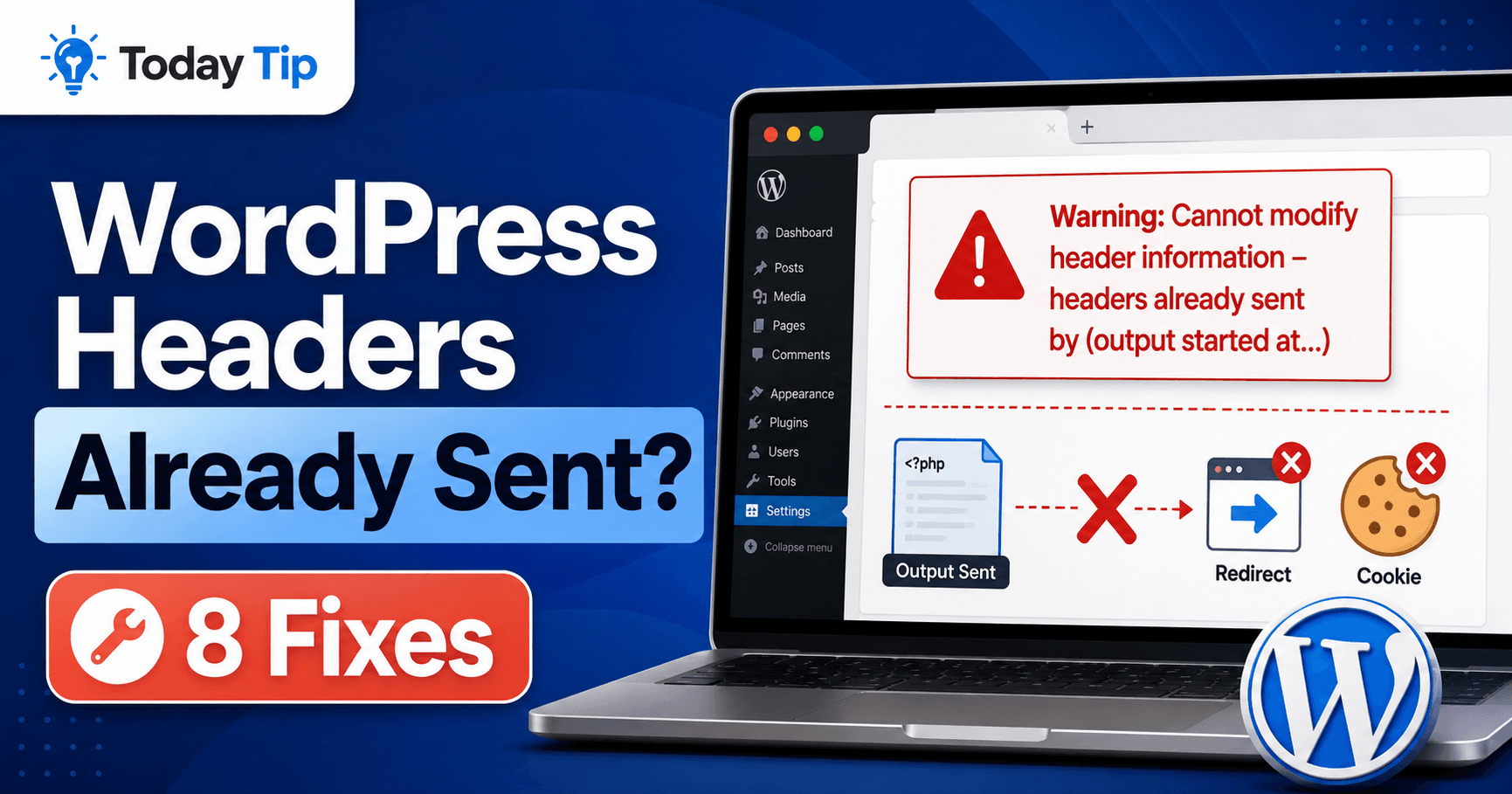
A login that keeps returning to the sign-in screen, a failed redirect, or JSON mixed with warning text can all follow a PHP “headers already sent” warning. Read the output started at location first: it identifies the earlier output that prevented a later cookie or redirect header.
This guide helps you separate that first event from the later failure, correct the identified file and test the affected operation.
Guide reviewed: October 8, 2026. Interface labels may vary by version, account and device.
Quick diagnosis
| Evidence | Likely path | Next check |
|---|---|---|
| Output begins at line 1 after an edit | Whitespace or encoding | Compare the file with its previous copy and inspect encoding. |
| A warning appears before the header warning | Earlier PHP error | Find the earliest message at the same request time. |
| A plugin prints text before login | Debug or unintended output | Remove only unintended output on staging. |
| The later path is a core file | Header attempted after output | Investigate the first output path before changing core. |
Why a small amount of output matters
HTTP headers carry information such as cookies and redirects before the response body. Once the headers have been sent, PHP cannot add another header through its ordinary header function.
Unexpected output might be visible text, an earlier warning, a debugging statement or characters outside PHP tags. Buffering can change when output reaches the client, which helps explain why the same code may behave differently in another server configuration.
For the site owner, the practical symptom may be a login that returns to the sign-in page, a redirect that fails or an API response containing warning text. The warning is worth investigating even when part of the page still appears.
Read the complete warning
Record two locations: the source of the first output and the later failed header. In a warning naming custom-plugin.php:12 followed by pluggable.php, investigate the plugin line first. This example is illustrative; your actual paths determine the next step.
Keep the file path and line after “output started at,” along with the later location where the header failed. Compare the time with earlier PHP warnings in the logs.
For example, a custom plugin may print a debugging message before WordPress sends a login cookie. The warning can then mention a core login-related function. Correcting the plugin’s early output addresses the sequence; changing the core function does not.
Paths can reveal internal server details. Keep the full version for your own diagnosis or trusted support, but remove private information before posting it publicly.
Check recent edits at the first output location
If the file was recently edited, save a backup and compare it with the prior working version. Look for spaces or blank lines before the opening PHP tag, accidental text outside PHP, or debug statements such as echo and var_dump().
An invisible UTF-8 byte order mark can also be relevant, especially when output begins at the first line after an editor change. A code editor that shows or controls encoding is more useful than repeatedly deleting visible whitespace.
PHP-only files commonly omit the closing PHP tag to avoid accidental trailing output. Mixed PHP and HTML templates are different: removing tags or visible HTML without understanding the template can break intended output.
An earlier warning may be the real beginning
When PHP displays an error or notice before WordPress sends a header, that displayed message can trigger the later header warning. Review the earliest relevant message rather than fixing only the last line reported.
Production diagnosis should use appropriately protected logs instead of exposing errors to visitors. Hiding displayed warnings alone does not repair the code error, and a public debug log can expose information of its own.
Record the PHP version and component version when asking a developer for help. Compatibility changes may explain a warning that did not appear before an update.
Test the component identified by the evidence
- Keep a copy of the affected file and note the failing action.
- Restore or correct only the identified change on staging.
- Repeat the same login, redirect or API request.
- Review fresh logs for an earlier warning, then deploy the verified repair.
If the first output belongs to a plugin or theme, compare that component with a clean official version or test its behavior on staging. Preserve custom modifications before replacing files.
Disabling a live component can affect forms, payments or other site functions. When admin access is unavailable, recovery through the host may be appropriate, but the aim is a controlled change to the identified component rather than renaming every folder.
A warning disappearing after a change is evidence that the output path changed. Still check the logs and the original operation before calling the issue resolved.
Verify cookies, redirects and API responses
After the correction, repeat the operation that originally failed. For login, check that the session remains authenticated. For a redirect, confirm the destination. For an API request, confirm that it returns the expected format without warning text.
Output buffering may mask a timing problem in some configurations, but it is not a universal repair for accidental output. Finding and correcting the first unintended output produces a clearer, more dependable result than suppressing the final warning.
Further reading
- WordPress Parse Error
- WordPress Update Failed
- WordPress Login Not Working
- WordPress Invalid JSON Response
- PHP: headers_sent()
Repair confirmation checklist
- The original action succeeds, including a persistent login or correct redirect destination.
- The response contains its intended content without injected debug text.
- No new header warning appears in protected logs for the test request.
If the first output path is empty or unclear, give your host the timestamp and complete warning privately. Startup errors and server buffering can affect what the message reveals.